Category: UI/UX

  • Form Design Principles: 13 Empirically Backed Best Practices

    Thirteen research backed form design principles that lift completion and satisfaction. Clear tips to make forms fast, simple, and error resistant.

    Forms play a significant role in user interactions since it is usually through this feature that users can access a given service, make purchases, or gather other relevant and vital information.

    A good layout simplifies these interactions, increases customer satisfaction, reduces mistakes, and improves the total rate of completed forms. This is especially critical in mobile-first environments, with limited screen space and attention spans.

    As people are more concerned with computer networks, form designing should be an essential focus. Studies conducted in this field have helped determine and articulate better ways of doing user-centered forms.

    To make your web design better and neater, read this guide.

    Contrast

    Contrast separates important elements from everything else on your form. It uses color, size, and typography to guide users toward the most critical actions.

    High contrast draws immediate attention to submit buttons and required fields. When your call-to-action button stands out from the background, users know exactly where to click next.

    Proper contrast also ensures your form text remains readable. Dark text on white backgrounds or white text on dark backgrounds creates the clearest reading experience. This approach follows WCAG 2.1 accessibility standards, which require a minimum contrast ratio of 4.5:1 between text and background colors.

    Four Types of Contrast
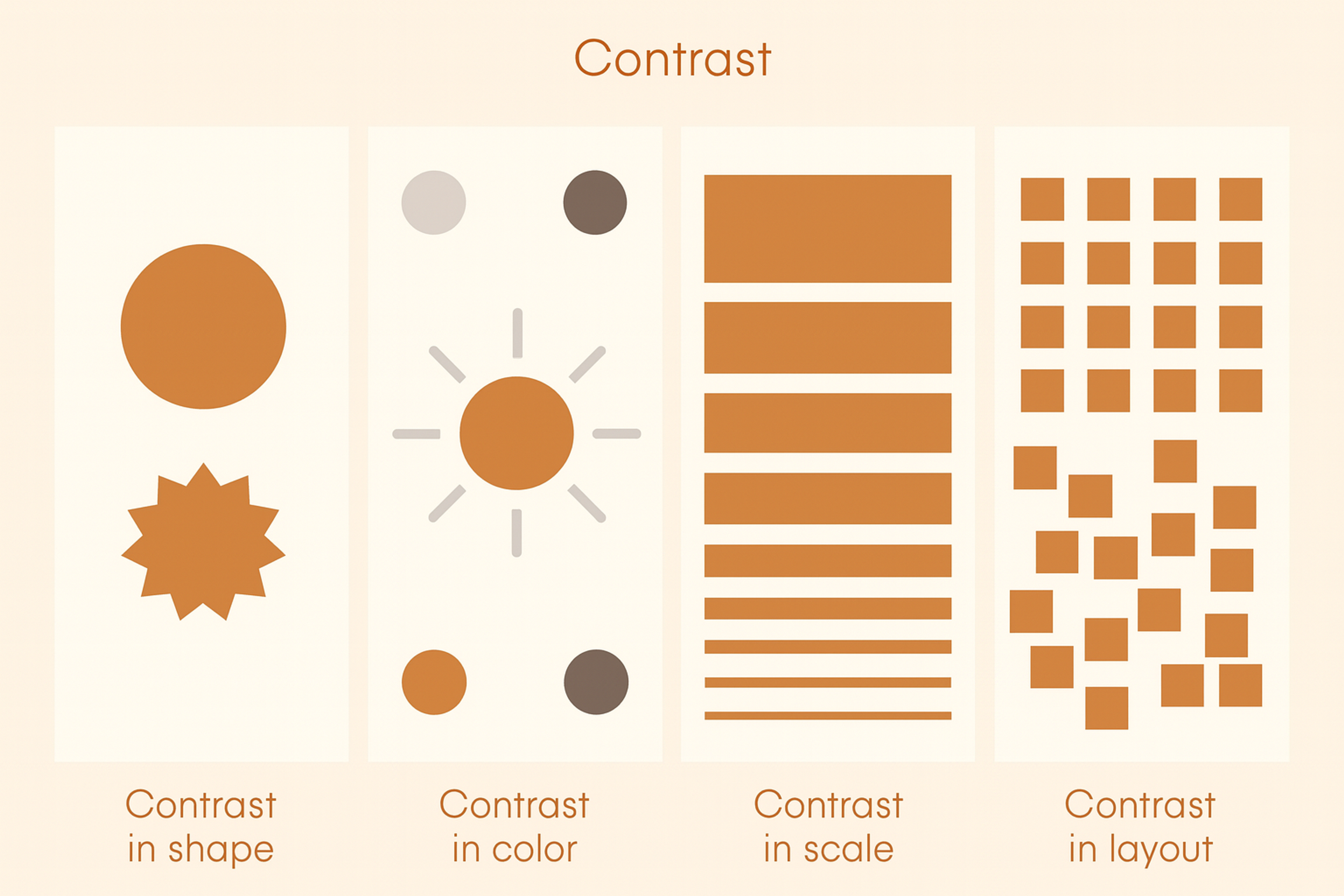
    This image illustrates four types of contrast

    Spotify does this well: bright green buttons on dark backgrounds make subscription actions impossible to miss, so users instantly know where to look.

    Contrast can also create balance around a central focal point—useful for rating systems or circular layouts.

    And contrast isn’t only color: size, font weight, and spacing can separate elements and guide users through a form.

    Single-Column Layout

    Single-column layouts improve form completion rates by creating a natural reading flow. Users scan from top to bottom without having to jump between columns or miss important fields.

    This layout matches how people naturally read and scroll through content. When fields appear in a predictable vertical sequence, users can fill them out in one smooth motion without refocusing their eyes across the page.

    Typeform’s single-column, conversational forms reduce abandonment by keeping a clear, natural flow.

    Keep the layout single-column by default, with rare side-by-side exceptions for closely related fields (e.g., first/last name, city/state). This is especially important on mobile, where multi-column layouts break usability.

    Source: websitesetup
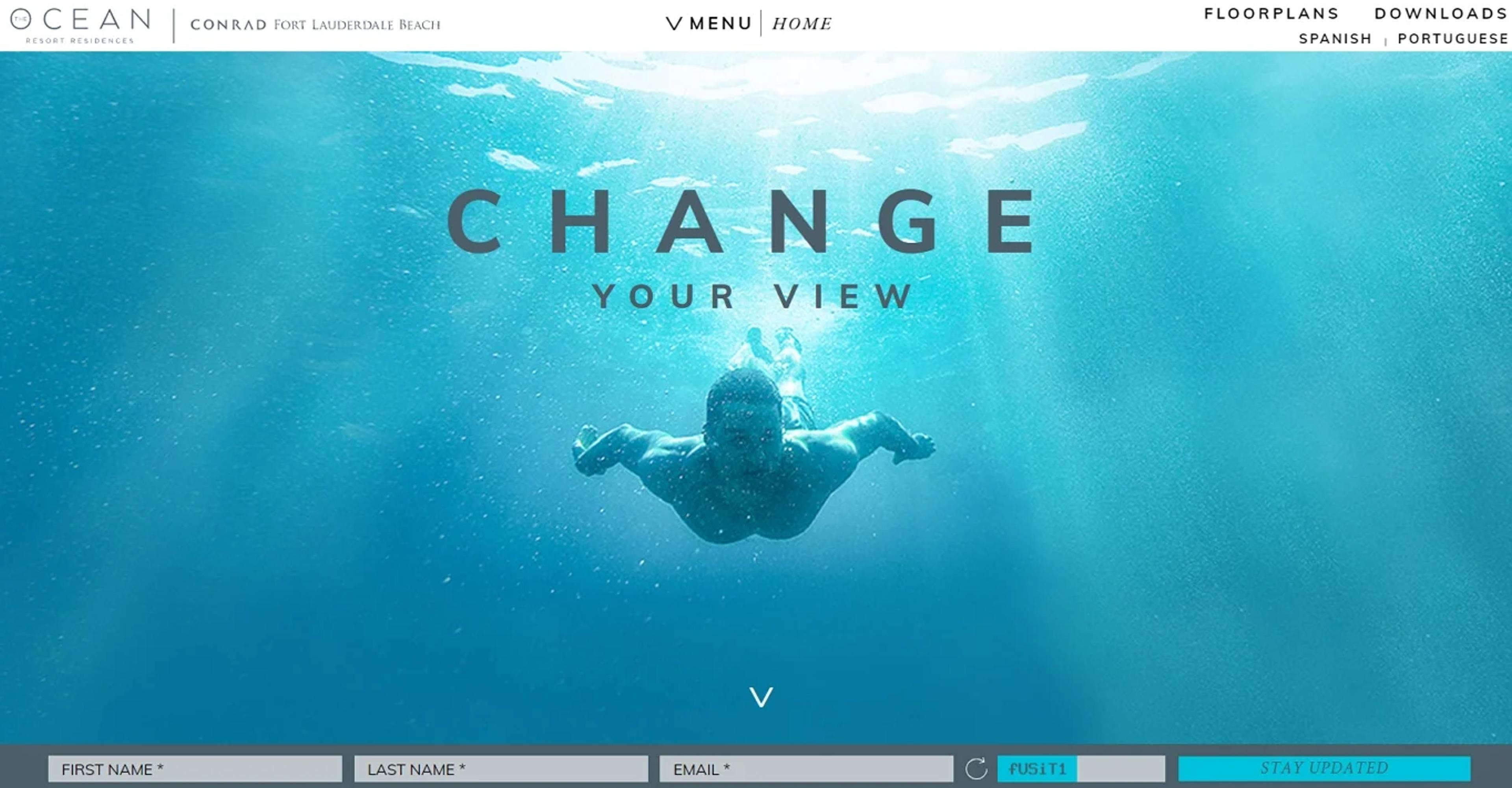
    The Ocean Resort uses the full width of its single-column design to maximise the impact of imagery

    Unity

    When we speak about unity in form design, we mean the work pocketing all available constituents to give the user a perfect and complete feeling. This concept is essential in composing every element of the form: its colors, typefaces, fields to fill in, buttons, and even the spaces in between. Unity is closely tied to the principle of harmony, where disparate elements like typography and iconography share visual traits (e.g., rounded corners and consistent stroke widths).

    A clear design language keeps attention on content, not mismatched styles. Use consistent colors and components to guide actions and build your brand. For example, Dropbox uses its signature blue for primary buttons across forms.

    That consistency creates recall and makes the flow easier to follow. Unified design feels dependable and professional, which builds user trust. Trust leads to smoother interactions and a better overall experience.

    Our project for Grayscale demonstrates how unity in design plays a vital role in creating a cohesive digital identity. Every element, from colors and typography to spacing and buttons, is harmonized to give users a seamless experience.

    Grayscale Web Design by Clay

    By maintaining consistency across all design aspects, the site directs user focus toward content rather than conflicting styles. This approach strengthens the brand’s identity and enhances user trust and engagement, offering a polished and professional interaction.

    This approach goes beyond Grayscale. At Clay, we craft immersive, user-focused experiences for the crypto space, blending innovative design with seamless functionality.

    By aligning brand identity with user needs, we help businesses build trust, create lasting impressions, and foster meaningful connections with their audience.

    Pattern

    Design patterns are familiar elements users see across sites and apps. They cut the learning curve and speed up forms. When your form follows known patterns, people don’t have to think. They use what they already know.

    Conventions make forms intuitive. Required fields use red asterisks. Email comes before password. The submit button sits at the bottom. Google’s sign-up follows these rules with clear validation and predictable buttons. Amazon’s checkout uses the standard order: shipping first, then payment. This predictability reduces friction.

    Break patterns only with a strong reason and solid testing. Most of the time, consistency serves users better than clever twists. Give instant, clear error messages and show how to fix issues. Meeting these expectations keeps the experience smooth.

    Source: accounts.google
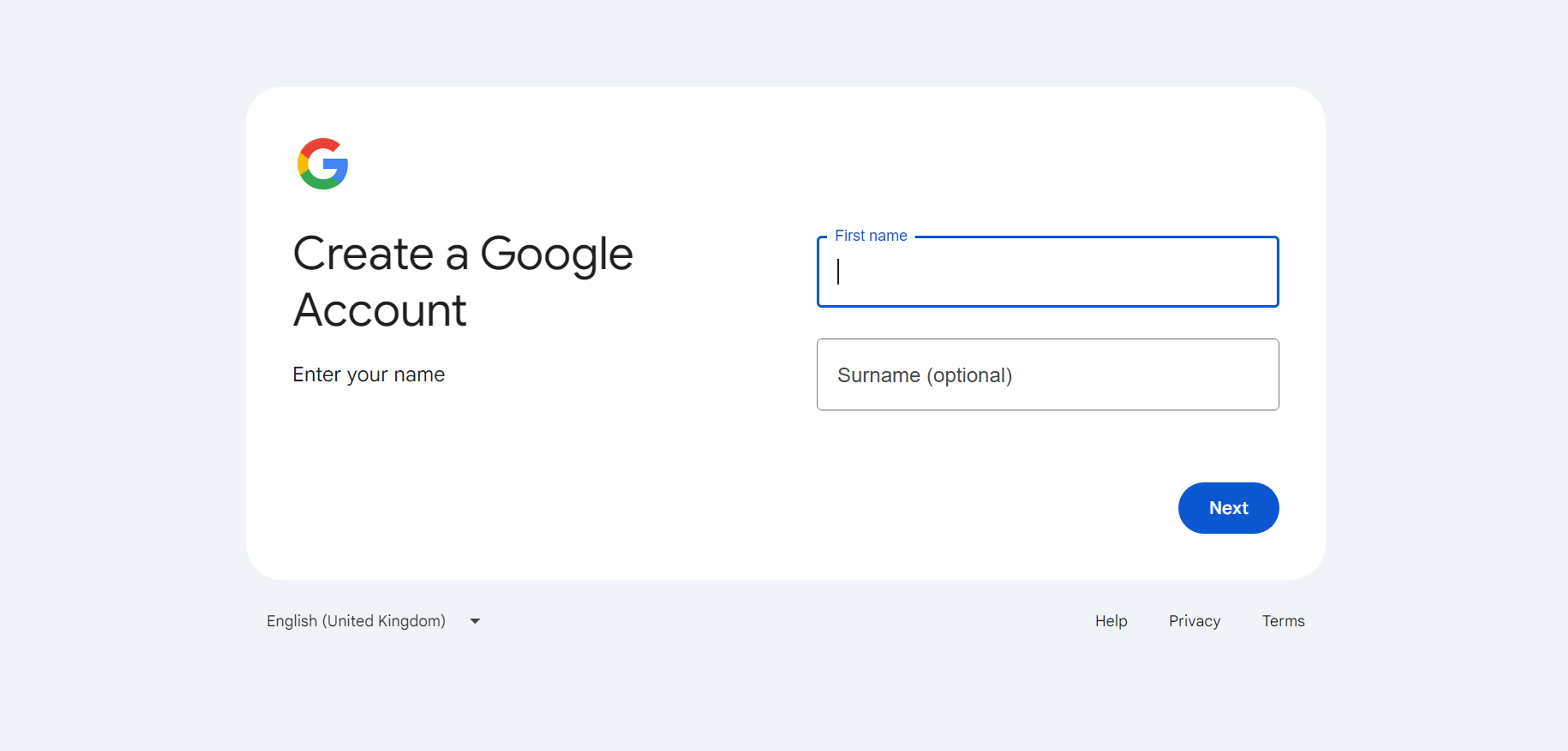
    This is a Google account creation form

    Clear and Concise Labels

    Clear labels remove confusion about each field. Make them precise, descriptive, and easy to see while typing.

    Placement matters. Labels above inputs are usually clearest. Left-aligned labels save space but increase mental effort.

    Do not rely on placeholders as labels. They vanish when users type and leave no guidance.

    Material Design shows good practice. It uses clear labels above fields and supportive placeholder text.

    Keep labels concise but specific. “Email” is better than “Contact information.”

    Match language to your audience. Avoid jargon for general users.

    Test labels with real people to confirm understanding.

    Add short help text when extra guidance improves accuracy.

    Source: m3.material.io
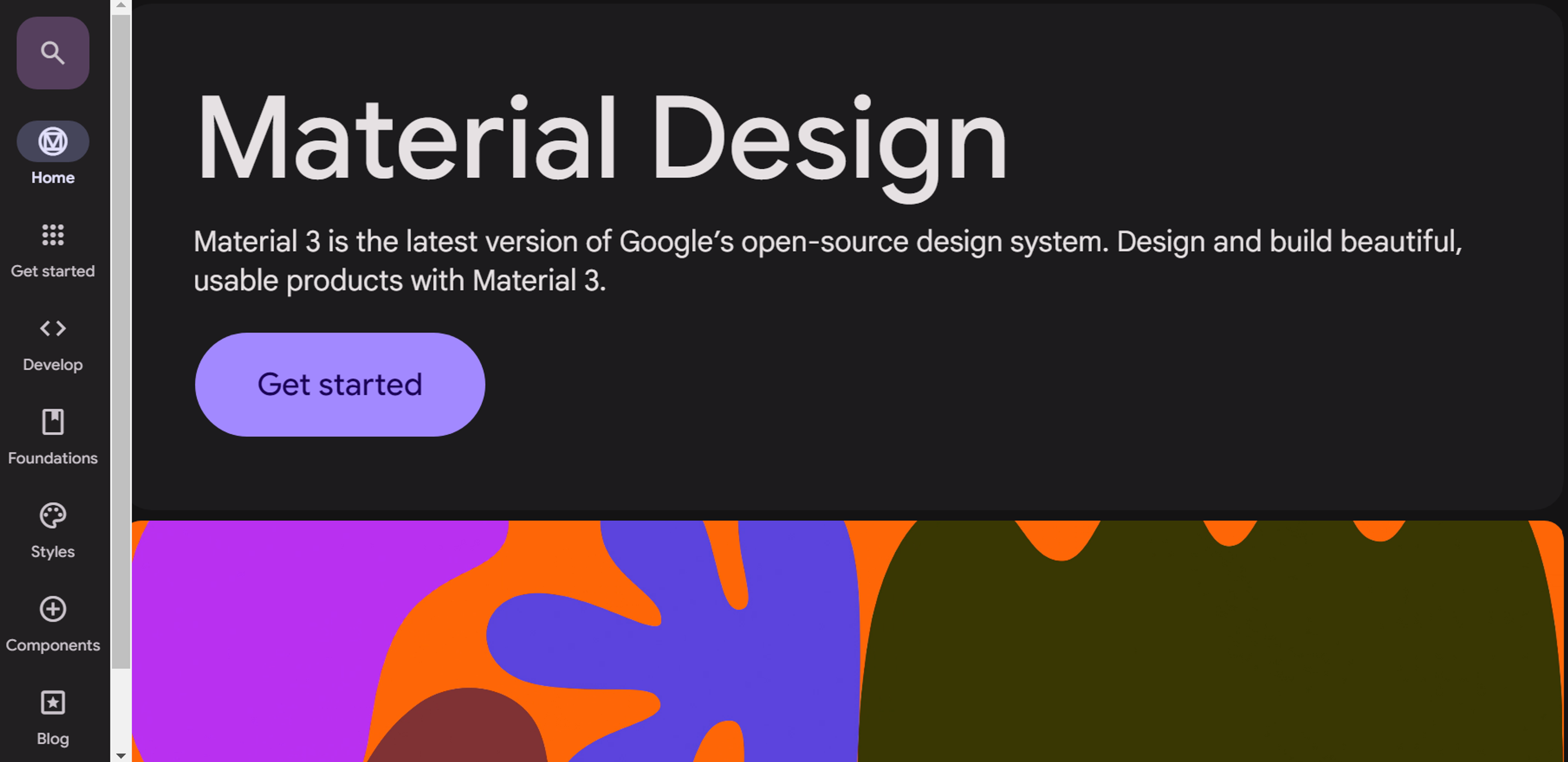
    This is an introduction to Google's Material Design 3 system

    Scale and Visual Weight

    Scale creates hierarchy. Bigger elements signal importance; smaller ones feel secondary.

    Make the submit button larger than “Cancel” or “Reset.” Guide users to complete the form.

    Use larger, bolder headers for sections and key instructions. They orient users in long forms.

    Give primary actions the most visual weight. Keep secondary actions lighter. Use distinct colors for destructive actions.

    Maintain proportional balance so nothing feels oversized or too tiny.

    On mobile, size for touch. Buttons and fields should be easy to tap. Aim for at least 44×44 pixels.

    Scale / Proportion of Size, Ratio, Divisions
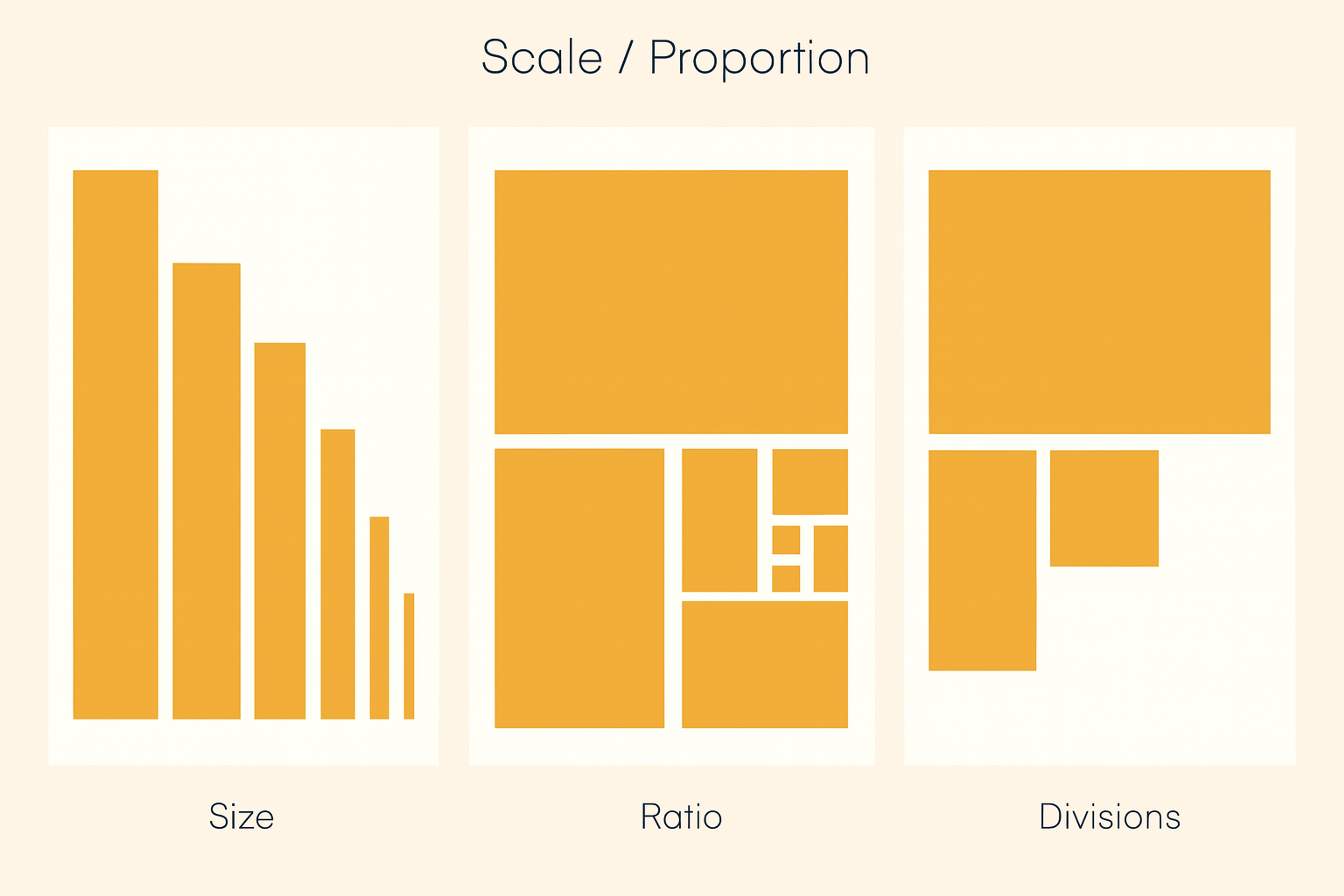
    This image demonstrates scale and proportion through size, ratio, and divisions

    Appropriate Input Types

    HTML5 input types boost accuracy and ease of use. They match each field to the right control.

    Use email to auto-check format and open the email keyboard on phones. Use tel to show a numeric keypad. Use date to give a calendar picker and avoid format mistakes. Users no longer guess between MM/DD/YYYY and DD/MM/YYYY.

    number fields can set min and max values. That stops invalid entries and keeps data clean. Quantity pickers follow your business rules.

    Choosing the right input type is vital on mobile. It triggers the correct keyboard and speeds completion.

    Add progressive enhancement. Offer modern inputs where supported and clean fallbacks where they are not. This keeps forms usable for everyone while improving them for most users.

    Balance

    Visual balance spreads elements so no area feels too heavy or too light. Balanced forms feel stable and intentional.

    Symmetrical balance arranges items evenly around a center line. It looks formal and organized. It suits simple forms where order matters.

    Asymmetrical balance mixes sizes and weights without losing stability. Careful placement keeps the layout dynamic and clear.

    Mailchimp’s sign-up forms show good balance. They feel professional without looking stiff.

    White space is crucial. Space between fields prevents crowding and lowers mental load.

    Watch visual weight. Dark colors, big sizes, and bold type feel heavier. Distribute them thoughtfully across the form.

    Source: login.mailchimp
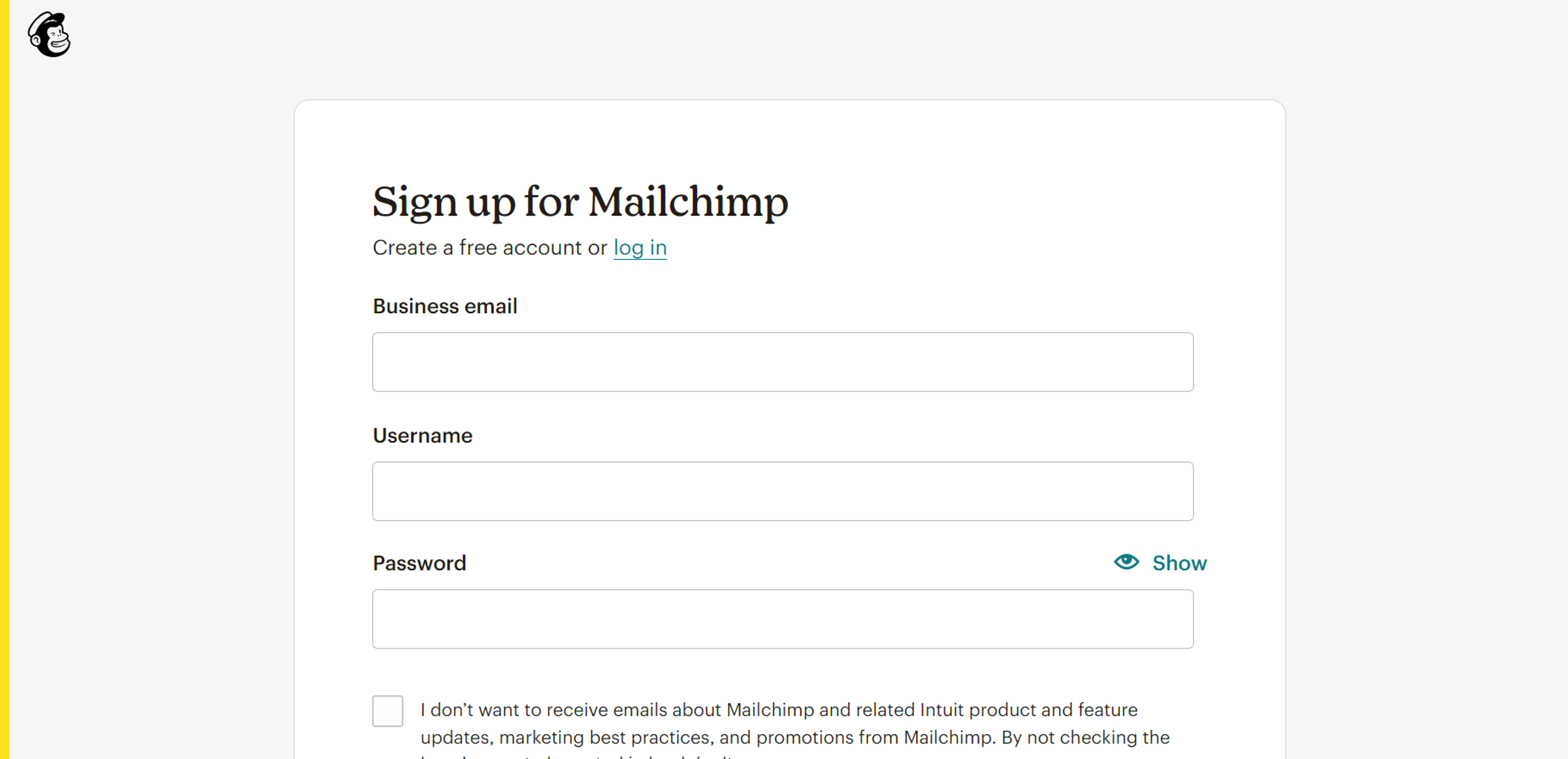
    This is a sign-up form for Mailchimp

    Variety

    Variety keeps users engaged in long forms. Mix input types – multiple choice, sliders, text fields, and dropdowns – to fit each question and add interest.

    Use subtle changes in color and type to mark sections without causing chaos. Typeform shows this well: diverse inputs and light interactivity make forms feel like a conversation.

    Add conditional fields to personalize the flow based on answers. Make sure every variation serves a purpose and aids completion.

    Stay consistent. Even with different inputs and visuals, keep one design language so the form feels unified and professional.

    Source: typeform
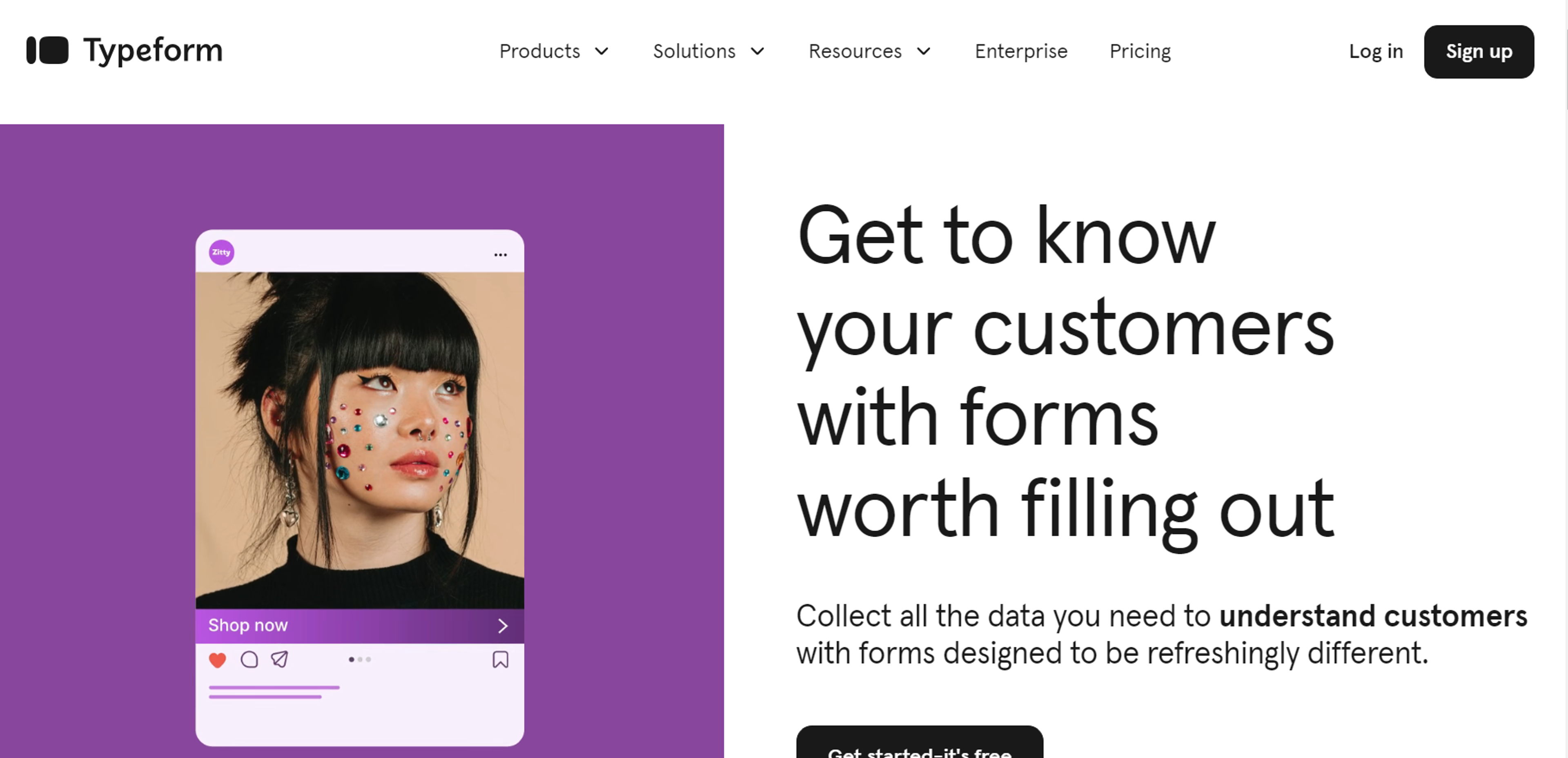
    This is a promotional landing page for Typeform

    Optimize Form Length

    Short forms usually convert better. Ask only what you truly need. If a form is long, split it into clear steps. Show progress so users know how far they’ve come.

    Reveal extra questions only when they’re relevant. This keeps the first view short and focused. Duolingo’s onboarding does this well by using quick, simple steps.

    Prioritize must-have questions and collect nice-to-have details later. Mark optional fields clearly and place them after required ones. For lengthy flows, let users save and finish later.

    Source: duolingo
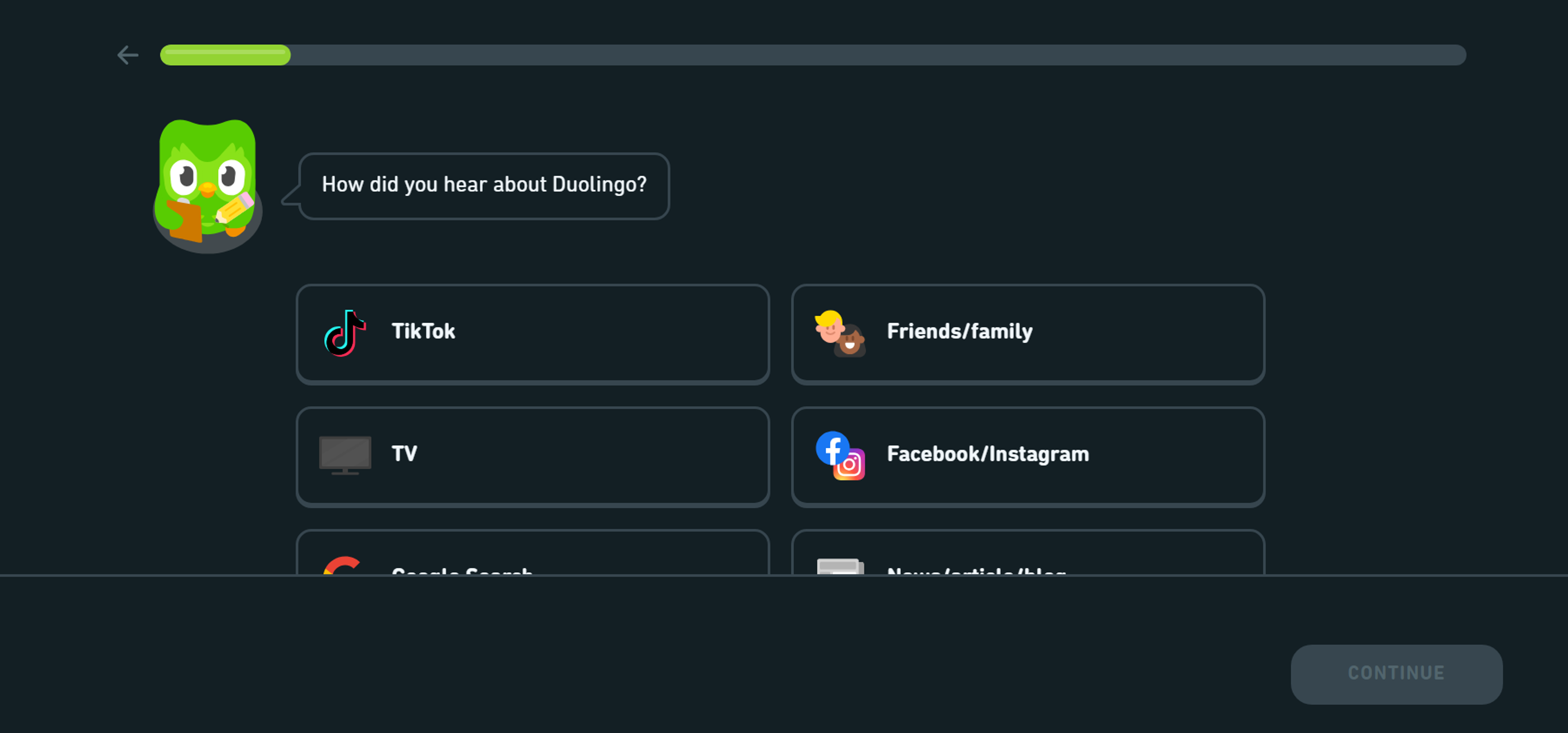
    This is a Duolingo user feedback screen asking how the user heard about the app

    Rhythm

    Rhythm guides users through a form with predictable spacing, alignment, and order. Consistent field heights and gaps create a natural flow. People learn where the next field will appear and how to move forward.

    Group related fields with equal spacing, like contact info or billing and shipping. Keep button placement, label positions, and help text consistent so users don’t think about the interface. Use larger gaps to mark new sections and smaller gaps to link related fields.

    Maintain the same rhythm on mobile and tablet. Adapt spacing to the screen while keeping the logical flow intact.

    Consider the form design on LinkedIn’s sign-up page. The consistent spacing, alignment, and logical sequence of input fields create a smooth flow for users. This rhythm ensures a simple and intuitive experience, keeping users engaged throughout the process.

    Source: linkedin
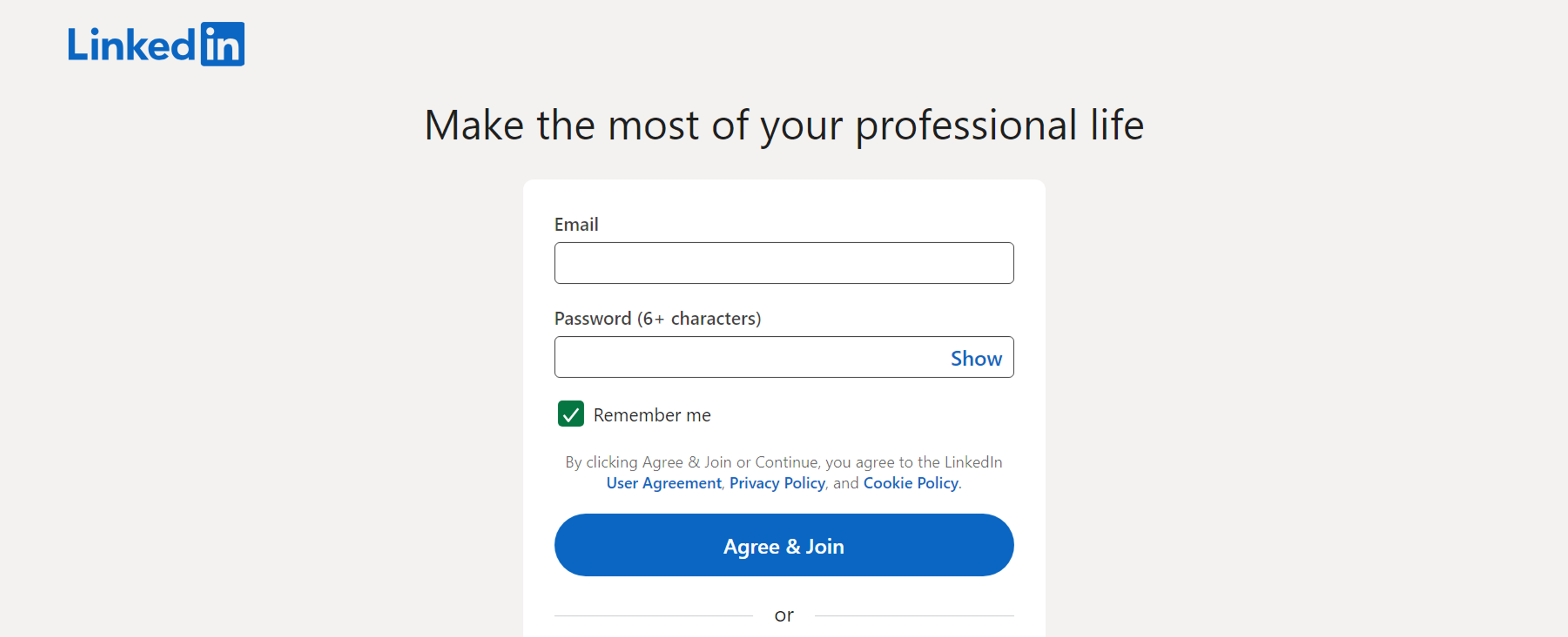
    This is a LinkedIn sign-up form

    Emphasis

    Emphasis guides attention to the most important form elements. Use color, size, position, and type to signal priority.

    Give the primary action button the strongest emphasis. Make it larger, bolder, or in a high-contrast color. It should clearly show the next step.

    Color works well for critical actions and key notes. Contrast makes submit buttons pop and highlights required fields or instructions.

    Typography can also lead the eye. Use bold or larger text for important directions and error messages so no one misses them.

    Position matters. Place crucial elements at the top or beside key fields. Show the right information at the right moment.

    Don’t overdo it. Too many highlights create noise. Pick one main emphasis method per section to keep things clear.

    Emphasis by Creating Focal Points
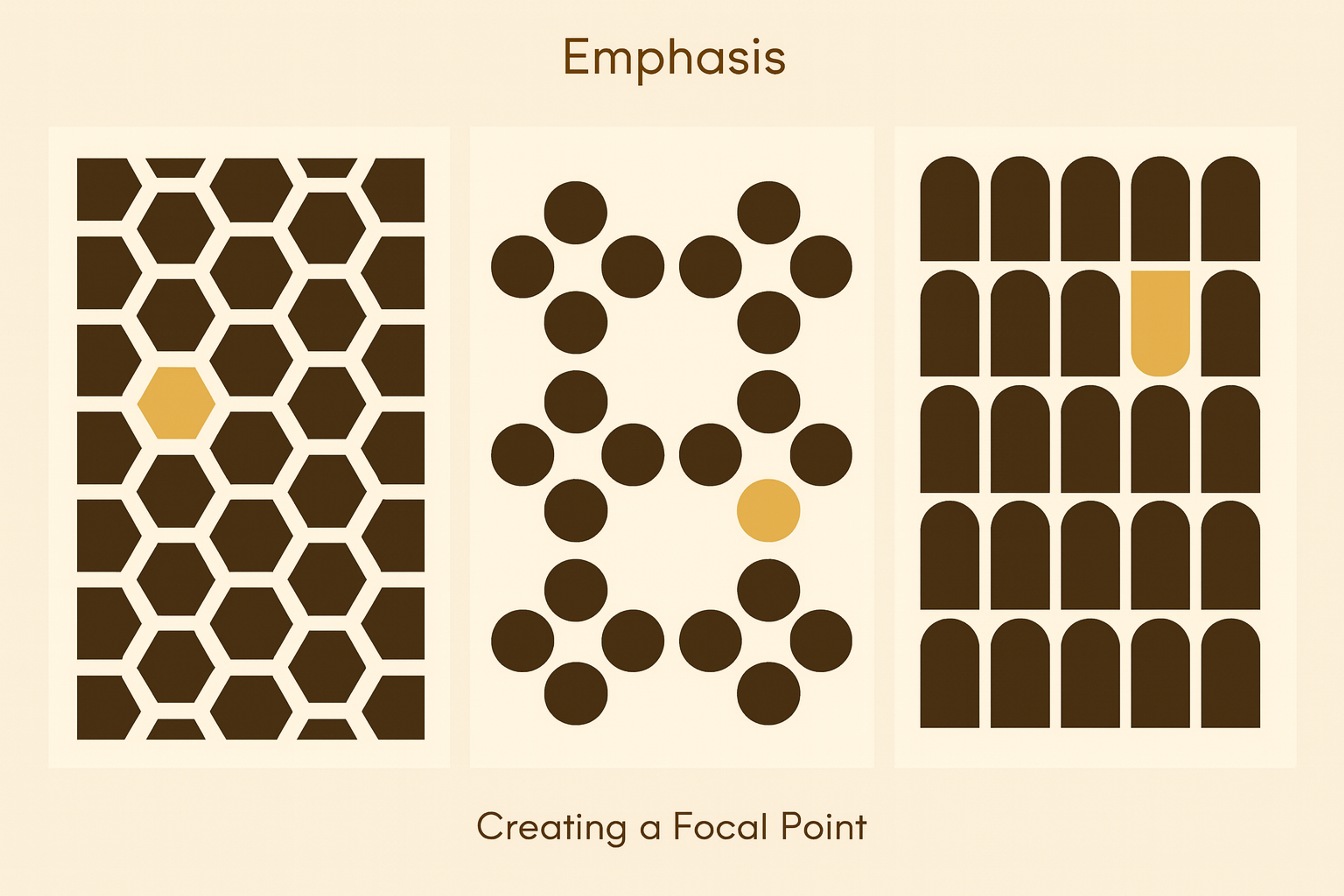
    This image demonstrates emphasis by creating focal points

    Offer Field Focus

    Field focus makes the active input stand out. Users see exactly where they are typing.

    Show focus with a border color change, a light highlight, or a subtle animation. Keep it clear but not distracting. Color is fast to read – many forms switch a gray border to blue or add a soft glow.

    On mobile, focus cues matter even more. There’s no hover, and tapping can be imprecise. Clear indicators confirm the right field before typing.

    Keep the focus state visible while users type. This steady signal prevents errors and builds confidence.

    Make focus accessible. Keyboard and assistive tech users rely on strong indicators. Use gentle animations to smooth the change without hurting clarity.

    FAQ

    What Is Form in Principles of Art?

    Form in art refers to objects with three dimensions – height, width, and depth. It goes beyond shape by adding volume and mass, giving artworks a sense of realism.

    What Defines a Form in Art?

    A form is defined by its structure and how it occupies space. Light, shadow, and perspective help define its volume.

    What Is a Form Example?

    Examples include spheres, cubes, cylinders, and pyramids in sculpture or painting. In drawing, shading a circle into a sphere shows form.

    What Defines Form?

    Form is defined as the three-dimensional quality of an object, distinguished from flat shapes by depth and volume.

    Read more:

    Conclusion

    Effective form design reduces user effort through smart choices, combining balance and clear emphasis to improve completion.

    Keep testing and iterating based on feedback so forms stay usable as needs evolve.
  • 20 Best Figma Plugins for UI/UX and Web Designers in 2026

    Supercharge your design workflow with the 20 game-changing Figma plugins every UI/UX designer needs in 2026.

    Figma continues to be the go-to tool for UI/UX and web designers, and its vast ecosystem of plugins plays a crucial role in streamlining workflows, improving collaboration, and enhancing design capabilities.

    Design tokens are essential components in the context of design systems and tools within Figma. Various Figma plugins enhance the design process by offering functionalities such as creating charts, mixing colors, exporting assets, and importing images.

    These plugins can significantly enhance a Figma document by adding elements like editable charts and a vast library of icons, allowing for the customization and integration of visual components directly within the document.

    Here’s a list of the 20 most useful Figma plugins for UI/UX and web designers in 2026.

    20+ Best Figma Plugins for UI/UX and Web Designers

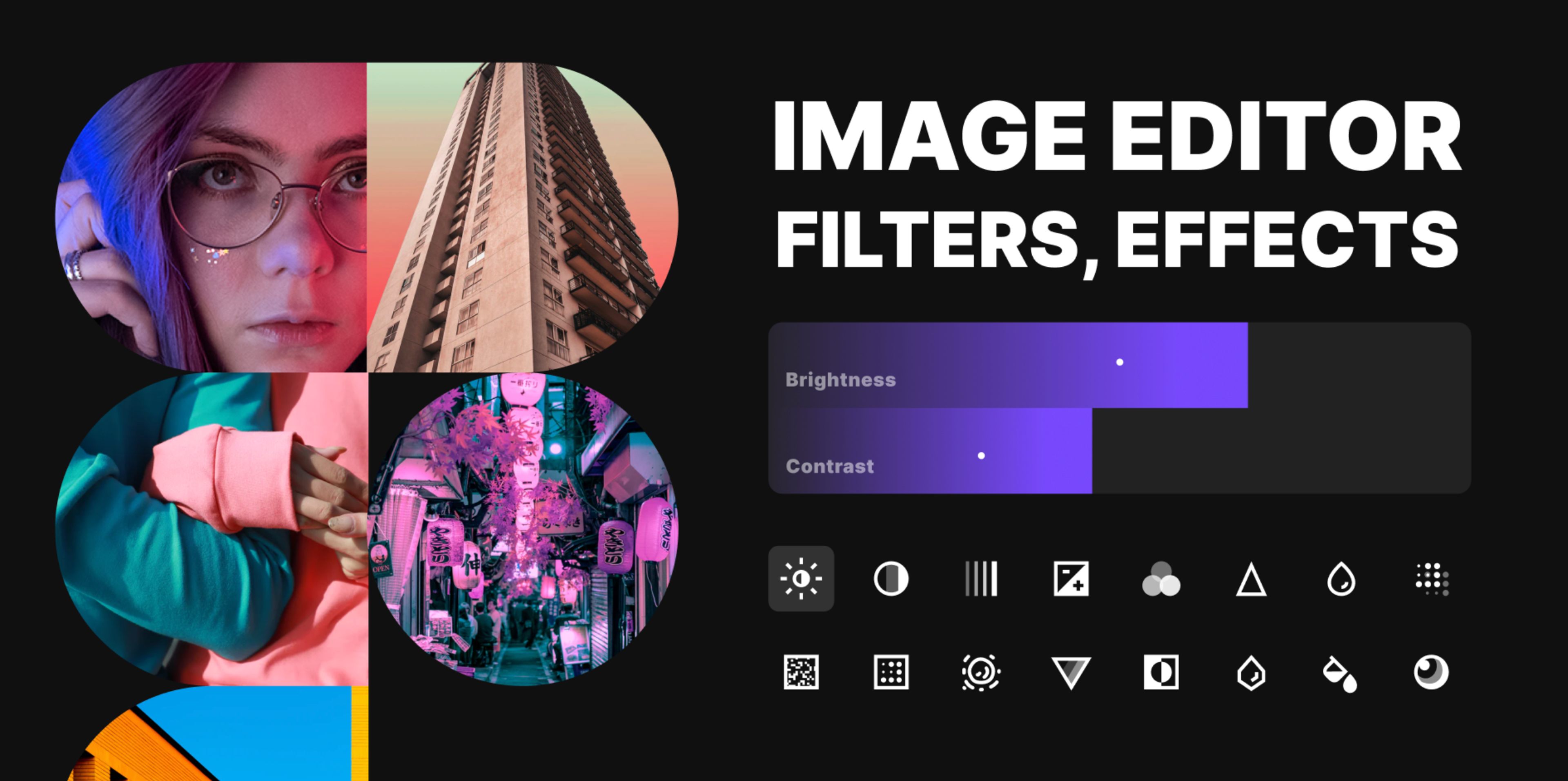
    1. Image Editor

    Stop switching between Figma and Photoshop for basic photo edits. Image Editor brings brightness, contrast, curves, and level controls directly into your workspace.

    This free plugin works great when you need to adjust product photos for an online store or fix background images to match your colors. You can experiment freely because the edits don’t destroy your original image.

    The best part? You keep your creative flow going. No more breaking focus to open other programs.

    Source: Figma

    Image Editor Figma Plugin

    Additional Criteria:

    • Supports non-destructive editing.​
    • Integrates seamlessly with existing Figma tools.​
    • User-friendly interface suitable for beginners.​

    📺 Demo video on YouTube

    2. A11y – Color Contrast Checker

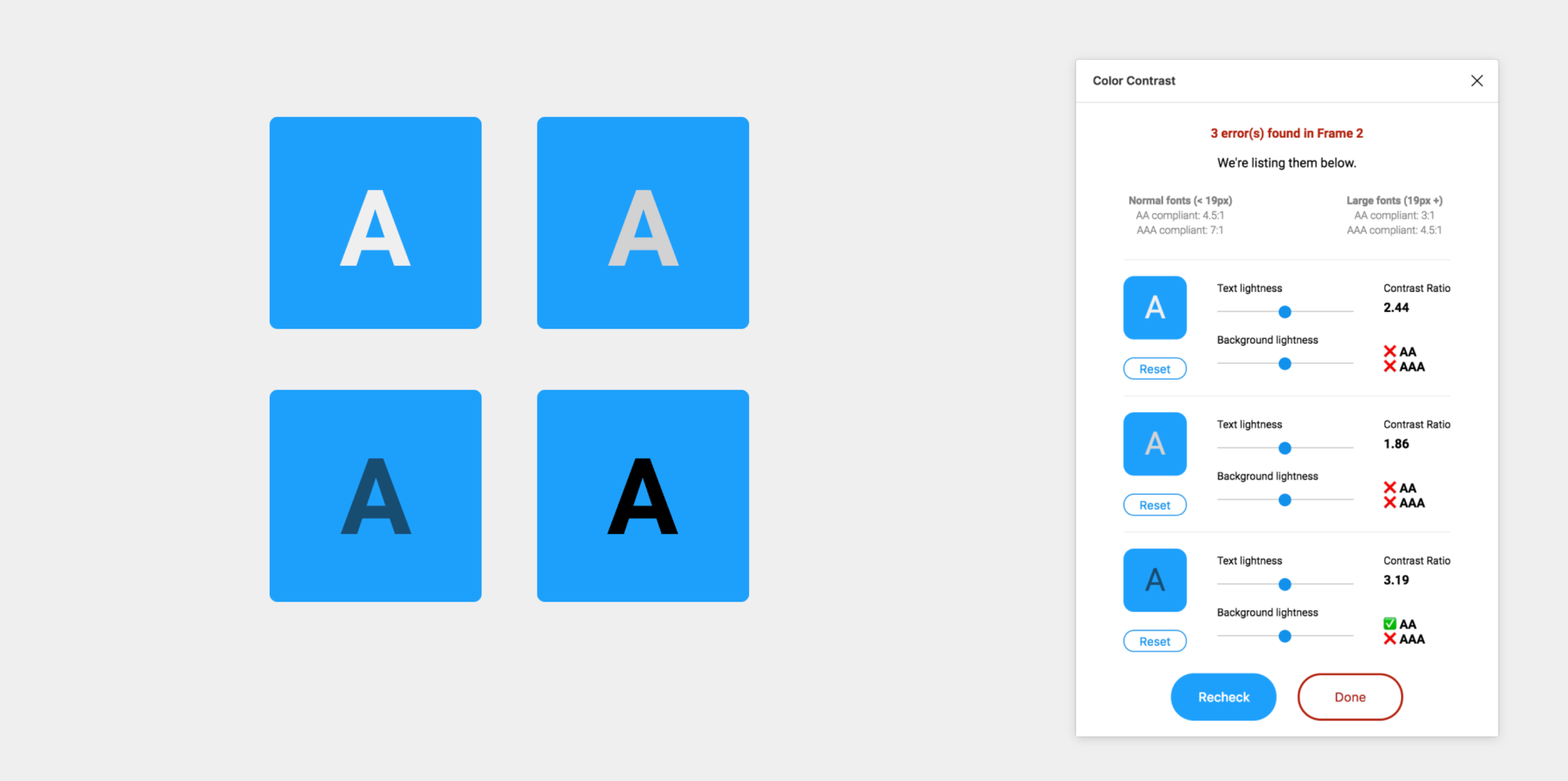
    The A11y Color Contrast Checker tests whether your text and background colors meet accessibility guidelines. This free plugin gives you instant feedback on compliance levels for different text sizes.

    Source: Figma

    A11y Color Contrast Checker

    The plugin also shows how people with color blindness see your interface. When your color choices don’t meet standards, it suggests better alternatives.

    Smart design teams use A11y throughout their process, not just at the end. Early accessibility checking prevents expensive redesigns later.

    Additional Criteria:

    • Real-time contrast ratio feedback.​
    • Simulates various types of color blindness.
    • Provides suggestions for color adjustments.

    NB: Figma also offers a built-in contrast checker that works directly within the design interface. This native feature automatically checks the contrast between text and background layers, flagging issues that don’t meet WCAG standards. It’s especially useful for quick checks during design iterations, providing an extra layer of accessibility support without requiring a plugin.

    3. Material Design Icons

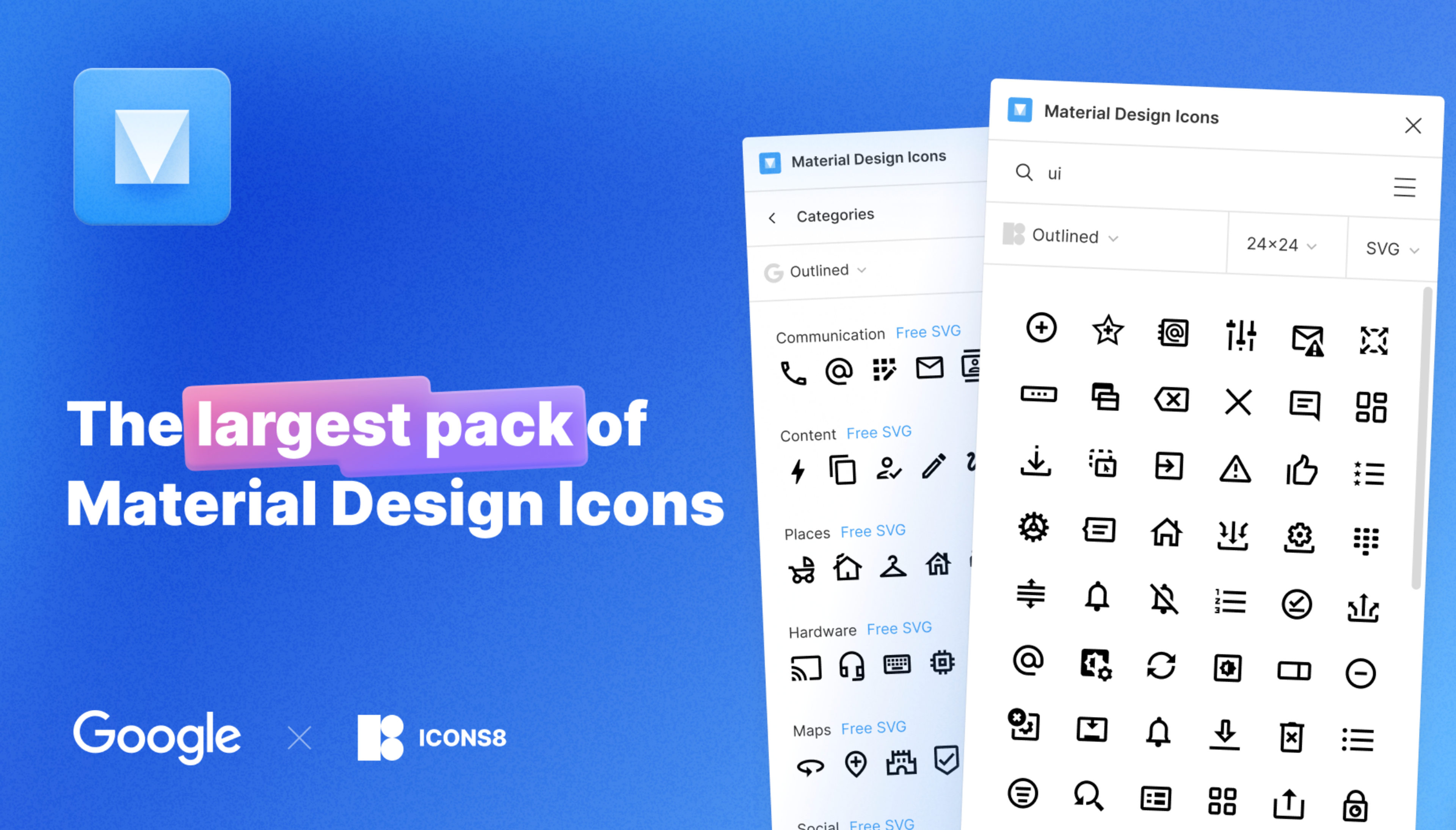
    Material Design Icons delivers Google’s entire icon collection right inside Figma. You get 6,800 professionally designed icons that follow consistent visual principles.

    Search for “settings,” “user,” or “notification” and insert perfectly crafted icons instantly. No more hunting across multiple websites for the right icon style.

    Source: Figma

    Material Design Icons Figma Plugin

    The plugin updates automatically with new Google releases. Teams building apps or websites love this consistency for creating cohesive user experiences.

    Additional Criteria:

    • Regularly updated with new icons.​
    • Customizable icon sizes and colors.​
    • Supports both outlined and filled styles.
    • 6,800+ free icons by Google.
    • 28,000+ free icons by Icons8.

    4. Flip Colors

    Flip Colors swaps any two colors throughout your design with one click. This simple but powerful tool makes color experiments effortless for testing palettes or switching themes.

    The free plugin preserves original color styles while allowing rapid iteration. Undo and redo functionality means you can experiment boldly without losing your original scheme.

    Source: Dribbble

    two arrows

    Flip Colors excels during early design exploration when you’re defining color relationships. It’s also perfect for creating theme variations or seasonal updates.

    Additional Criteria:

    • Batch color swapping across multiple elements.​
    • Preserves original color styles.​
    • Undo/redo functionality for easy revisions.

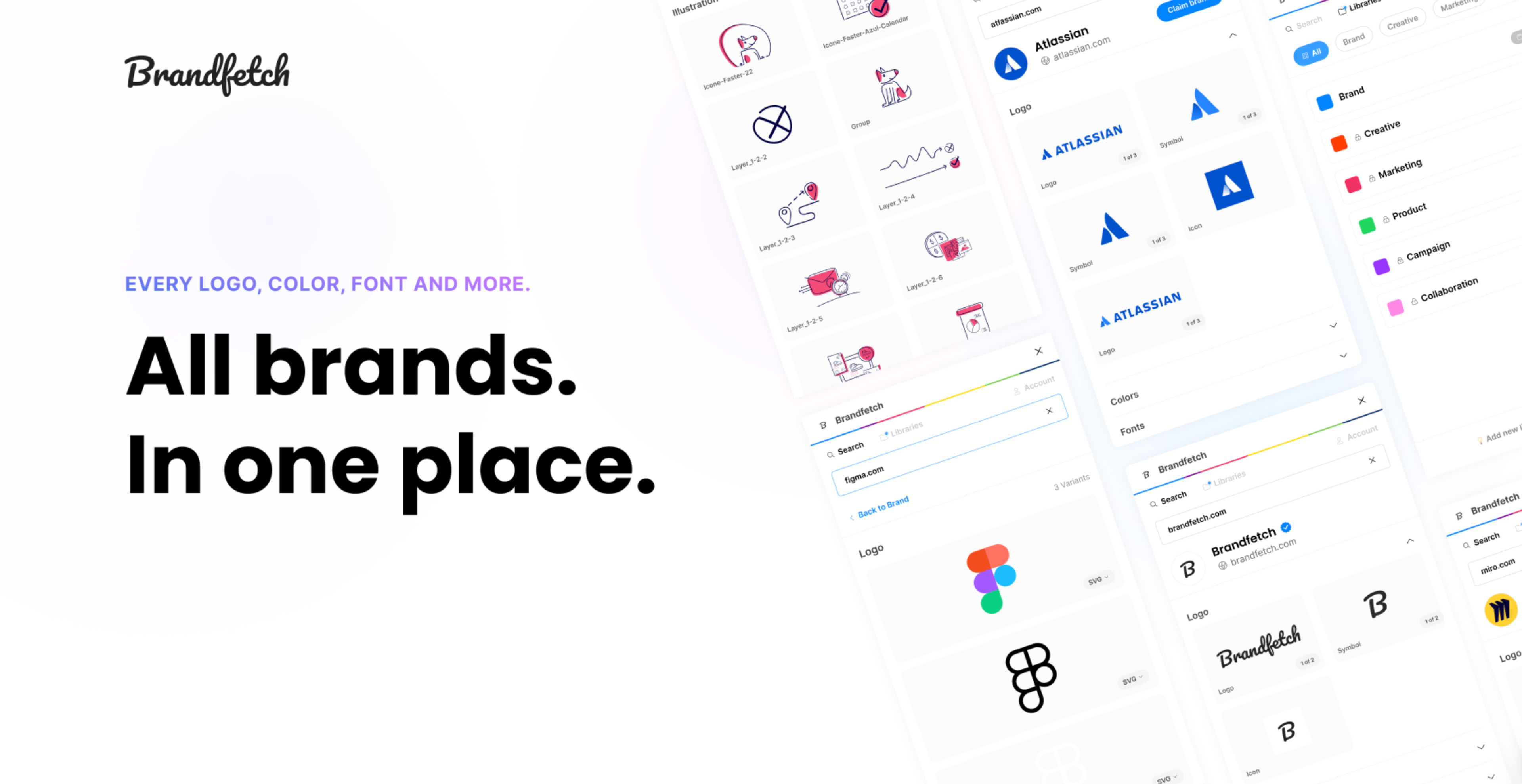
    5. Brandfetch

    Brandfetch is a time-saving plugin that gives designers instant access to official brand assets — such as logos, colors, and typography — directly within Figma. With just a simple search, you can quickly fetch high-quality SVG logos and brand data from thousands of companies, eliminating the need to switch tabs, scour the web, or worry about accuracy.

    Source: Figma

    Brandfetch Figma Plugin

    This plugin is especially valuable during fast-paced design projects where time and precision are crucial — like pitch decks, mockups, client presentations, or UI prototypes that require branded content. Instead of downloading low-res images or outdated assets from unofficial sources, Brandfetch delivers clean, up-to-date visuals that align with each company’s current brand identity.

    Additional Criteria:

    • Access to a vast database of brand assets (logos, icons, colors, fonts and more).​
    • High-resolution logo retrieval.​
    • Supports multiple file formats.
    • Claim your brand and sync your assets to Brandfetch for easy-access.

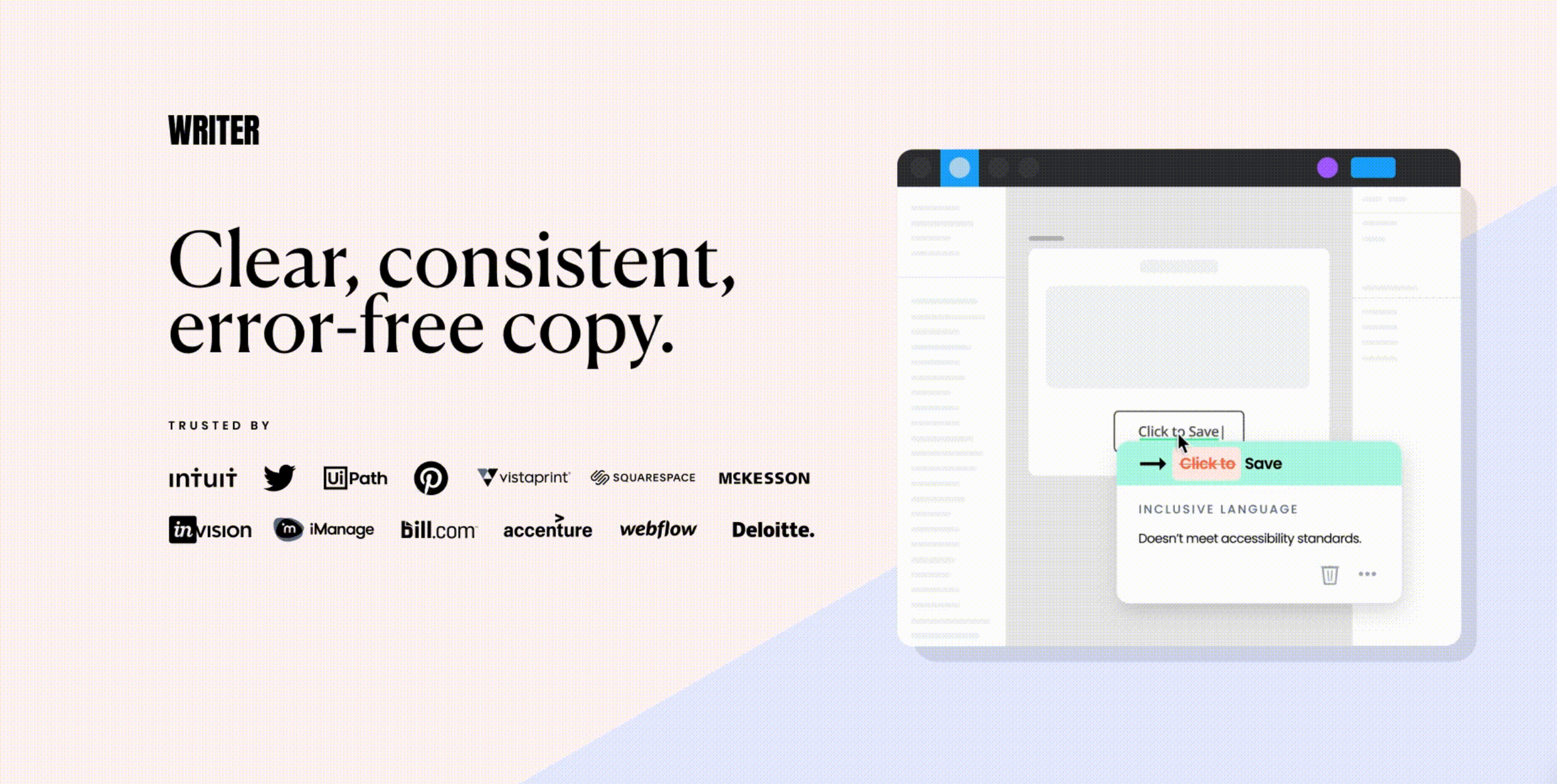
    6. Writer

    Writer brings smart grammar and spelling correction directly into Figma. It scans text layers for errors and style problems while supporting tone and clarity suggestions.

    The free version covers essential grammar and spelling checks. Premium features add custom style guides, team collaboration, and advanced language insights.

    Source: Figma

    Writer Figma Plugin

    Writer becomes particularly valuable for UI copy and presentation materials where text quality directly impacts user experience and credibility.

    Additional Criteria:

    • Contextual grammar suggestions.​
    • Customizable style guides.​
    • Supports multiple languages.
    • Work faster with generative AI.

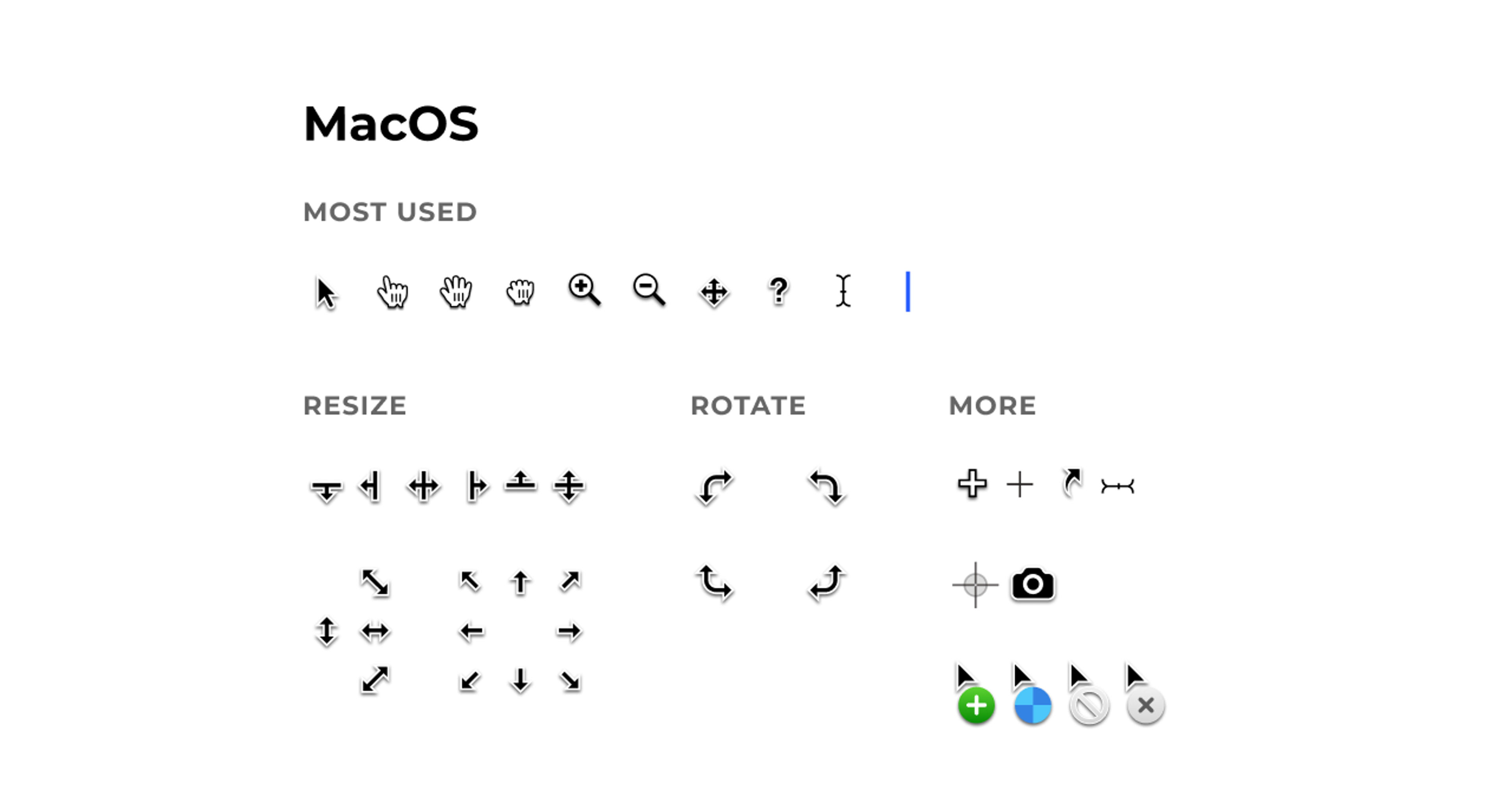
    7. Cursors

    Cursors customizes your cursor styles during collaborative Figma sessions. This makes it easier to guide attention and provide clear feedback during design reviews or client presentations.

    This free plugin distinguishes your pointer with custom styles, reducing confusion in larger team sessions. Enhanced visibility helps presenters direct focus more effectively than default cursors.

    Source: Figma

    Cursors Figma Plugin

    Cursors supports annotations and interactive cues, strengthening collaborative experiences for both designers and non-designers in design reviews.

    Additional Criteria:

    • Variety of cursor styles available.​
    • Easy activation and deactivation.​
    • Enhances real-time collaboration sessions.

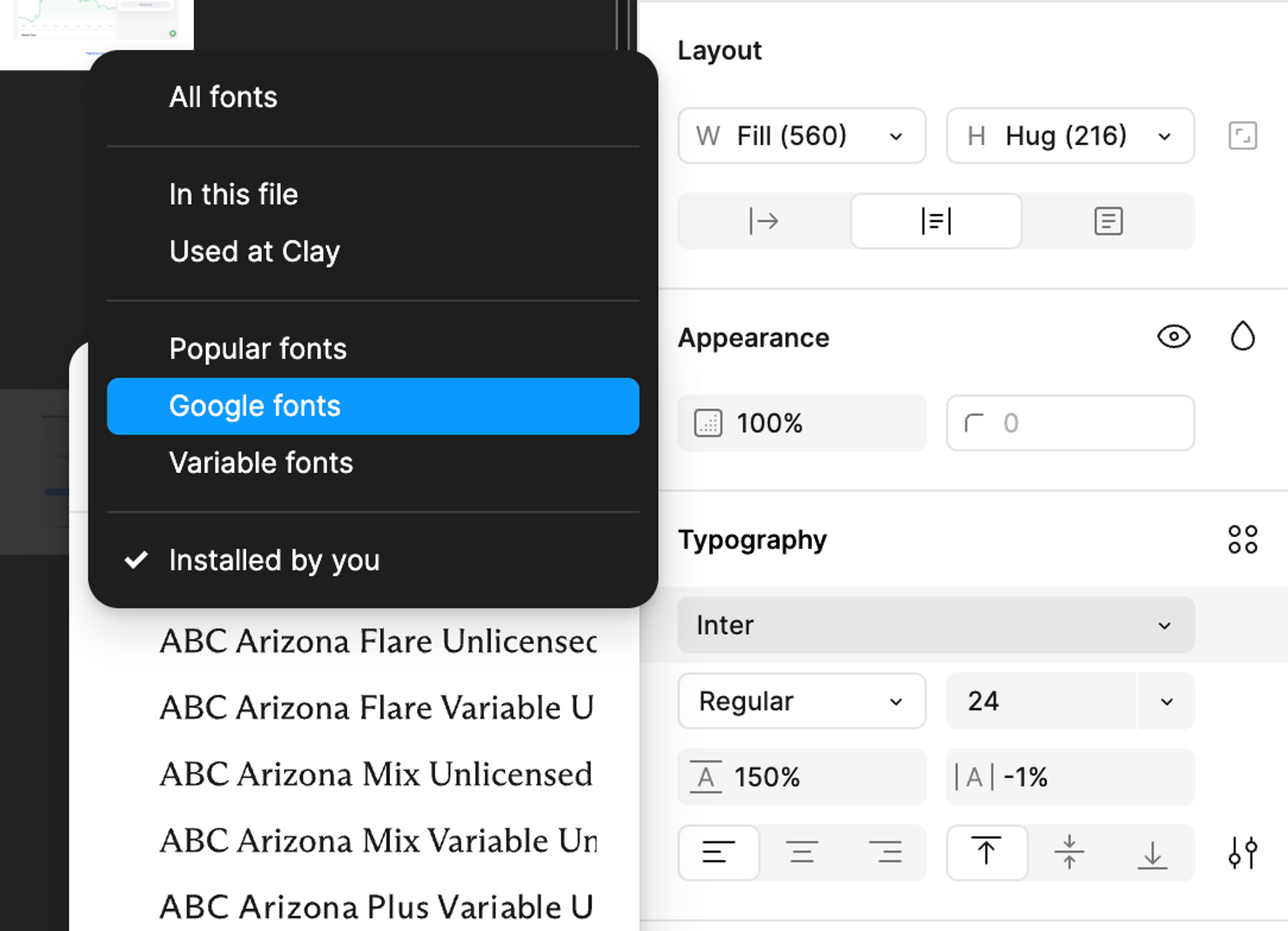
    8. Google Fonts

    Google Fonts integration brings hundreds of open-source fonts into Figma without manual installation. Browse by category, weight, and style, then apply fonts instantly.

    The integration ensures every team member has the same fonts, eliminating compatibility problems. This consistency matters for remote teams and client collaborations.

    Google Fonts

    Google Fonts covers elegant serifs for editorial layouts and clean sans-serifs for app interfaces. Instant preview makes typography experiments fast and intuitive.

    Additional Criteria:

    • Extensive library of open-source fonts.​
    • Instant preview and application.​
    • No additional installation required.

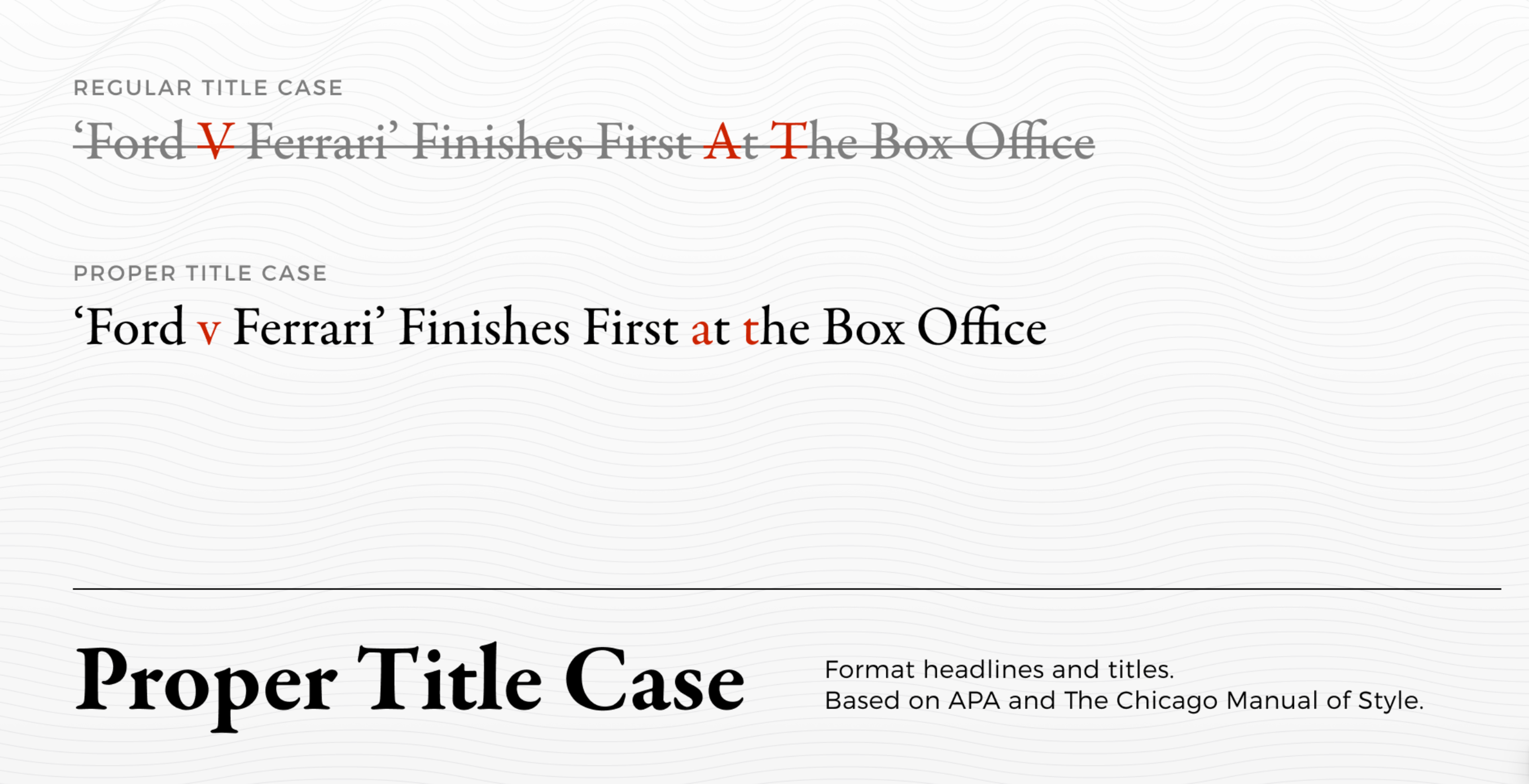
    9. Proper Title Case

    Proper Title Case automatically applies correct capitalization to headings, buttons, and interface text. This free plugin follows standard style rules and allows custom exceptions for brand terms.

    Process entire files in seconds to fix formatting inconsistencies. This becomes valuable for large projects with multiple contributors where text formatting might vary.

    Source: Figma

    Proper Title Case Figma Plugin

    The plugin handles tricky cases like articles and prepositions according to established style guides, ensuring professional presentation.

    Additional Criteria:

    • Adheres to standard title casing rules.​
    • Batch processing capabilities.​
    • Customizable exceptions for specific words.

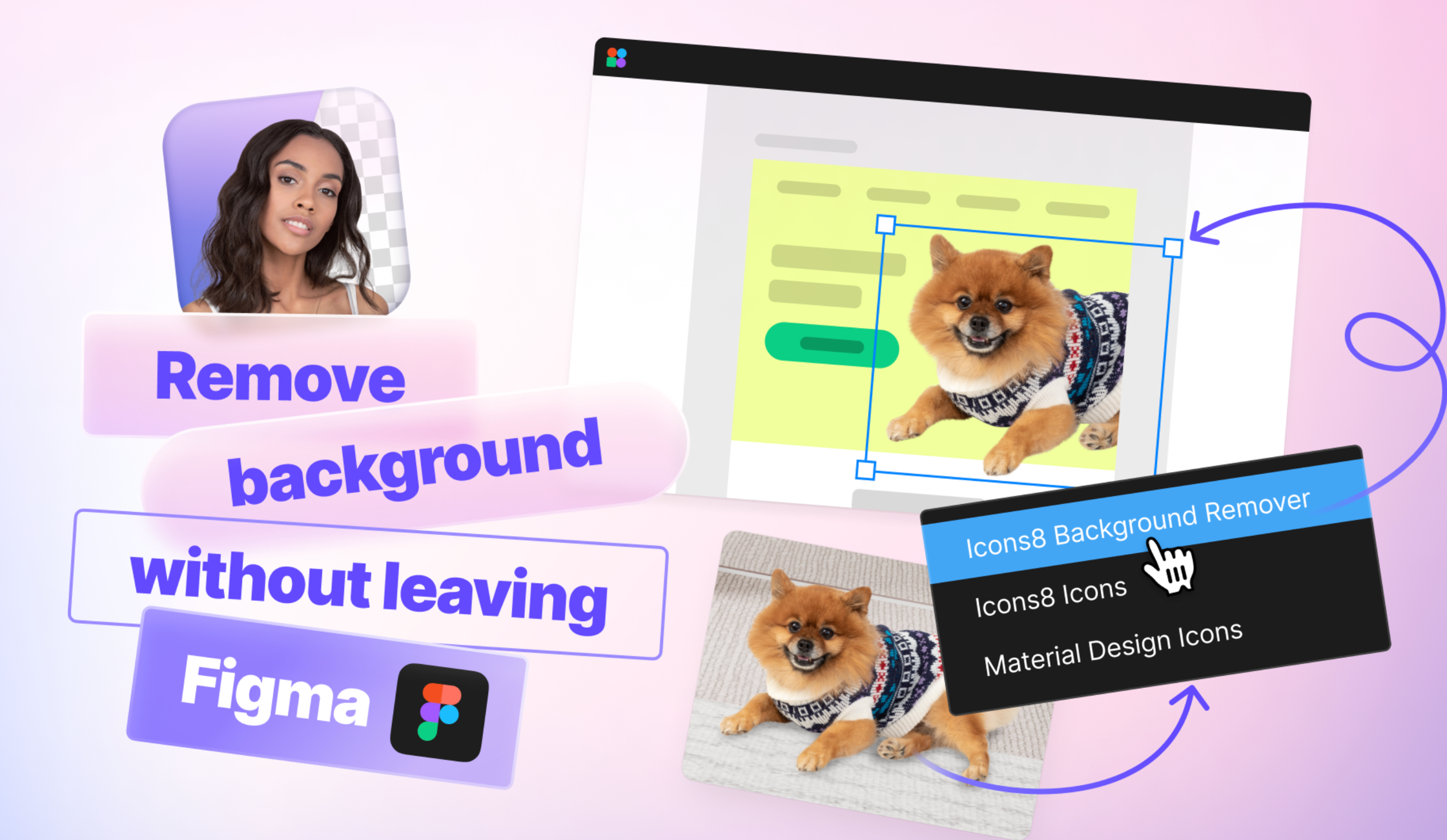
    10. Icons8 Background Remover

    Icons8 Background Remover uses AI to instantly remove complex backgrounds from images without leaving Figma. The plugin maintains edge details for clean cuts and supports high-resolution processing.

    Basic functionality works free with no registration required. This makes it accessible for quick tasks like isolating product photos or creating clean avatar images.

    Source: Figma

    Icons8 Background Remover (Figma AI Integration)

    Batch processing handles multiple images simultaneously, making it efficient for projects requiring consistent image treatment.

    Additional Criteria:

    • Supports high-resolution images.
    • Maintains edge details for clean cuts.
    • Batch processing for multiple images.
    • No limits on the number of images.
    • No subscription or registration is required.
    • No API key is needed.

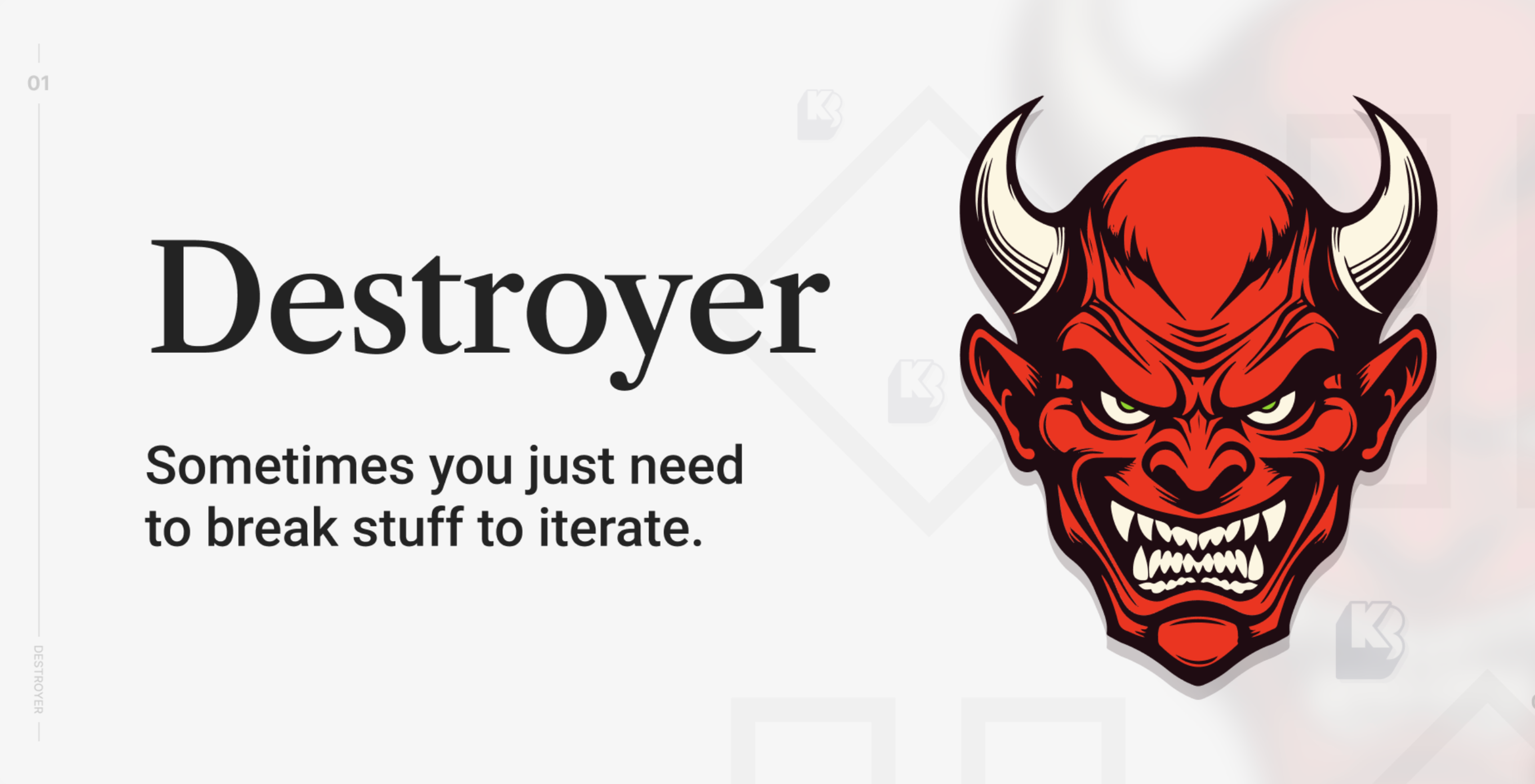
    11. Destroyer

    When Clean Document isn’t enough, Destroyer handles heavy cleanup work. This free tool removes unused styles, fixes broken instances, and strips away messy nested layers.

    Destroyer helps when you inherit complex files from other designers or work with large design systems. It can remove all auto-layouts and nested instances in one operation.

    Source: Figma

    Destroyer Figma Plugin

    Use Destroyer carefully. Always duplicate your file first because this tool makes big changes you can’t easily undo.

    Additional Criteria:

    • Removes all auto-layouts and nested instances.
    • Streamlines complex design files.
    • Enhances file performance by reducing clutter.

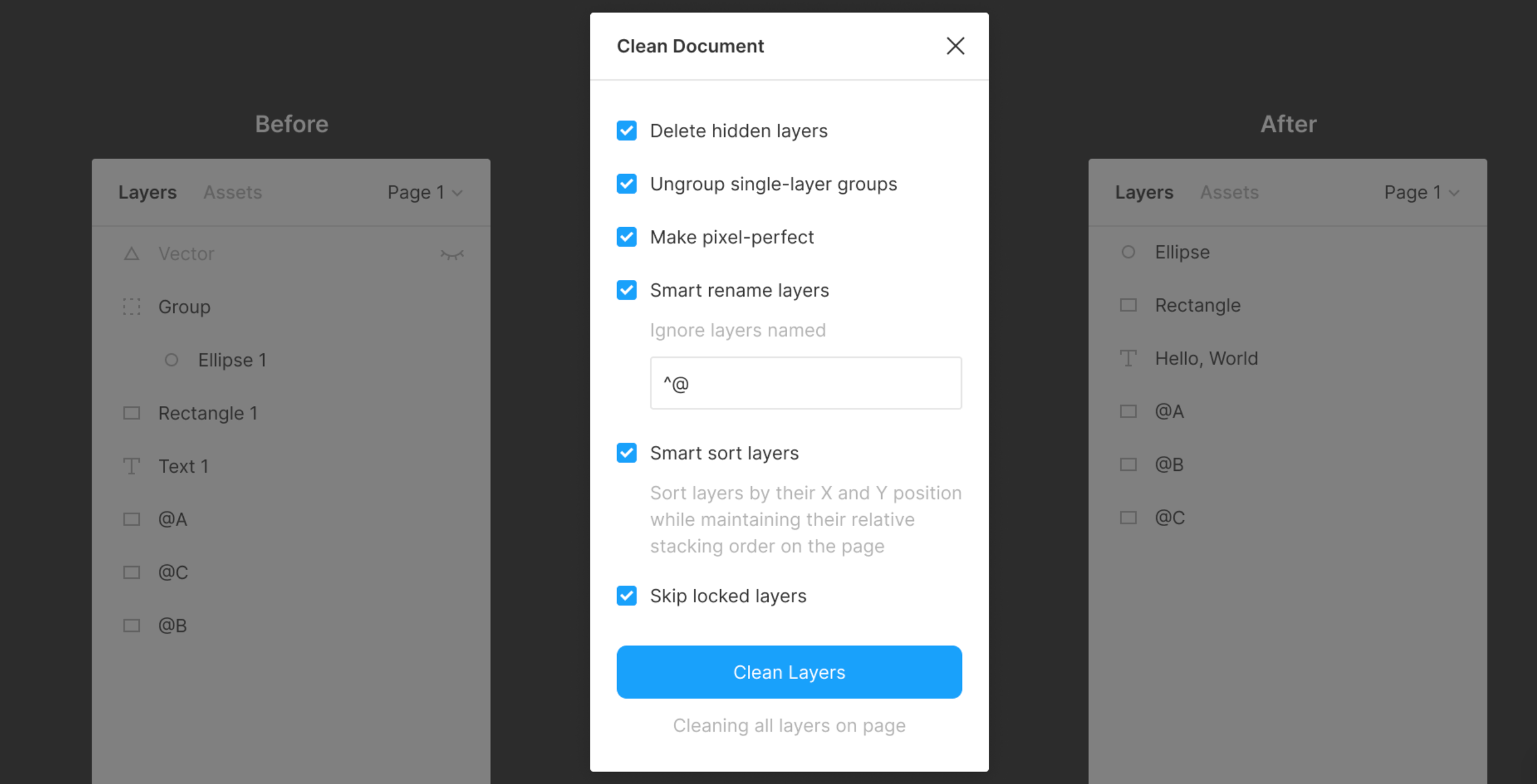
    12. Clean Document

    Messy Figma files slow down your entire team. Clean Document removes hidden layers, collapses empty groups, and renames layers using smart conventions.

    Run this free plugin before client presentations or developer handoffs. It finds unused components, combines similar styles, and creates clean file structures that make collaboration easier.

    Source: Figma

    Clean Document Figma Plugin

    Teams using Clean Document report faster design reviews and clearer communication with developers. Think of it as automated quality control for your files.

    Additional Criteria:

    • Identifies and deletes unused components.
    • Consolidates similar styles.
    • Improves team collaboration through standardized naming conventions.
    • Ungroups single-layer groups.
    • Smart renames layers.

    13. Able

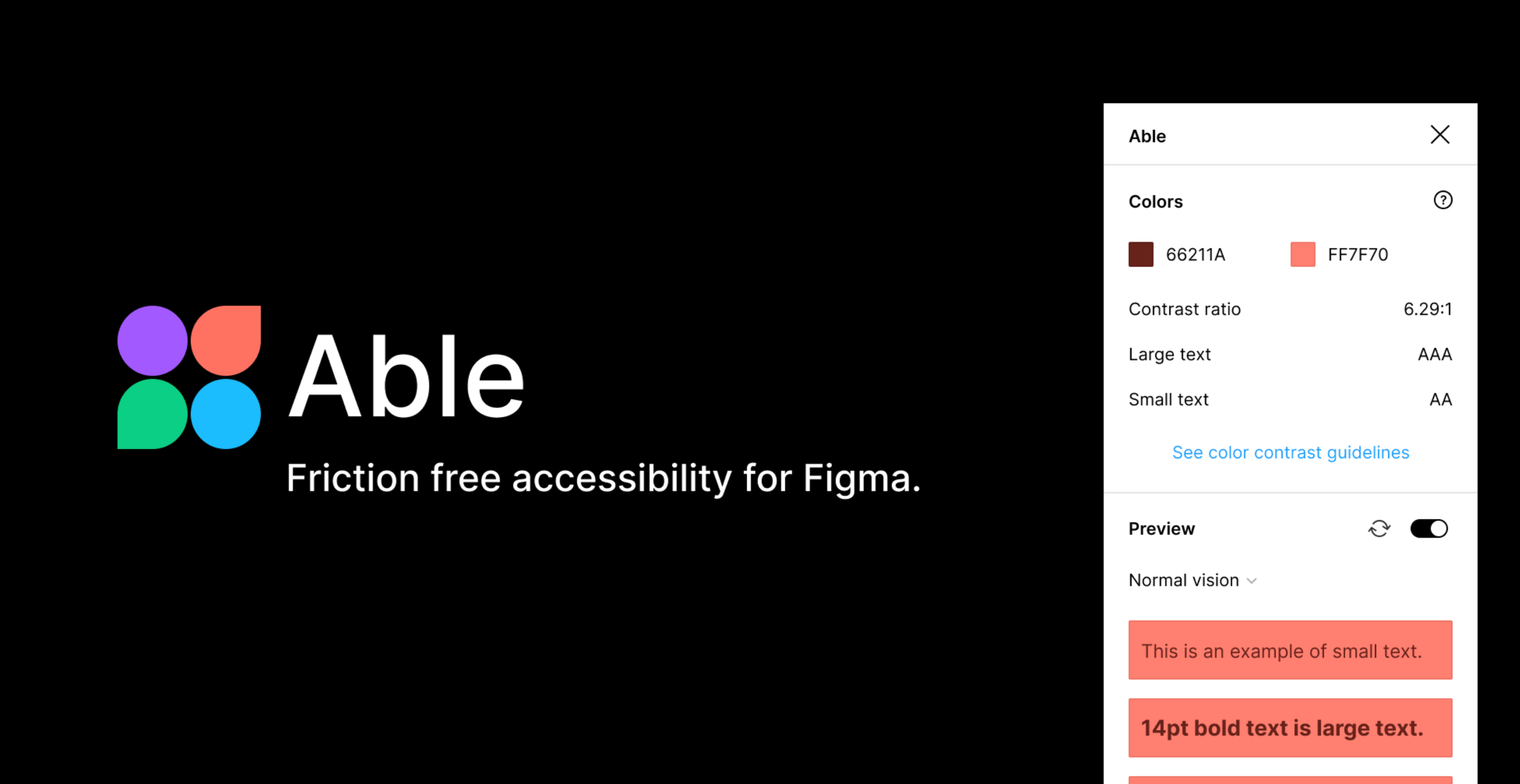
    Able focuses on speed for contrast testing. This free plugin provides instant accessibility feedback with a clean interface that won’t interrupt your work.

    While simpler than Stark, Able excels at quick checks during design work. It suggests color alternatives and clearly shows whether your choices meet standards.

    Source: Figma

    Able Figma Plugin

    Many designers keep Able pinned for fast accessibility verification, especially when testing color palettes or theme variations.

    Additional Criteria:

    • Provides WCAG compliance feedback.
    • Suggests alternative color combinations for better accessibility.
    • User-friendly interface for quick assessments.

    14. Content Reel

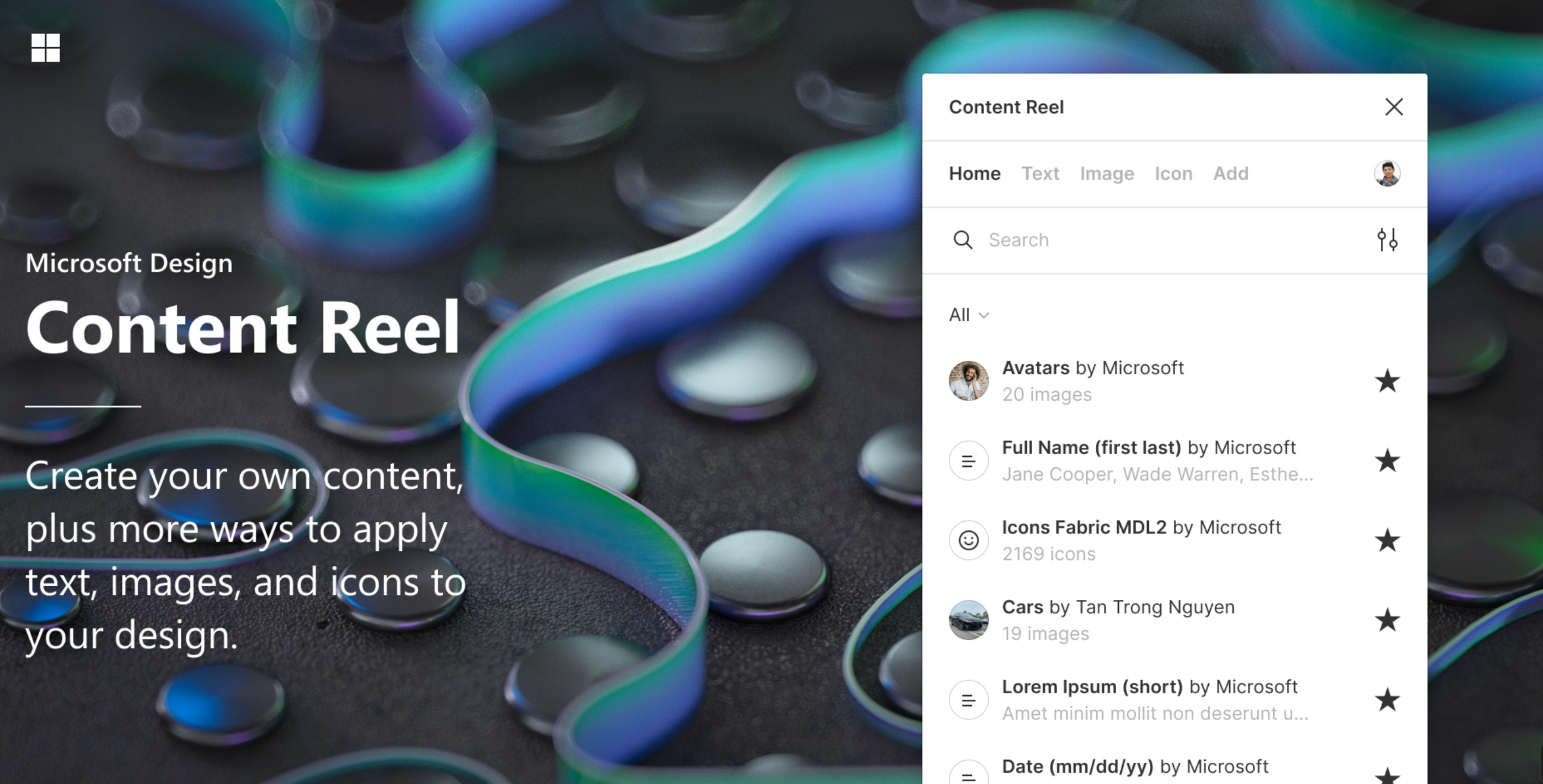
    Generic placeholder text makes mockups feel fake. Content Reel fills your designs with realistic names, emails, phone numbers, and addresses that make prototypes feel authentic.

    This free plugin helps stakeholders understand how interfaces will work with real data. It also reveals layout problems early, like what happens when someone has a very long name.

    Source: Figma

    Content Reel

    You can customize content categories to fit your specific project. Realistic content makes user testing more effective and design reviews more meaningful.

    Additional Criteria:

    • Customizable content categories.
    • Supports both text and image data.
    • Integrates seamlessly with existing design components.

    15. Charts

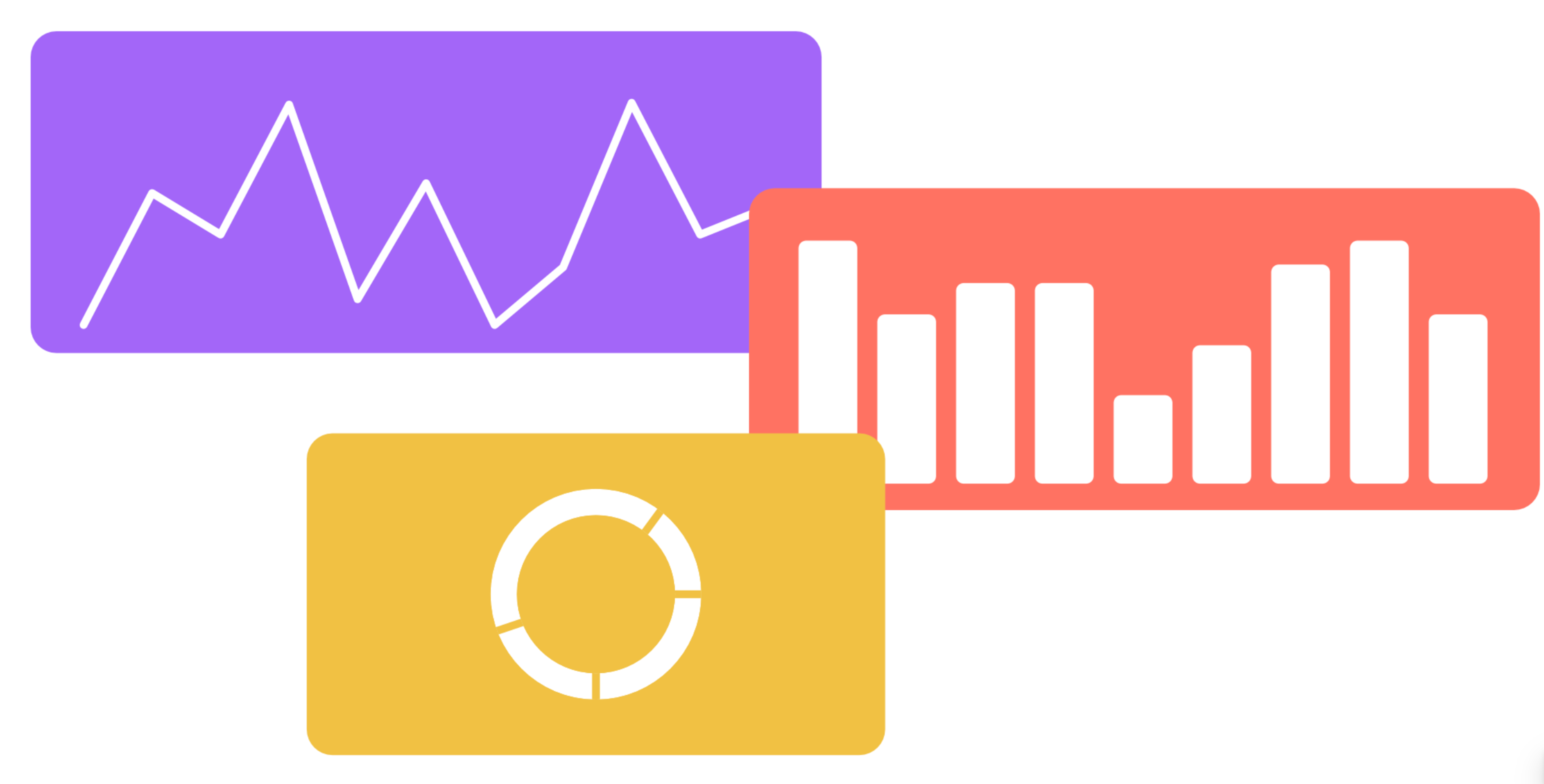
    Charts generates clean, customizable data visualizations directly in Figma. Support for bar, line, pie, and area charts makes it easy to create compelling infographics and dashboard mockups.

    Input data manually, paste from spreadsheets, or connect live data sources for dynamic charts. Customizable colors ensure charts match your design system perfectly.

    Source: Figma

    Charts Figma Plugin

    The plugin transforms raw numbers into clear visual stories that communicate insights effectively in presentations, case studies, or product interfaces.

    Additional Criteria:

    • Offers various chart types including bar, line, and pie charts.
    • Allows data import from external sources.
    • Customizable color schemes and styles.

    16. Unsplash

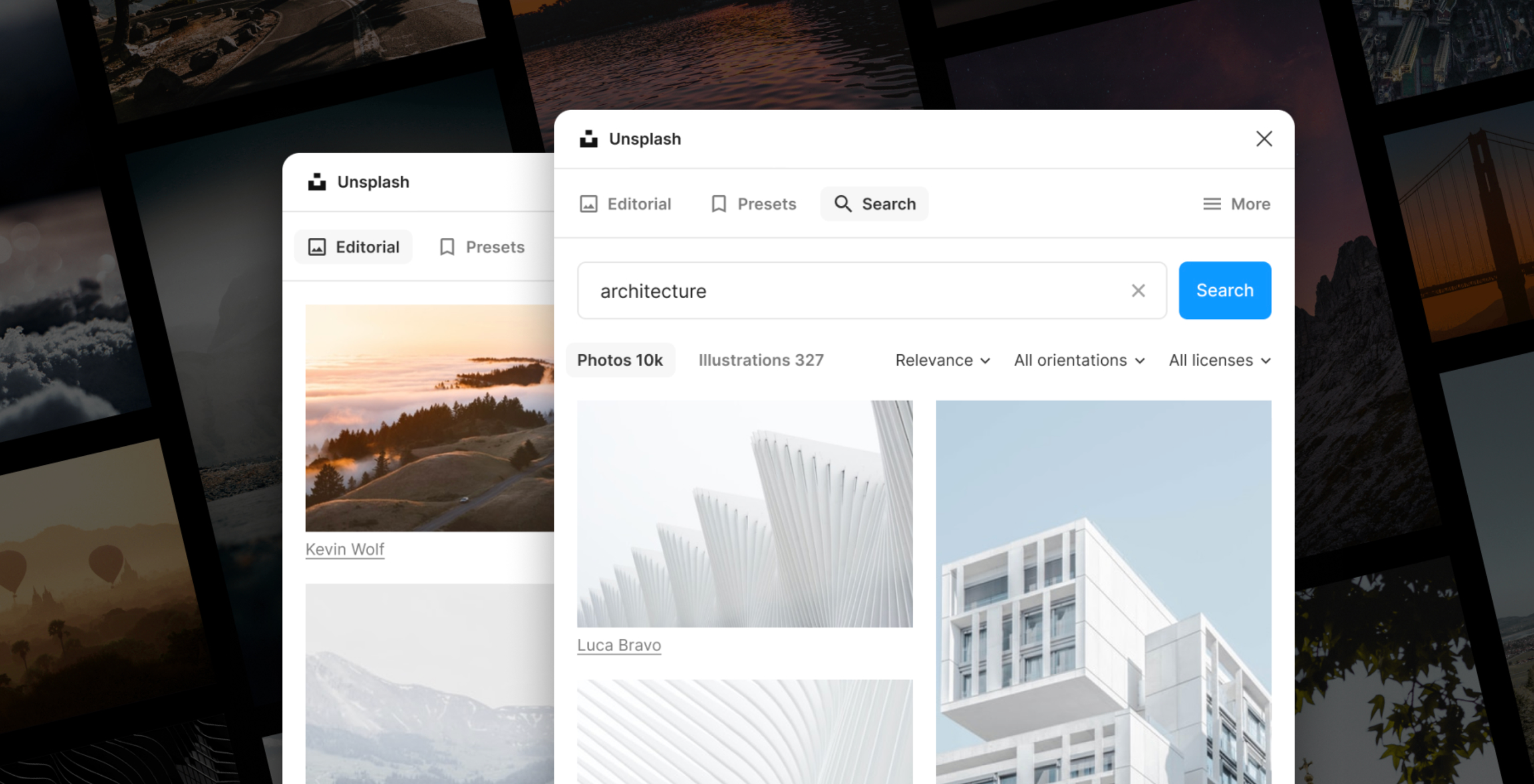
    Unsplash brings millions of high-quality photos directly into Figma. Search by keyword, color, or orientation and insert professional photography instantly.

    Every image works for commercial and personal projects with no licensing worries. The library covers lifestyle shots, product photos, abstract textures, and landscapes.

    Source: Figma

    Unsplash Figma Plugin

    Unsplash+ subscribers get non-watermarked, full-resolution images by connecting their accounts. This makes the plugin even better for final designs and client presentations.

    Additional Criteria:

    • Search functionality with filters for image orientation and color.
    • Direct image insertion without leaving Figma.
    • Regularly updated with new images.
    • If you have an active Unsplash+ subscription, you can connect your account to access non-watermarked, full-resolution images.

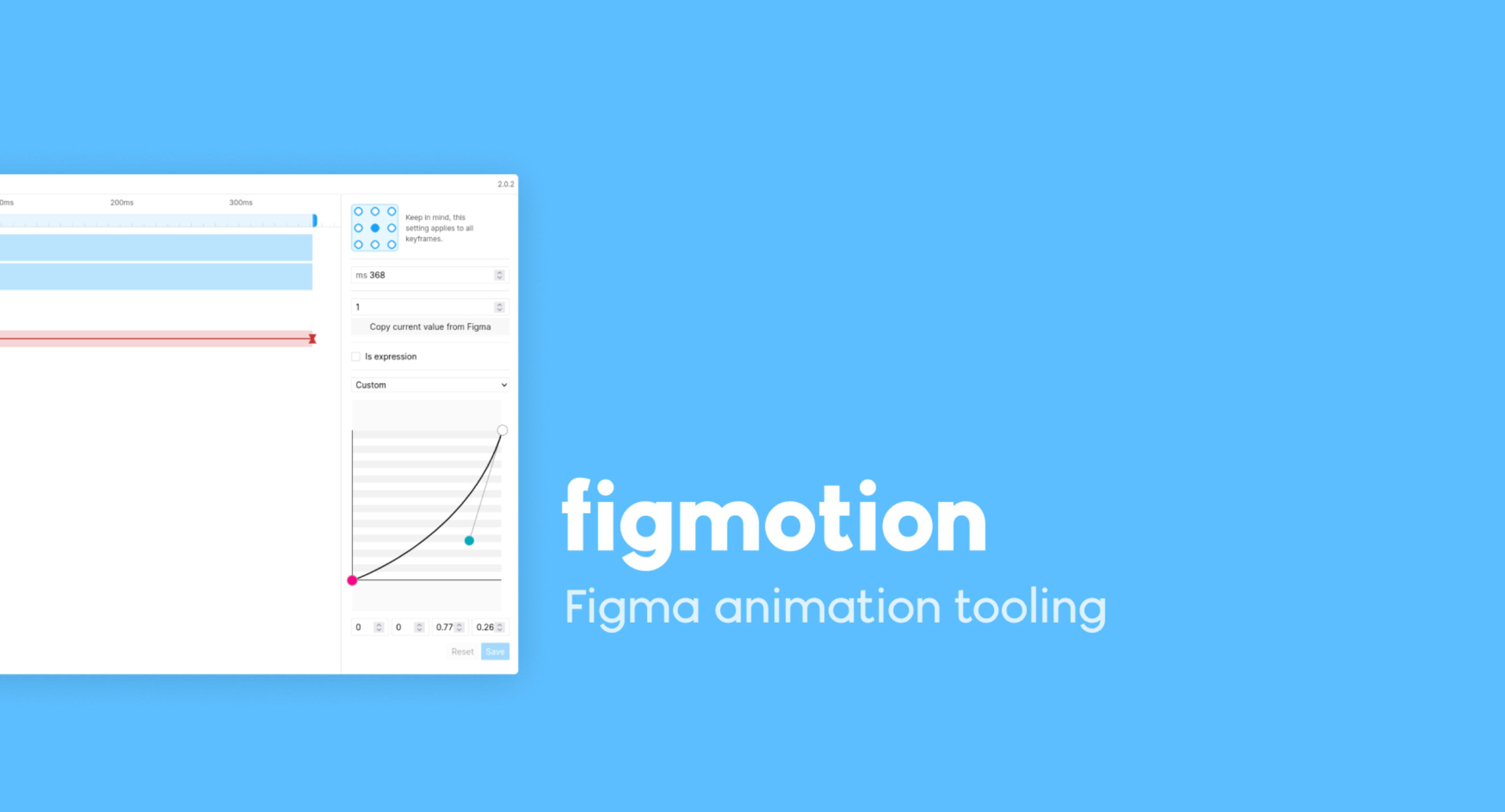
    17. Figmotion

    Figmotion brings timeline-based animation into Figma with keyframe support and easing functions. Create UI animations and micro-interactions without external tools, then export as GIFs or JSON files.

    This free plugin helps communicate motion ideas clearly during design handoffs. Developers can see exactly how elements should move instead of relying on verbal descriptions.

    Source: Figma

    Figmotion Figma Plugin

    Figmotion works well for button hover states, loading animations, and simple transitions that enhance user experience without overwhelming the interface.

    Additional Criteria:

    • Timeline-based animation interface.
    • Exports animations as GIFs or JSON files.
    • Supports easing functions and keyframe animations.
    • Export to Lottie files (beta).

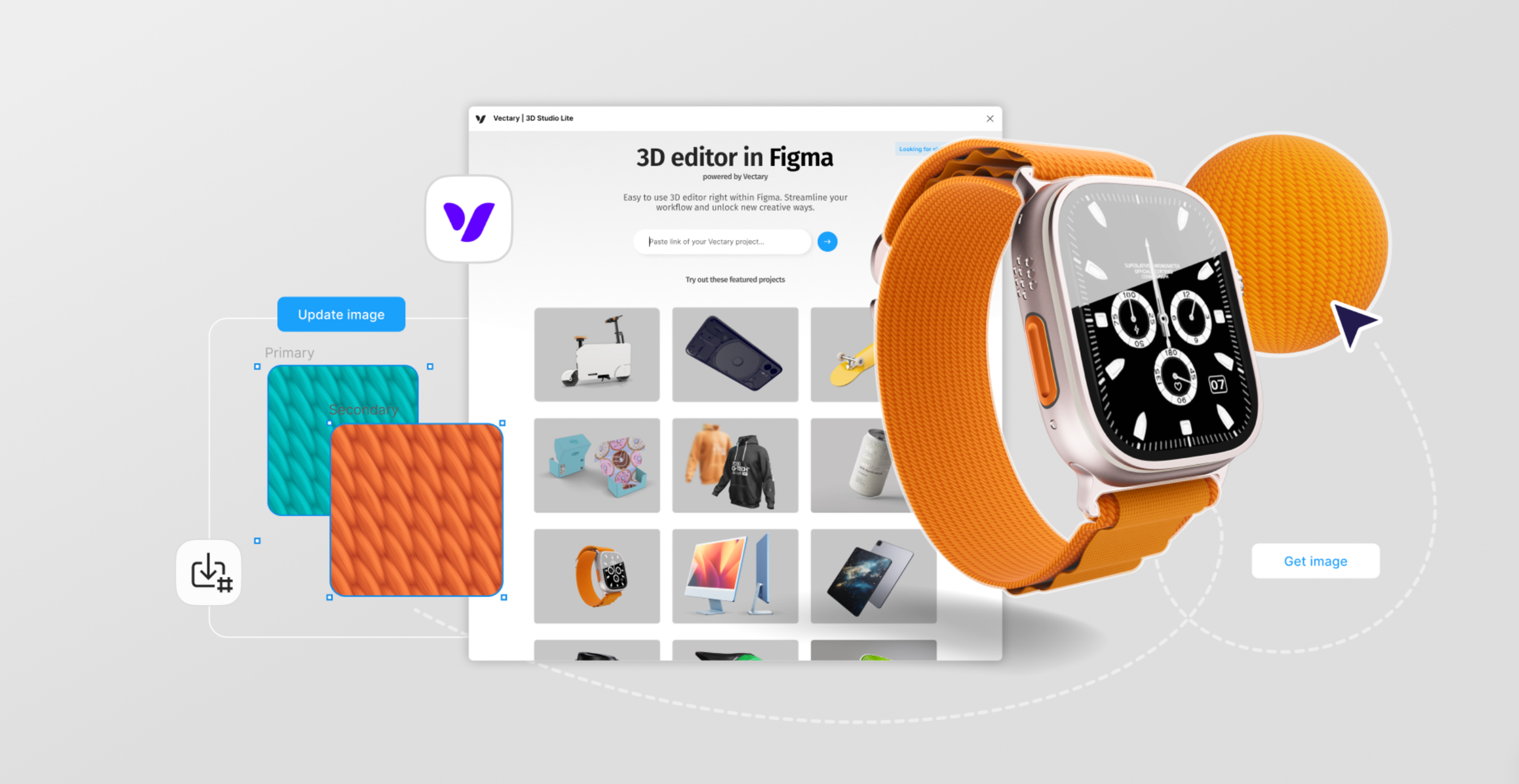
    18. Vectary | 3D Studio Lite

    Vectary 3D Studio integrates high-quality 3D models directly into Figma designs. Search the library or upload custom models, then render them as sharp 2D layers in your design file.

    The plugin excels for product mockups, app interfaces with depth, or marketing visuals that benefit from dimensional elements. Real-time rendering maintains visual quality while keeping your workflow smooth.

    Source: Figma

    Vectary 3D Studio Figma Plugin

    Free access covers basic 3D assets and rendering. Premium plans unlock advanced customization, higher-resolution assets, and extended model libraries.

    Additional Criteria:

    • Extensive library of customizable 3D assets.
    • Real-time rendering within Figma.
    • Supports importing external 3D models.

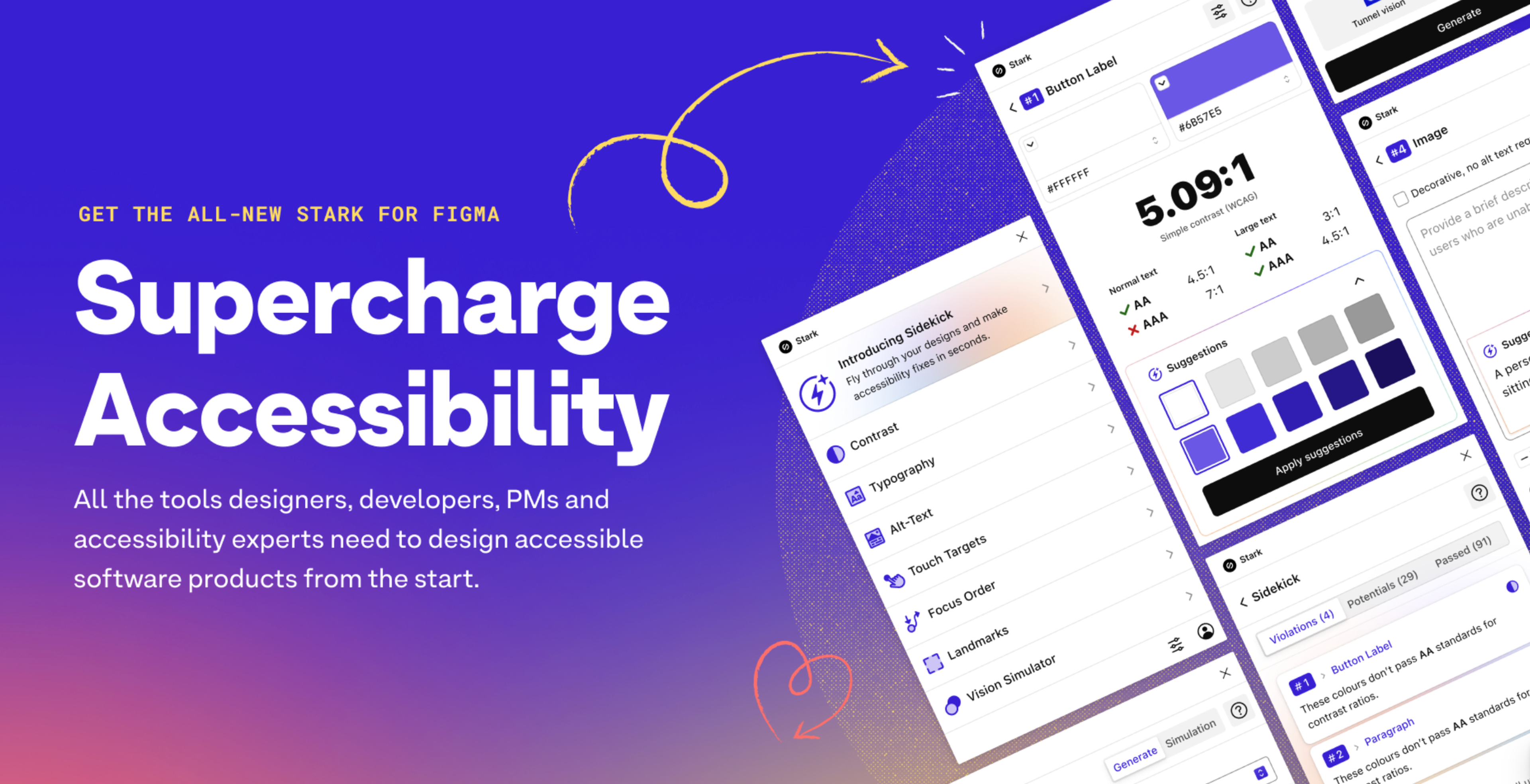
    19. Stark

    Stark takes accessibility further with comprehensive testing tools. It checks contrast, simulates visual impairments, and identifies problems across your entire design system.

    The free version includes basic contrast checking and color blindness simulation. Premium features add project-wide auditing, team tools, and detailed compliance reports.

    Source: Figma

     Stark Figma Plugin

    Stark also teaches accessibility principles while you work. This helps teams learn inclusive design alongside their regular design tasks.

    Additional Criteria:

    • Integrates with design tools like Sketch and Adobe XD.
    • Provides detailed reports on accessibility issues.
    • Offers educational resources on inclusive design.

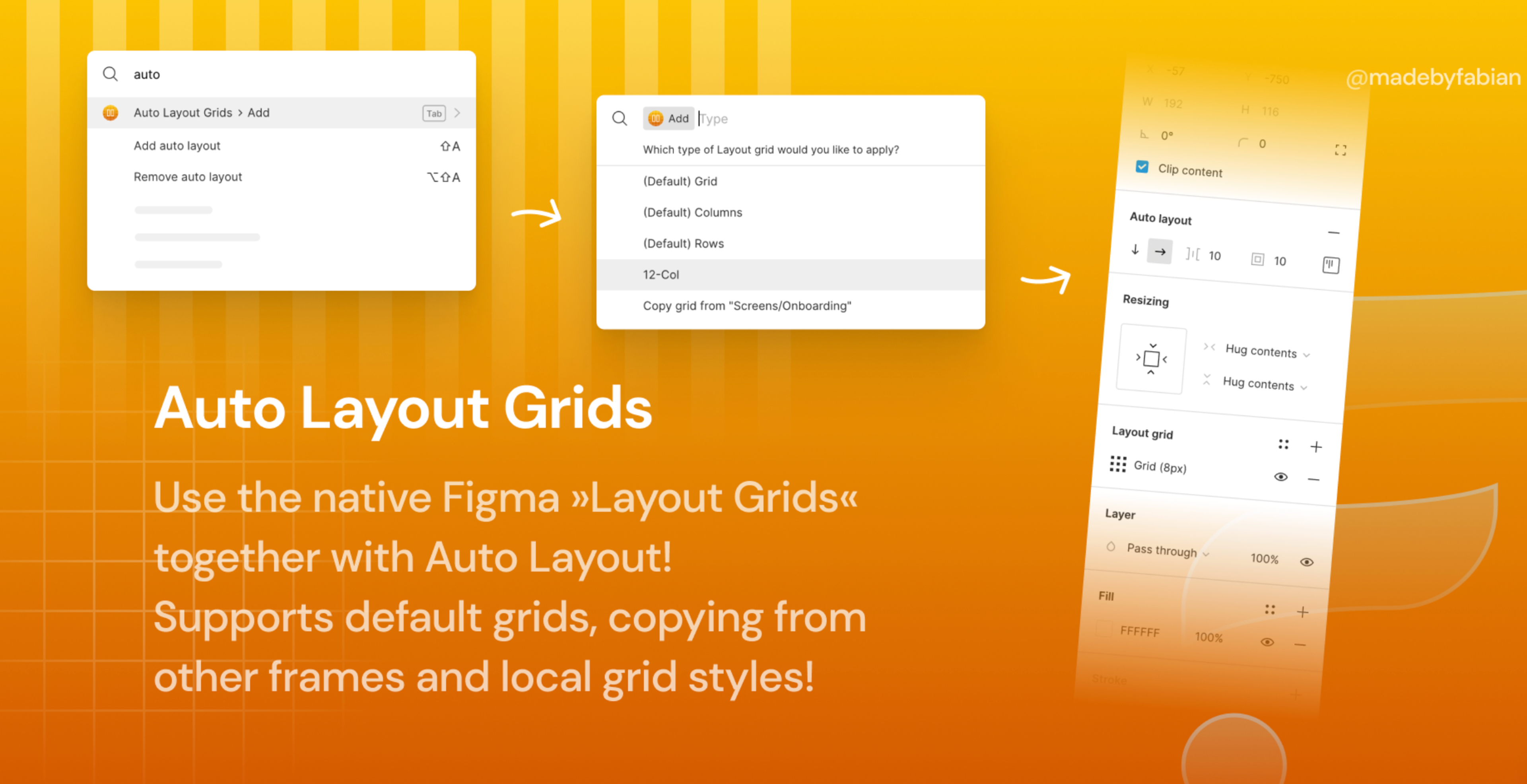
    20. Auto Layout Grid

    Auto Layout Grid is a powerful plugin that helps designers build responsive, scalable layouts with ease — leveraging the full potential of Figma’s auto layout capabilities. With this tool, you can quickly apply grid-based structures, spacing rules, and alignment presets across your designs, ensuring visual consistency, flexibility, and efficiency at every stage of your project.

    The plugin is especially useful when working with components that need to scale intelligently, such as cards, menus, or repeatable blocks in a grid system. By standardizing layout behaviors from the start, Auto Layout Grid reduces design inconsistencies and helps speed up revisions, developer handoff, and team collaboration.

    Source: Figma

    Auto Layout Grid Figma Plugin

    Completely free to use, this plugin is accessible for designers of all levels — from beginners learning layout principles to professionals managing complex design systems. It enhances productivity while reinforcing best practices for modern UI and UX design.

    Additional Criteria:

    • Customizable grid settings for various screen sizes.
    • Aligns and distributes elements automatically.
    • Supports nesting for complex layouts.

    What Are Figma Plugins?

    Figma plugins are third-party scripts or applications that extend the functionality of Figma’s products, including Figma Design, Dev Mode, FigJam, and Figma Slides. These plugins can be used to customize your experience, create more efficient workflows, and automate repetitive tasks.

    With thousands of plugins available in the Figma Community, you can find the perfect tool to enhance your design process. Using a Figma frame allows you to create mockups and previews for responsive designs efficiently. Users can easily resize frames collaboratively without needing specific plugins and can generate mockups for various scenes, showcasing different device views in a streamlined manner.

    Figma Plugins

    Plugins

    Whether you’re looking to streamline your design process, automate repetitive tasks, or add new capabilities to your Figma designs, there’s a plugin for you. The Figma Community is a treasure trove of plugins created by designers for designers, offering solutions for everything from color palettes to advanced prototyping.

    By integrating these tools, designers can streamline their workflows, reduce manual effort, and focus more on creativity and innovation. Whether you need to generate color palettes, create complex user flows, or customize illustrations, there’s a Figma plugin that can help you achieve your goals more efficiently.

    How to Install and Run Plugins in Figma

    Installing plugins starts in the Figma Community. Browse categories, read reviews, and check compatibility. Click “Install” on any plugin to add it to your account with no downloads required.

    Access installed plugins through the “Plugins” menu in Figma. Pin frequently used plugins to the right sidebar for quick access during design sessions.

    Most plugins include usage instructions and examples. Start with simpler plugins to understand how they integrate with your workflow, then gradually add more complex tools.

    Plugin permissions control what each tool can access in your files. Review these carefully, especially for plugins that connect to external services or modify large portions of your design.

    Benefits of Using Plugins in Figma Design

    Plugins transform Figma from a design tool into a complete creative platform. They automate time-consuming tasks like resizing images, checking accessibility, or formatting text.

    The customization possibilities are nearly endless. Build a plugin toolkit that matches your specific role and project types. Web designers might emphasize responsive design tools while app designers might prioritize prototyping plugins.

    Plugins also bridge gaps between design and development. Tools that export assets, generate code, or ensure design system consistency make handoffs smoother and reduce miscommunication.

    Figma Plugin Icons

    Figma Plugin Icons

    Bonus: Creating Effective Mockups in Figma

    Creating effective mockups is an essential part of the design process. With Figma, you can create high-quality mockups quickly and easily. Here are some tips for creating effective mockups in Figma:

    1. 1.Use Figma’s built-in features: Figma has a range of built-in features, including frames, layers, and design systems, that can help you create effective mockups. These tools allow you to structure your designs efficiently and maintain consistency across your projects. Utilizing a Figma frame can further streamline your workflow by enabling easy resizing and collaborative adjustments without needing specific plugins.
    2. 2.Choose the right plugin: There are many plugins available in the Figma Community that can help you create effective mockups, including plugins for creating user flows, designing app prototypes, and customizing illustrations. Selecting the right plugin can save you time and enhance the quality of your mockups.
    3. 3.Keep it simple: Effective mockups should be simple and easy to understand. Avoid cluttering your mockup with too many elements or features. Focus on the core components that convey your design idea clearly.
    4. 4.Use high-quality images: High-quality images can help make your mockup look more realistic and engaging. Consider using plugins like Unsplash to easily access professional photography without leaving Figma.
    5. 5.Test and iterate: Test your mockup with real users and iterate on the design based on feedback. This iterative process ensures that your final design meets user needs and expectations.

    FAQ

    What Is the Best Plugin for Figma Design?

    Image Editor is the best overall plugin for Figma design. It brings professional photo editing tools directly into Figma, eliminating the need to switch between applications for basic adjustments like brightness, contrast, and curves.

    What Is the Best Connector Plugin for Figma?

    Brandfetch is the best connector plugin for Figma. It connects you to thousands of official brand assets, logos, and guidelines instantly, making it easy to access up-to-date brand materials without leaving your workspace.

    What Is the Best Plugin for Charts in Figma?

    Charts is the best plugin for creating data visualizations in Figma. It generates clean, customizable bar, line, pie, and area charts directly in your design file with support for manual data input or live data sources.

    What Is the Most Popular Figma UI Kit?

    Material Design Icons is the most popular UI kit plugin for Figma. It provides access to Google’s complete library of 6,800+ professionally designed icons that follow consistent design principles and get regular updates.

    Read more:

    Final Thoughts

    With these 20 essential Figma plugins, UI/UX and web designers can enhance productivity, improve user experience, and streamline collaboration in 2026. From AI-driven automation to better accessibility and responsive design tools, the right Figma plugin can make a huge difference in workflow efficiency.

    Whether you’re a seasoned designer or just getting started, these tools will help you stay ahead of the curve and deliver top-notch designs effortlessly.

  • Quick Start Guide to Modern UI Animation

    Bring interfaces to life with motion. Learn principles, tools, and techniques to design purposeful animations that guide attention and elevate UX.

    You click a button. Nothing happens. Or something did happen, but you can’t tell. You click again. Still, nothing is visible. This frustration breaks user flow and damages trust in your product, especially when users cannot identify which UI elements are interactive.

    UI animation solves this problem. UI animation is a powerful tool for enhancing user experience and solving interface clarity issues. It transforms unclear interfaces into responsive experiences that guide users naturally. When done right, animation makes digital products feel alive and intuitive.

    Arrow on a Blue Background

    Arrow on a blue background

    Why Is UI Animation Important?

    Good animation does more than look pretty. It creates clarity in moments of uncertainty. When you tap a button, a subtle animation confirms your action worked. When a page loads, motion shows progress instead of leaving you staring at a frozen screen.

    Animation bridges the gap between what users expect and what actually happens. It reduces cognitive load by showing relationships between elements, enabling users to understand cause and effect without reading instructions.

    Think of animation as visual communication. It speaks by providing visual cues that guide users when words would clutter the interface. A smooth transition between screens tells users where they are. A bounce effect adds personality to a brand.

    These small details compound into memorable experiences, especially with smooth animations. They also contribute to a more immersive experience, making interactions feel engaging and dynamic.

    Well-crafted animation can foster a deeper connection between users and digital products, enhancing engagement and personalization.

    Motion Graphics vs Animation?

    People often mix up these terms. Animation is the broader concept that makes still images move. You see it in films, games, and user interfaces. Motion graphics focus on design elements such as text, icons, and shapes.

    Motion graphics don’t tell stories with characters. They enhance how information flows through an interface. In UI design, motion graphics guide attention and provide feedback without narrative weight. In modern web design, motion graphics and animation are essential for creating engaging, intuitive, and visually appealing user experiences.

    Tools like CSS handle simple transitions directly in code. Motion UI offers pre-built animations that designers can customize. Figma lets teams prototype interactions quickly. Specialized software like After Effects creates complex motion for polished products.

    GSAP and Framer Motion give developers precise control over web animations. These tools are commonly used to create animations in web applications, making building visually appealing and responsive interfaces easier. Lottie brings lightweight animations from After Effects into production apps.

    Types of UI Animation

    Different animations serve different purposes. Each type solves specific user experience challenges.

    Micro-interactions respond to user actions instantly. A button changes color when you hover, and a toggle switches with satisfying feedback. These tiny moments make interfaces feel responsive and intelligent, providing immediate feedback that enhances user interaction. Animating the call-to-action button can increase engagement by drawing user attention and encouraging clicks.

    Loading animations transform waiting into engagement. A progress bar acts as a visual indicator of completion percentage. Skeleton screens preview content structure. Spinners indicate background activity. These animations reduce perceived wait time and frustration.

    Navigation animations connect different parts of an interface. An animated menu can slide smoothly to reveal navigation options. Pages transition with context. Sections reveal progressively. This motion helps users understand spatial relationships in digital products.

    Storytelling animations express brand personalityLogos animate on page load, and custom illustrations react to scrolling. These elements make products distinctive and memorable.

    Clay is one of the top design studios in the Bay Area for 2D/3D motion and UI animation. Their team integrates animation into web, product, and brand experiences with a focus on storytelling and usability.

    Mission Control also excels at immersive motion design, blending 3D visuals and interface transitions to enhance product interactivity and emotional engagement.

    Benefits of Smart Animation for Visual Feedback

    Smoother experiences come from animation that guides users naturally. Transitions between screens feel connected rather than jarring. Hover effects preview interactive elements. This fluidity makes products easier to navigate. Visually appealing animations improve aesthetics and enhance user experience by making interfaces more enjoyable and intuitive.

    Higher engagement follows from motion that captures attention. An animated hero section draws users into a website, and interactive elements invite exploration. Well-timed animation keeps users focused on key actions while adding fun to the experience. Animation also engages users and creates an engaging user experience, making interactions more immersive and interactive.

    Pen and Paper

    pen and paper

    Animation shows relationships, facilitating more transparent communication. For example, a filter animates to reveal sorted results, and steps in a process are highlighted sequentially. With visual guidance, users grasp complex workflows faster.

    Stronger brand identity emerges from consistent motion design. Animation style becomes as recognizable as the color palette or typography. Distinctive motion makes products memorable in competitive markets. Animation also contributes to an unforgettable experience that leaves a lasting impression on visitors.

    Animation also differentiates products from competitors. It adds polish that signals quality and attention to detail. Users remember interfaces that feel good to use.

    Creating Effective Animation

    Good animation requires strategic thinking, not just technical skill. Here’s how to approach it thoughtfully.

    Direct user attention like a filmmaker. Every animation guides focus somewhere specific. Decide what matters most in each moment. Use motion to lead eyes naturally through your interface. Timing and sequencing create flow that feels intentional. Animation can also guide users toward the desired action by highlighting key elements.

    Use animation to convey emotion. A playful bounce creates joy. A gentle fade feels calming. Motion should match your brand personality and the context of each interaction. Fun animations can make the experience more enjoyable and engaging for users. Emotional resonance makes experiences memorable.

    Follow real-world physics. Natural motion includes acceleration and deceleration. Elements ease in and out rather than starting and stopping abruptly. Subtle elasticity makes interactions feel alive. Stiff or too-fast motion breaks immersion. Thoughtful animation can achieve a sense of rhythm and flow.

    Maintain a consistent style. Ensure all animations across your interface share a consistent style to create a cohesive and professional user experience.

    Test with actual users, not just your team. Designers see animations differently from how users do. What feels smooth in prototypes might distract in real use. User feedback reveals whether animation helps or hinders task completion. Feedback animations play a key role in confirming user actions and building trust.

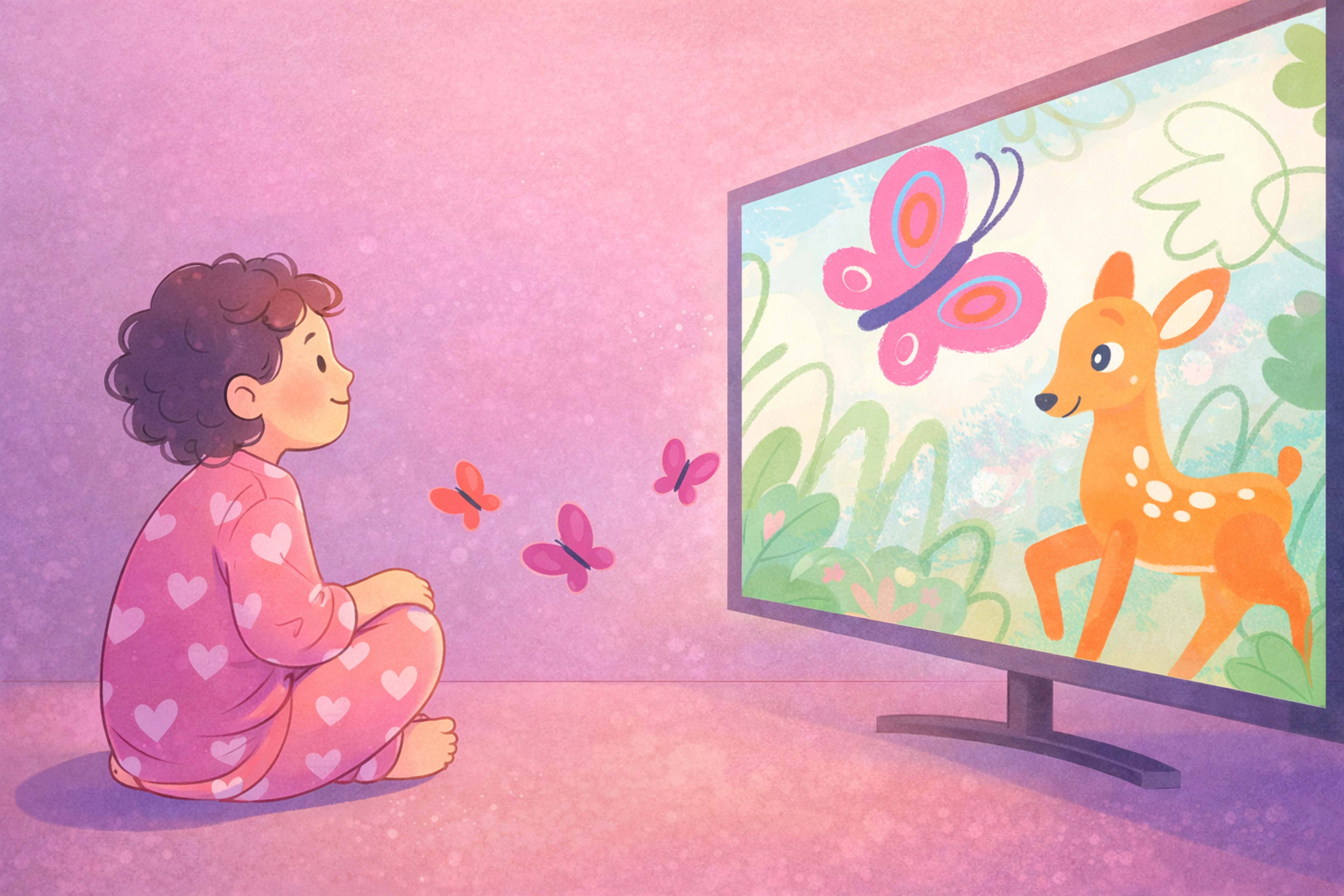
    Boy and a Deer

    Boy and a Deer

    Keep animations purposeful and straightforward. Complex motion can overwhelm users. Avoid overly complex animations to prevent distracting or confusing users. Subtle micro-interactions often work better than elaborate effects. Every animation should serve a clear function.

    Enhance micro-interactions. Instant feedback and button pulsing help users feel their actions are recognized, making the interface more responsive and engaging.

    Show relationships and improve understanding. Using animation to clarify relationships between interface elements leads to better understanding and makes complex information more accessible.

    The goal isn’t decorating interfaces but making them work better through motion.

    Implementation Best Practices

    Adding animation effectively requires planning and restraint. Before adding any motion to your site, start by defining the purpose. Ask whether animation will guide actions, provide feedback, improve navigation, or enhance storytelling. Animation without purpose becomes a distraction, and adding too many animations to a site can overwhelm users and negatively impact user experience.

    Follow core animation principles for natural movement. Use ease-in and ease-out transitions rather than linear motion. Keep timing consistent across similar interactions. Physics-based movement feels more intuitive than arbitrary motion. Overly slow animations frustrate users as much as too-fast ones.

    Optimize everything for performance. Lightweight animations load faster and run smoother, and CSS animations and GPU acceleration prevent lag. This matters especially on mobile devices, where performance varies widely. Animations can affect load times, so continually optimize them to ensure your site remains fast and responsive. Test on actual devices, not just powerful development machines.

    Keep effects subtle and functional. Small hover feedback, button responses, and loading indicators enhance the experience without overwhelming. Visual feedback through animation is essential in digital interfaces, as it helps users understand the results of their actions and improves overall responsiveness. Save elaborate animation for moments that truly need emphasis.

    Test and refine based on user behavior. Watch how people actually interact with animated elements. Gather feedback on whether the motion helps or confuses. Adjust timing, intensity, and triggers based on real usage patterns.

    Strategic animation makes interfaces feel fluid and responsive. It adds personality while improving usability. Well-designed UI animations enhance digital interfaces by making them more engaging, intuitive, and visually appealing.

    Tools for Animation Design

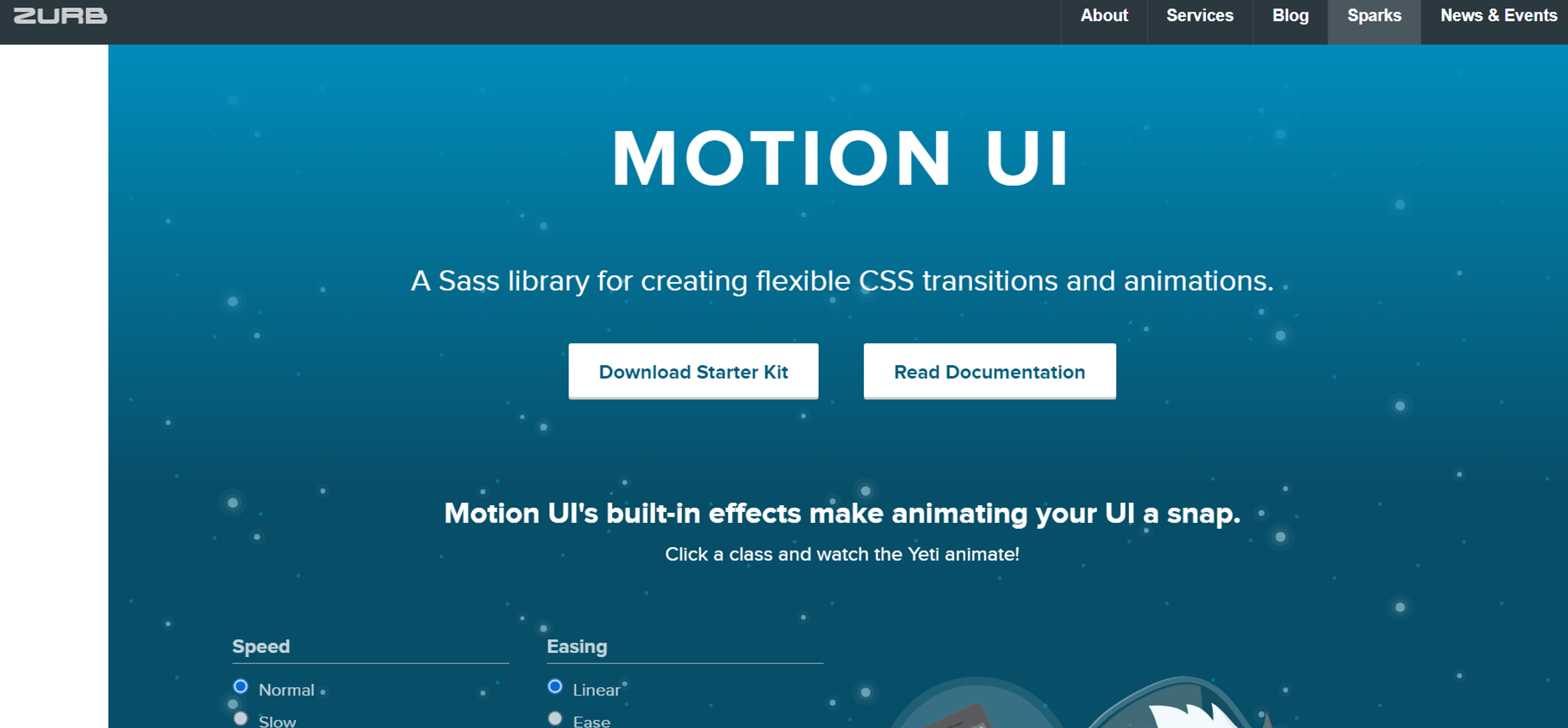
    Motion UI works well for beginners. It provides over twenty pre-built transitions and effects. Designers can customize these or create original animations to fit specific design needs. The tool balances ease of use with flexibility.

    Source: zurb.com

    Motion UI website

    Figma includes Smart Animate for quick prototyping. It handles hover states, modals, and page transitions smoothly. While not as powerful as specialized motion tools, Figma excels at collaboration and iteration. Teams can preview animations directly in the design file.

    After Effects serves professional motion designers, creating high-quality animations for transitions, icons, splash screens, and microinteractions. The learning curve is steep, but the control is unmatched. Export options like Lottie bring After Effects animations into web and mobile products. Designers can also export video files to showcase animation effects in presentations or product demos.

    GSAP gives developers powerful JavaScript animation capabilities. It handles complex timelines and interactions that CSS can’t achieve. Many award-winning websites use GSAP for smooth, performant animations.

    These tools help teams create engaging interfaces that guide users through digital experiences. Including videos to demonstrate animation effects showcases motion and improves accessibility for users with disabilities.

    FAQ

    What Is UI Animation?

    UI animation adds motion to interfaces, including transitions, microinteractions, and feedback. It makes digital experiences smoother and more intuitive.

    What Does UI Animation Mean?

    It uses movement and timing to guide attention, show change, and confirm user actions. It bridges design and interaction to improve usability and delight.

    What Are the 4 Types of Animation in UI?

    The main types are transitions, microinteractions, loading animations, and feedback motion. Each supports clarity, engagement, and system communication.

    What Does UI Stand For?

    UI stands for User Interface, the layout, visuals, and interactive elements that users engage with in apps, websites, and digital products.

    Read more:

    Conclusion

    UI animation succeeds when it serves users first. Every movement should clarify, guide, or enhance rather than decorate. The best animation disappears into the experience, and users don’t notice it consciously but feel its effects. Subtle animations provide an immersive experience through smooth transitions and visual feedback that draws users into the interface.

    Balance matters most. Too little animation leaves interfaces static and unresponsive, while too much creates confusion and distraction. The right amount makes interactions feel natural and effortless, supporting user progress through the interface.

  • What Is UX Information Architecture? Definition, Principles & Examples

    Make content easy to find with smart UX Information Architecture. Principles and examples that turn cluttered sites into clear, intuitive journeys.

    UX Information Architecture (IA) is the discipline of organizing content in a way that helps users easily navigate through and find information on digital platforms.

    Historically, this practice, called information architecture, has evolved significantly with the rise of the internet, becoming crucial for UX designers and content managers to prevent chaos on the web.

    This article defines information architecture and its main elements and illustrates how it enhances user experience.

    What Is Information Architecture?

    Information Architecture is the invisible backbone that makes websites and apps feel natural to use. Think of it as the blueprint for organizing content – like how a well-designed library helps you find any book without confusion.

    IA shapes how users move through your digital space. It determines whether someone finds what they need in seconds or gives up in frustration. Every navigation menu, category label, and content relationship stems from information architecture decisions.

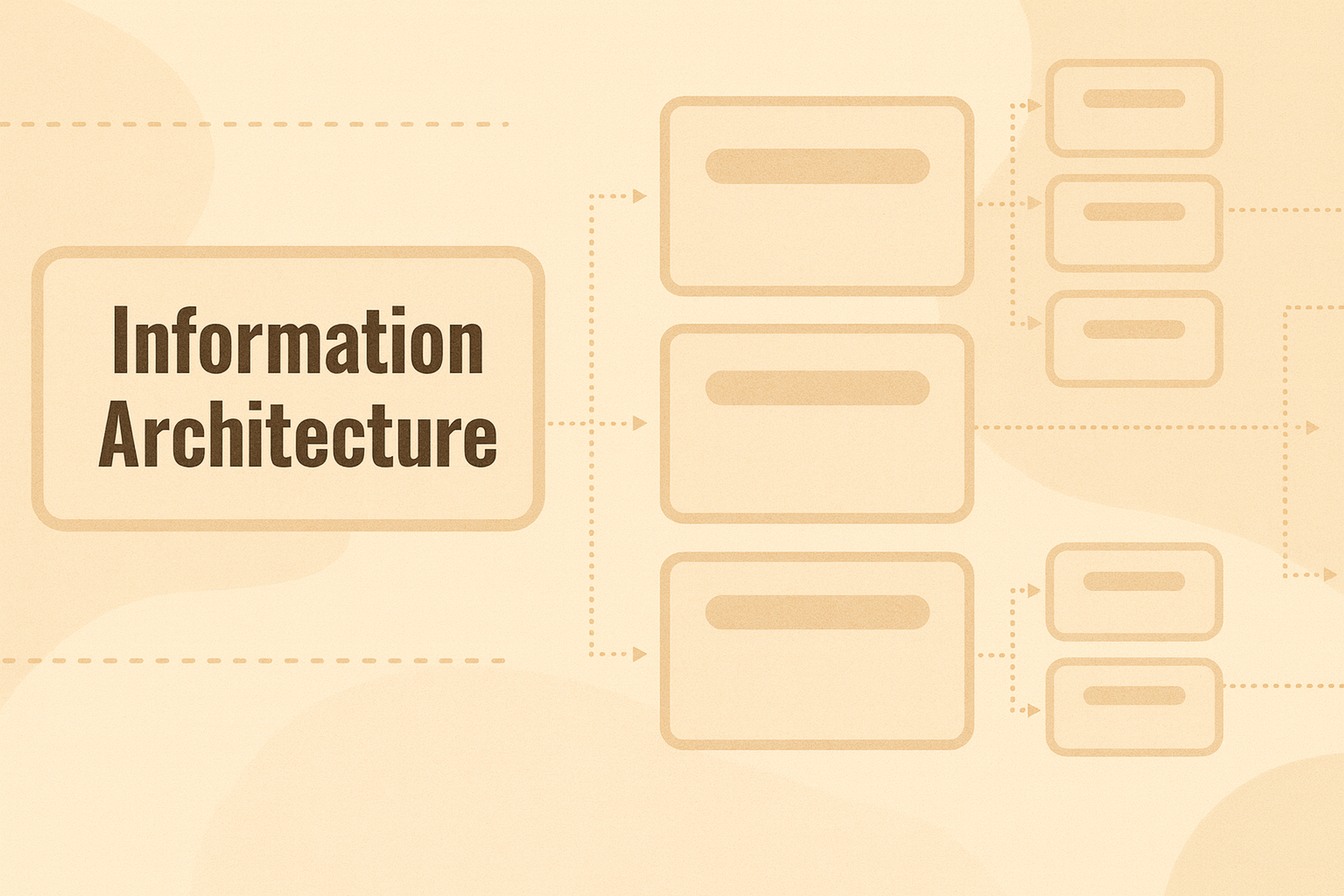
    Information Architecture

    Information Architecture

    This discipline emerged from library science but evolved into a core UX practice. Modern IA combines user psychology with content strategy. It answers critical questions: How should information connect? What paths make sense to users? Where should important content live?

    Good information architecture feels invisible. Users navigate effortlessly without thinking about the underlying structure. Bad IA creates digital chaos – users get lost, abandon tasks, and never return.

    4 Types of Information Architecture

    Hierarchical

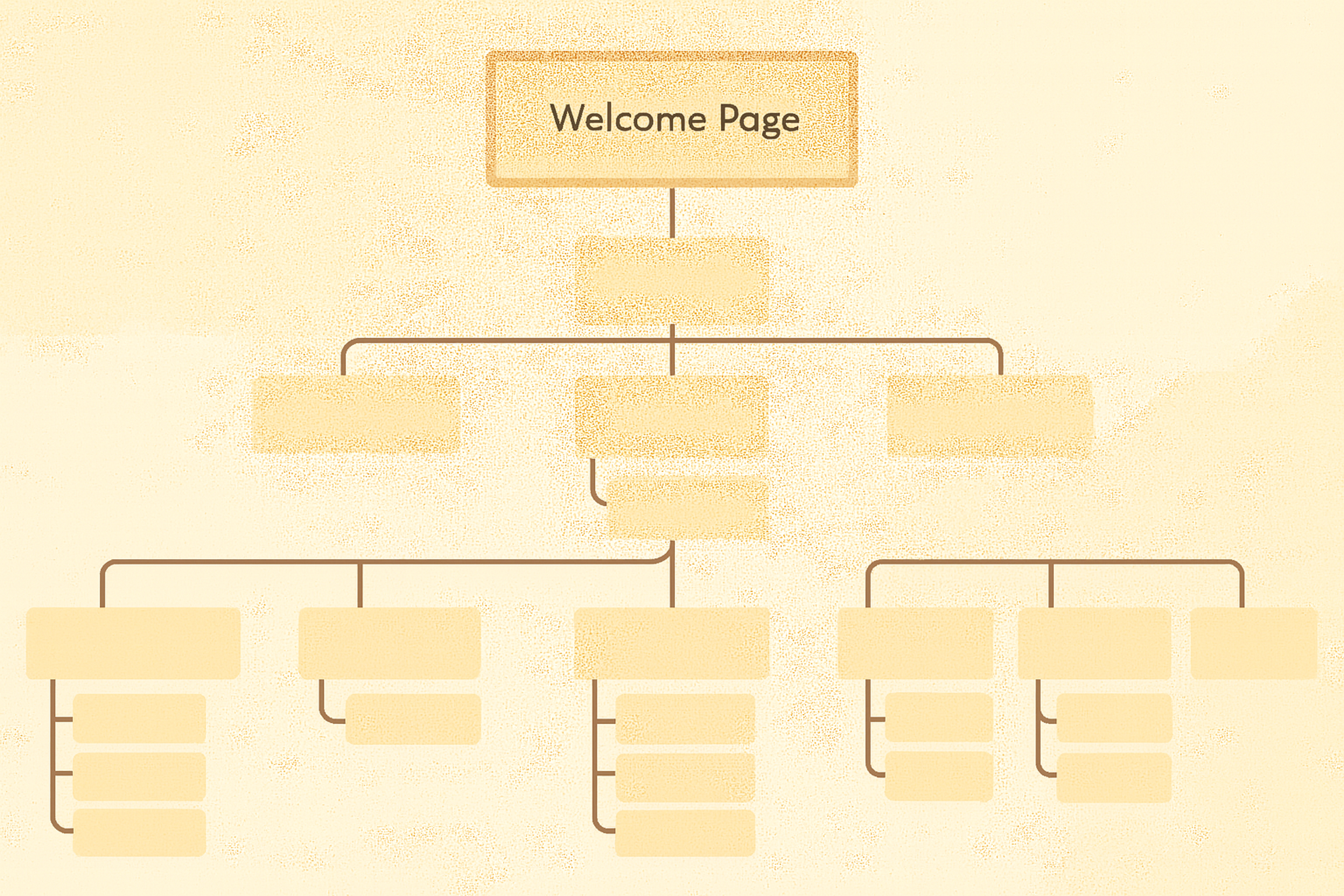
    Hierarchical IA organizes content like a family tree. Broad categories branch into specific subcategories, creating clear parent-child relationships that users can predict.

    This approach works best for large websites with diverse content. E-commerce sites use hierarchical structures – Electronics splits into Computers, then Laptops, then specific brands and models. Each level gets more specific.

    Users benefit from predictable navigation patterns. They learn that drilling down reveals more detailed options while moving up shows broader categories. This mental model aligns with how people naturally organize information.

    The tree structure also scales well. Adding new content means finding the right branch rather than restructuring everything. This makes hierarchical IA perfect for growing businesses and expanding content libraries.

    Sequential

    Sequential IA guides users through predetermined steps. Each stage builds on the previous one, creating logical progression toward a goal.

    Checkout processes exemplify this. Users move from cart review to shipping details to payment information, preventing choice paralysis.

    Educational platforms use sequential IA. Course modules progress from basic concepts to advanced applications, ensuring proper knowledge building.

    Matrix

    Matrix IA uses multiple categories simultaneously, letting users filter and explore content across different dimensions.

    Product catalogs showcase this. Users filter by price, brand, features, and ratings simultaneously, maintaining multiple exploration paths.

    Real estate sites use matrix IA, filtering properties by location, price, size, and amenities based on user priorities.

    Network

    Network IA creates web-like connections between related content. Content links organically based on relevance and user interests.

    Social media exemplifies this. Posts connect through hashtags, mentions, and shared interests, allowing discovery through multiple pathways.

    Wikipedia uses network IA. Articles link to related concepts, creating knowledge webs that support diverse learning paths.

    Why Is Information Architecture Important in Web and App Design?

    Without solid IA, digital products become confusing. Users face unclear navigation and dead ends, leading to frustration and lost business.

    Information architecture creates order from chaos. It turns content into logical, navigable systems. Users find what they need quickly, complete tasks, and return.

    The business impact is measurable. Poor IA increases bounce rates and support costs while decreasing conversions.

    Why AI Matters

    quote from article text about why information architecture saves you money over time

    Good IA drives engagement and satisfaction. Users spend more time exploring when navigation feels natural. They complete more tasks when paths are obvious. They recommend products that feel intuitive to use.

    IA also enables scalability. Well-structured systems accommodate new content without breaking existing patterns. Growing businesses can expand their digital presence while maintaining user-friendly experiences.

    Information Architecture vs Sitemap vs Data Architecture

    These three concepts often get confused, but each serves distinct purposes in digital product development.

    Information Architecture takes the broadest view. It encompasses content organization, user navigation patterns, labeling systems, and relationship hierarchies. IA considers the entire user experience of finding and using information.

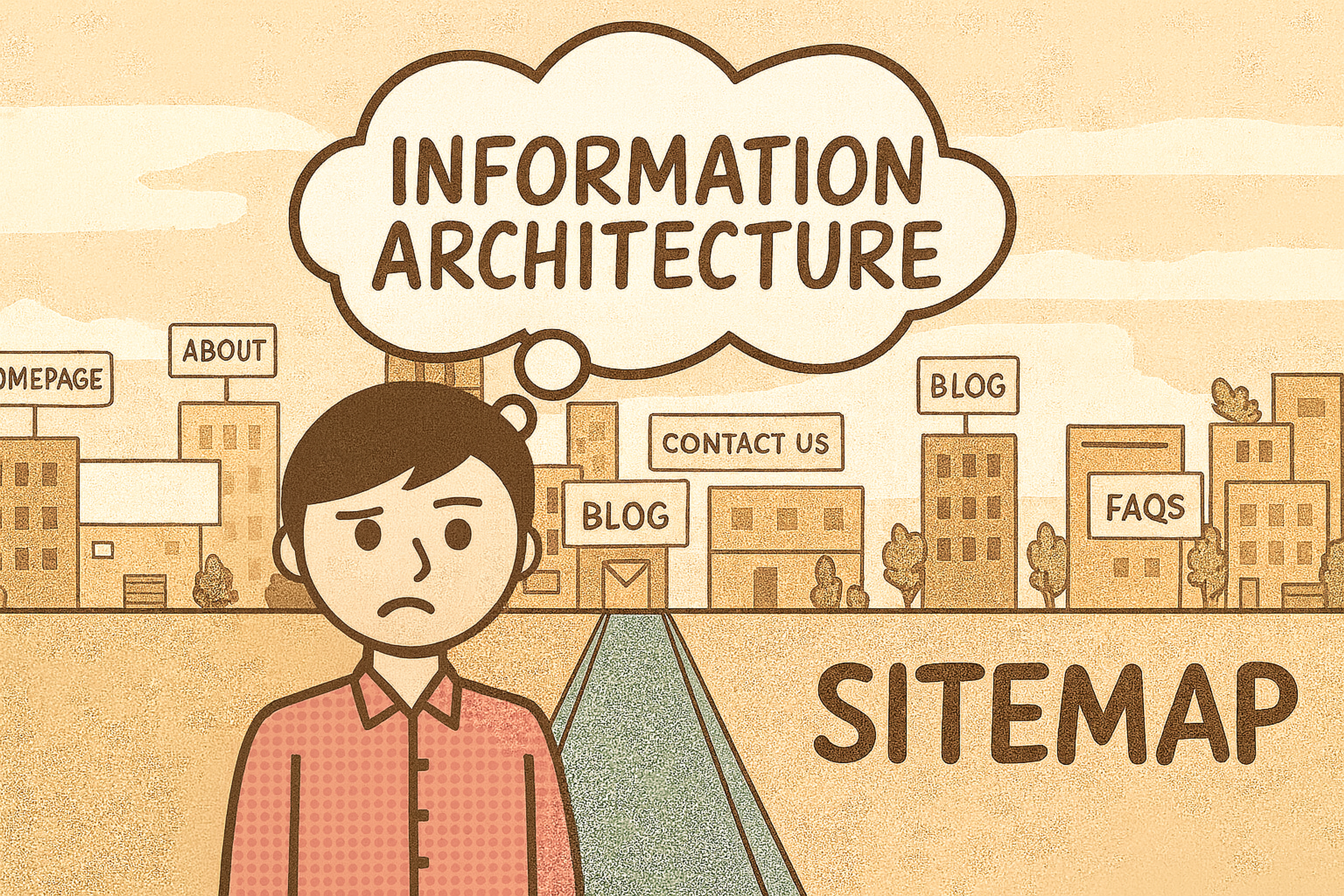
    A sitemap provides a focused structural overview. Think of it as a blueprint showing how pages connect and relate. Sitemaps help development teams understand technical requirements and page relationships, but they don’t address user behavior or content strategy.

    Information Architecture vs Sitemap

    Information Architecture vs Sitemap

    Data architecture operates behind the scenes. It manages how information gets stored, processed, and retrieved in databases and systems. Data architects ensure information flows efficiently between technical components, regardless of user experience.

    The relationships matter for project success. Information architects design user-facing organization. Data architects build technical infrastructure to support that organization. Sitemaps bridge these perspectives by documenting the structural implementation.

    What Are the 5 Key Steps in Information Architecture Design?

    Creating effective IA requires systematic research and design. These five steps transform user needs into functional information structures.

    User Research

    IA begins with understanding your audience. Who uses your product? What motivates them? How do they think about and organize information in their daily lives?

    User research reveals mental models – the internal frameworks people use to understand systems. When your IA aligns with user mental models, navigation feels intuitive. When it conflicts, users struggle and abandon tasks.

    Research methods include user interviewssurveys, and observation sessions. Card sorting exercises reveal how people naturally group and label content. Tree testing shows whether proposed structures support user tasks effectively.

    Content inventory runs parallel to user research. Catalog existing content, identify gaps, and understand what information users actually need. This prevents designing beautiful structures for irrelevant content.

    Analysis

    Research data requires careful analysis to reveal patterns. Look for common user goals, shared mental models, and consistent content needs.

    Create user personas that capture key audience segments. These are behavioral archetypes guiding design decisions. Consider how each persona seeks information and what paths they prefer.

    Content analysis identifies relationships and hierarchies. Note which topics connect naturally and what information serves as prerequisites for other content.

    Gap analysis reveals what’s missing. Users may need information that doesn’t exist yet. Existing content might lack proper organization. These insights guide IA design and content strategy.

    Design

    With research complete, you can design the actual information architecture. This means creating navigation, hierarchies, and labels that support user goals.

    • Start with a high-level organization. Determine how major content areas relate, what categories make sense, and how users move between sections.
    • Design navigation that feels predictable. Users should know where they are, where they can go, and how to return. Consistency reduces cognitive load.
    • Label content using language that users understand. Avoid jargon and technical terms. Test labels with real users to ensure clarity.

    Validation

    Validation proves whether your IA actually works for real users in realistic scenarios. Testing reveals gaps between intended design and actual user experience.

    Usability testing shows how people navigate your implemented IA. Do they find information successfully? Where do they get confused? What paths feel most natural?

    Analytics provide ongoing validation after launch. Track user behavior, identify common exit points, and monitor search queries. This data reveals where IA might need refinement.

    A/B testing can validate specific IA decisions. Test different labeling approaches, navigation patterns, or content organizations. Let user behavior guide optimization decisions.

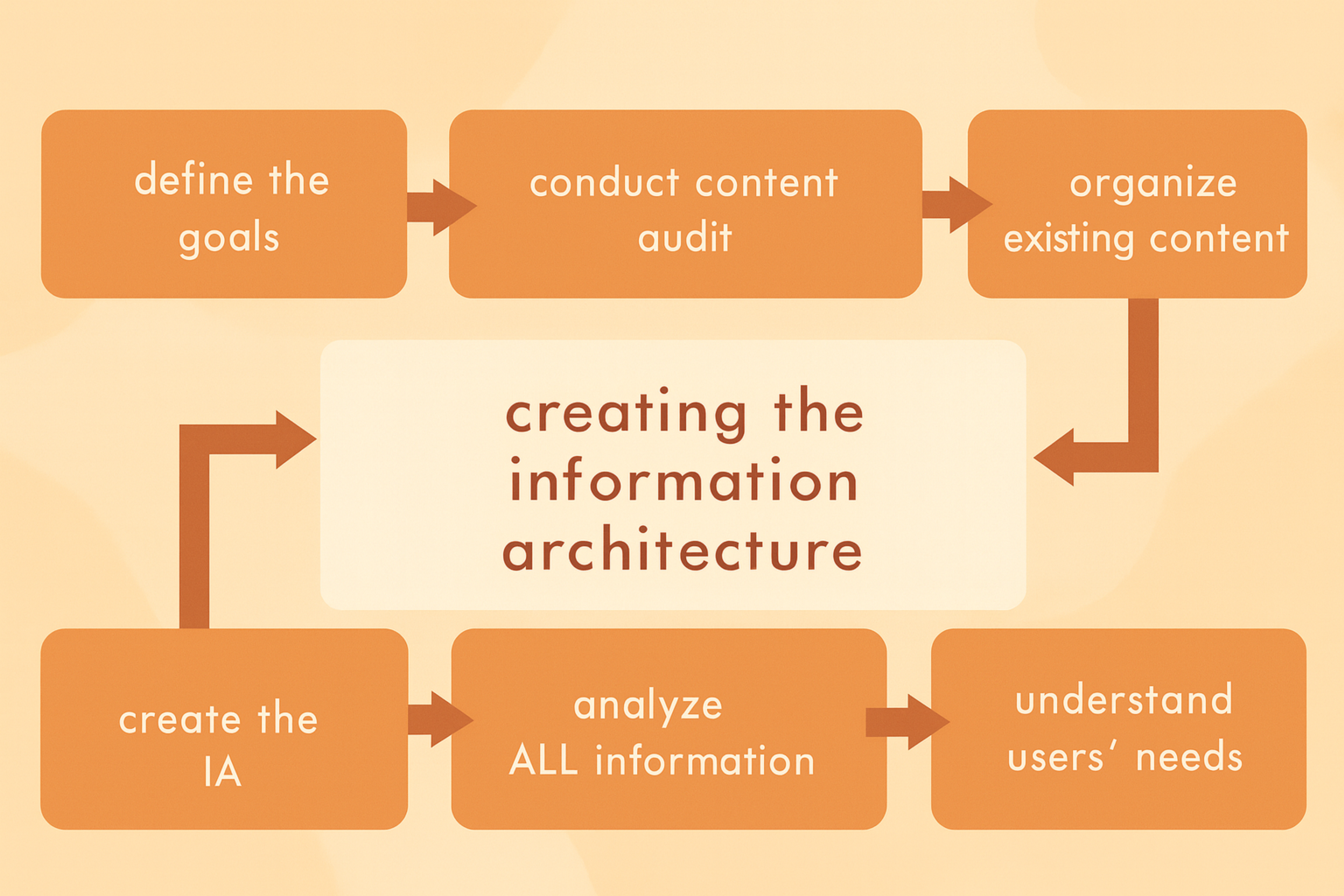
    Creating the Information Architecture

    Creating the Information Architecture

    What Does an Information Architect Do?

    An Information Architect (IA) designs how content is organized, structured, and labeled to improve usability and findability on websites or apps.

    The IA ensures users can navigate efficiently and access what they need. Responsibilities include understanding user needs, conducting research, creating content inventories, designing architecture, and developing sitemaps or wireframes.

    IAs collaborate with UX and UI designers, writers, and developers to align user needs with business goals. Investing in IA work maximizes the impact of user centered products.

    How Much Do Information Architects Earn?

    Earnings for an Information Architect can vary due to their location, level of experience, education, and employment industry. Glassdoor has recorded that information architects in the United States will earn around $193k per year starting in 2025.

    Depending on expertise and role demands, information architects’ salaries are expected to be between $150k and $251k. The increasing focus on design and navigation for users in digital products is positioning Information Architects as some of the most sought-after professionals and best compensated.

    Information Architecture Templates and Examples

    Charity App

    This intelligent assistant starts with an overview to walk users through the app’s functionalities. Thereafter, users are welcomed with a landing page where they can log in via Facebook or email or set up an account if they haven’t done so already.

    After logging in, users will be taken to the main dashboard, which allows easy access to their bookmarks, messages, profiles, and new post creation. The design supports information architecture by providing consistency throughout the platform, leading to high user satisfaction.

    Information Architecture Template

    Information Architecture Template

    Visio Stencils

    Nick Finck created this stencil set to aid in information architecture design. These universal tools are highly effective for designing wireframes, sitemaps, and process flows.

    Stencils like these enable designers to clearly and systematically organize content. They also support information architecture by aiding in the design of digital products, making them organized and easy for end users to use.

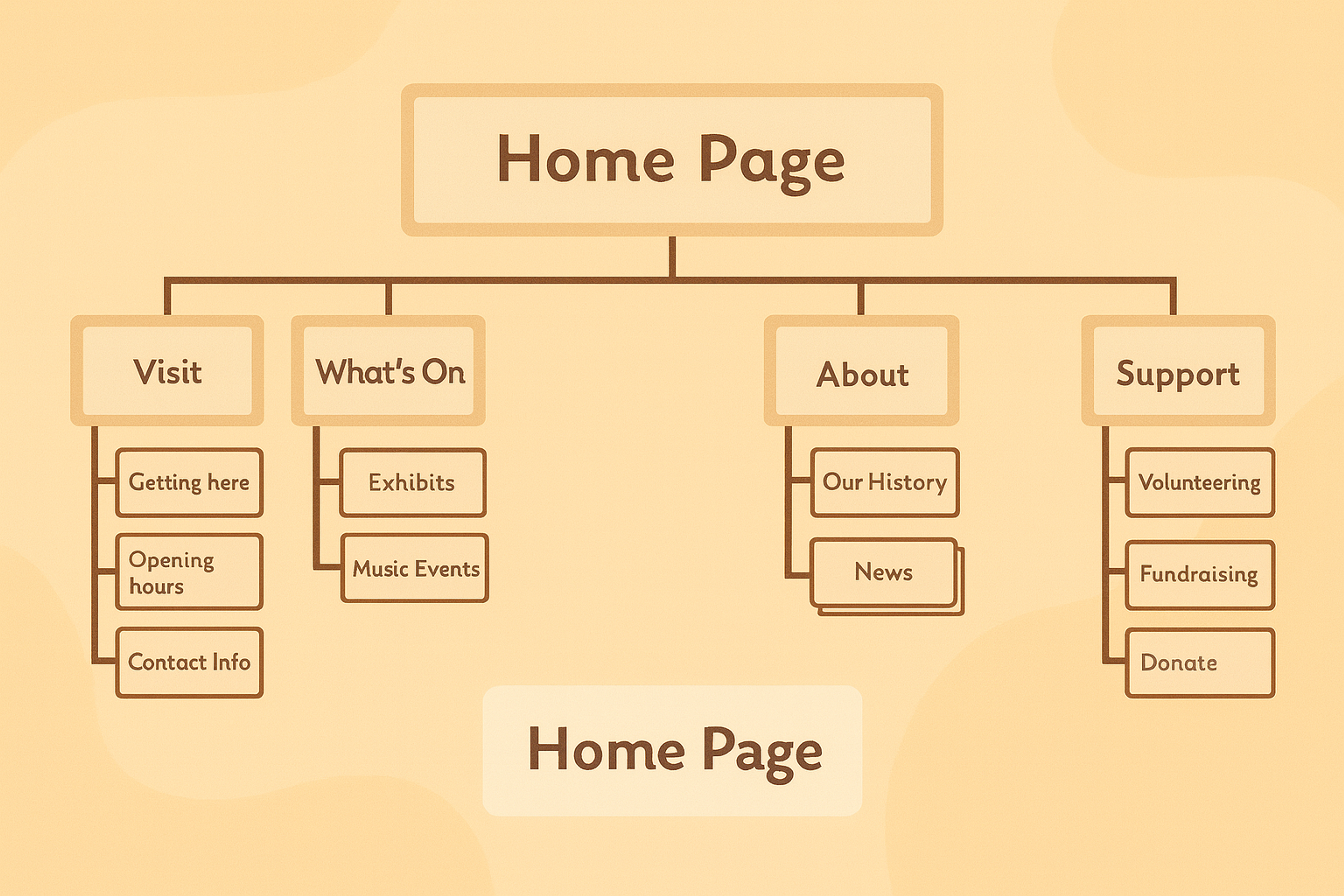
    The Museum

    The diagram shows website navigation. On the left are header categories and subcategories for quick access to important regions. On the right are footer categories serving as additional navigation.

    This approach places frequently used sections where they are easily found while keeping other material accessible but non intrusive. Design decisions are based on user feedback, creating a user centered information architecture.

    The Museum Information Architecture Diagram Example

    The Museum Information Architecture Diagram Example

    Tools and Techniques for Information Architecture

    When it comes to information architecture (IA), using the right tools and techniques is essential to ensure content is organized intuitively, making it easier for users to navigate. These practices define information structure and help build clarity and usability into digital experiences.

    Wireframing Tools

    Wireframes are essential in IA for creating basic layouts and visual representations of a digital product’s structure. These wireframes help plan navigation and placement of elements before diving into design. Popular wireframing tool:

    Sitemap Creation Tools

    Sitemaps visually represent the structure of a website or app and how different sections relate to each other. Tool for creating effective sitemaps include:

    Card Sorting

    Card sorting is a technique used to understand how users categorize and organize content. It helps determine the most intuitive way to arrange information. Tool for conducting card sorting include:

    User Research Tools

    To build a solid IA, understanding your users’ needs and behavior is crucial. Tool that support user research include:

    Prototyping Tools

    Once the IA design is in place, prototypes can help visualize how users will interact with the system. Popular prototyping tool:

    Collaboration Tools

    Since IA involves close collaboration among multiple teams (designers, developers, and stakeholders), collaboration tool helps keep everyone on the same page:

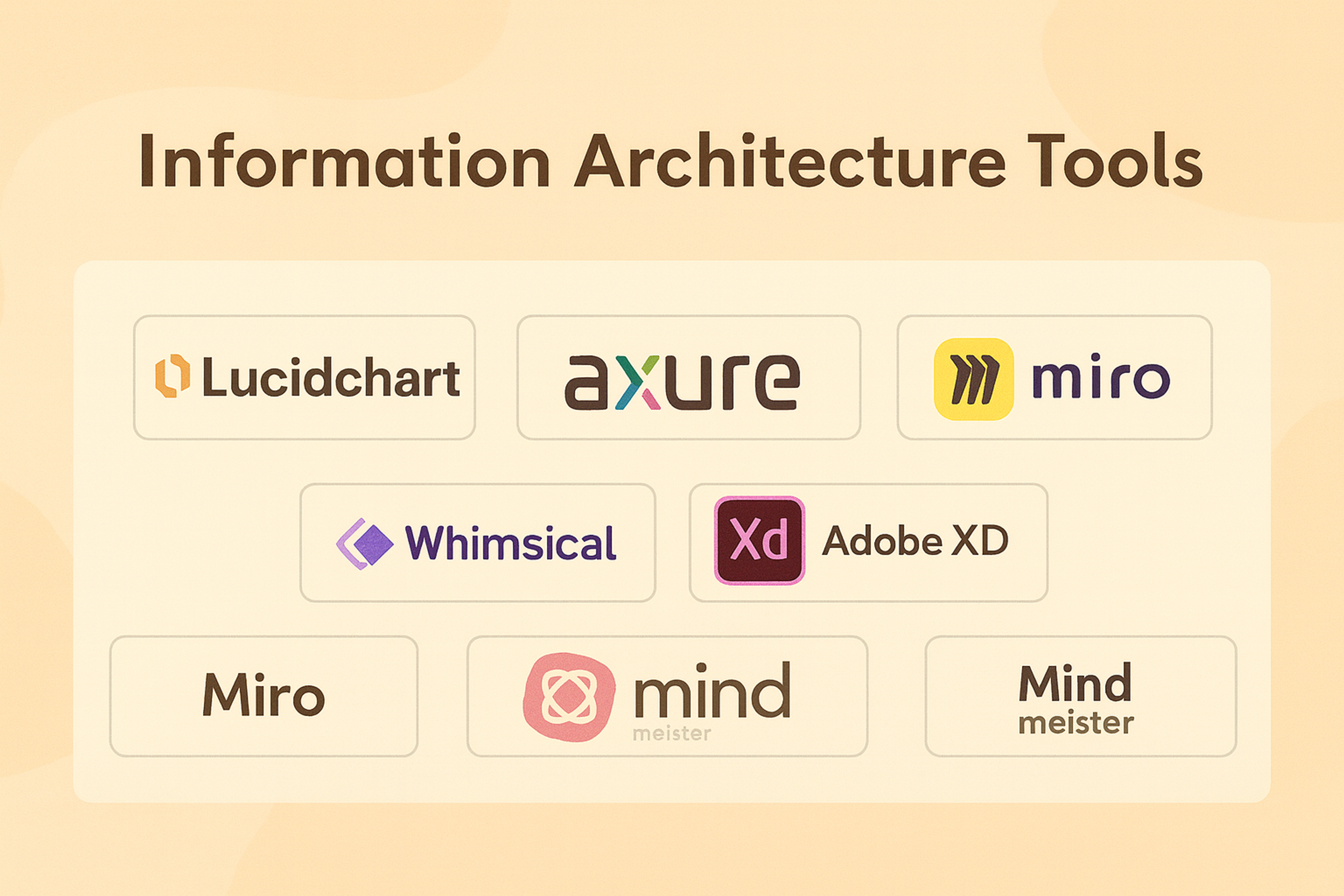
    Information Architecture Tools

    Information Architecture Tools

    By using the right combination of tools and techniques, information architects can create well-organized, user-friendly structures that enhance the overall experience of digital platforms. These tools allow for efficient collaboration, research, and testing, ensuring the IA design is optimized for user needs.

    FAQ

    Is Information Architecture the Same as UX?

    Information Architecture (IA) is part of UX Design, but they are not the same. IA focuses on the structure, content, and system organization. UX is broader, covering layout, visual design, interaction, usability, and user satisfaction.

    IA creates the framework for navigating a system. UX includes additional elements like aesthetics and interactivity. IA is fundamental to UX because it provides the structure for user interaction, while UX accounts for the complete experience.

    What Are Information Architecture Principles?

    There are guiding principles for effective Information Architecture design. These include:

    • Clarity: Content organizations should promote findings straightforwardly.
    • Consistency: There is value based on uniformity as familiarity is built over time if labels, categories, and navigation are kept the same throughout the platform. Cognitive load is lessened as well.
    • Flexibility: IA should allow for the addition of content and features.
    • User-centric design: The user perspective matters in intuitive navigation and IA. Their goals, behaviors, and preferences directly influence navigation and interaction.
    • Hierarchy: Manage information so that it follows a hierarchy that suggests its significance relative to other content and accommodates easier-to-locate venues.
    • Findability: The system’s arrangement should make it simple to locate, sift through, and obtain the information.

    Read more:

    Conclusion

    Information Architecture (IA) is a core component of UX design. By structuring content for easy information retrieval, IA improves usability and user satisfaction.

    Key IA principles include clarity, consistency, user focus, and scalability. These help create well organized systems.

    Good IA makes navigating websites and apps easier. With the right approach, UX designers can build architectures that meet both user needs and business goals, resulting in functional and engaging digital experiences.

  • The Must-Know UX Laws That Drive Great User Experiences

    UX laws made practical. Apply proven principles to craft intuitive interfaces, reduce friction, and keep users engaged.

    Great UX still comes from the same place: how people perceive, decide, and act. What changed in 2026 is the environment around those decisions. Interfaces are more cross-device, more personalized, and increasingly shaped by AI suggestions. Users move faster, trust is harder to earn, and small frictions get punished quickly.

    The “laws of UX” are useful because they keep you grounded. They help you design for real human limits, not perfect attention or endless patience. Below are the core principles and what they look like when you apply them to modern product experiences.

    Fitt’s Law

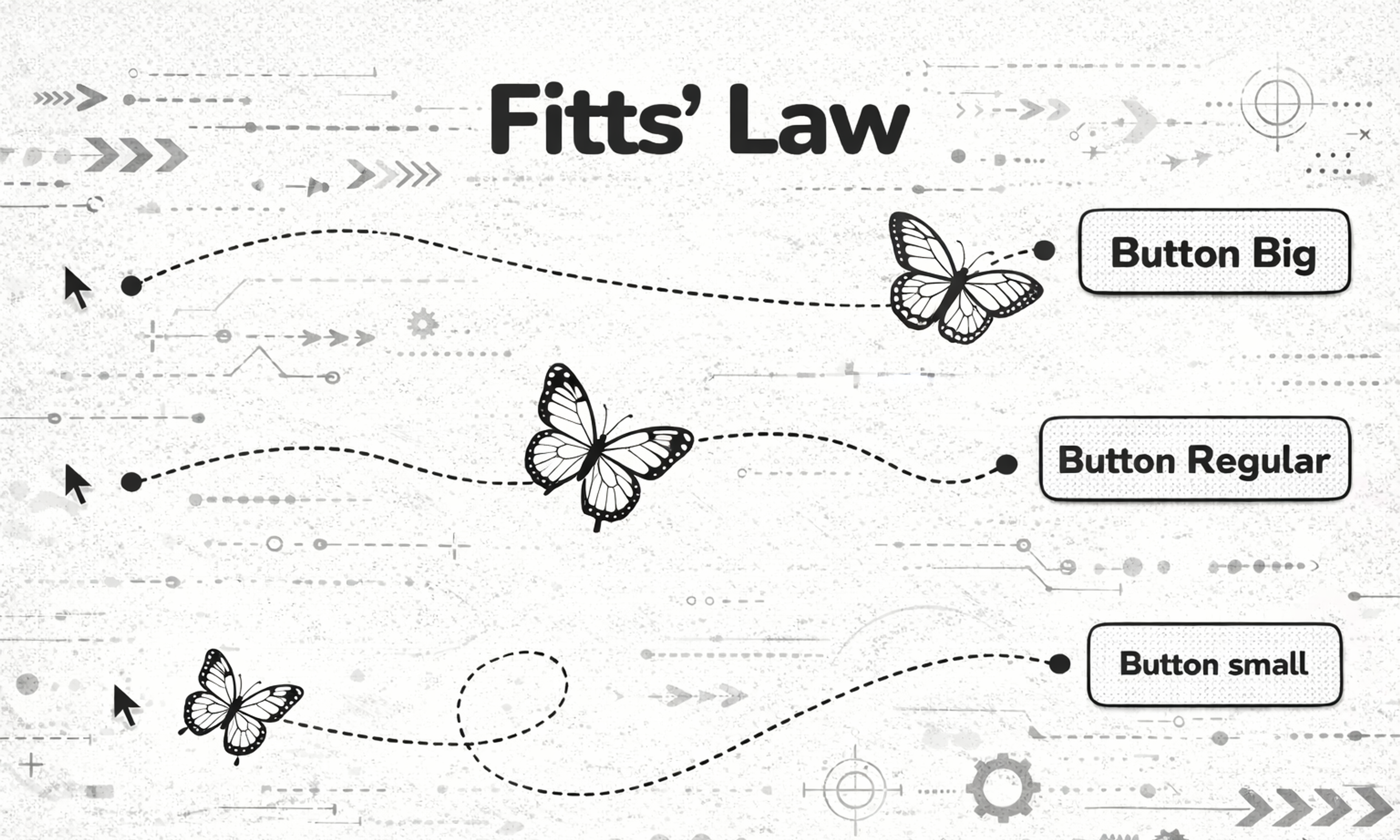
    Fitt’s Law Fitts’s Law says that the time it takes to hit a target depends on how big it is and how far it is. In practice, important actions should be easy to reach and hard to miss.

    In 2026, this is less about “make the CTA huge” and more about placing actions where hands and eyes already go. Thumb-friendly layouts, reachable navigation, and clear hit areas matter even more when your experience spans mobile, desktop, and embedded surfaces. If a critical action requires precision or multiple micro-movements, you are creating accidental drop-off.

    Fitts Law

    ux laws, fitts law

    Apply it in 2026: Make primary actions both visually obvious and physically easy to interact with. If you add AI-driven controls (smart replies, suggested edits, recommended actions), they should be as easy to undo as they are to trigger.

    Hick’s Law

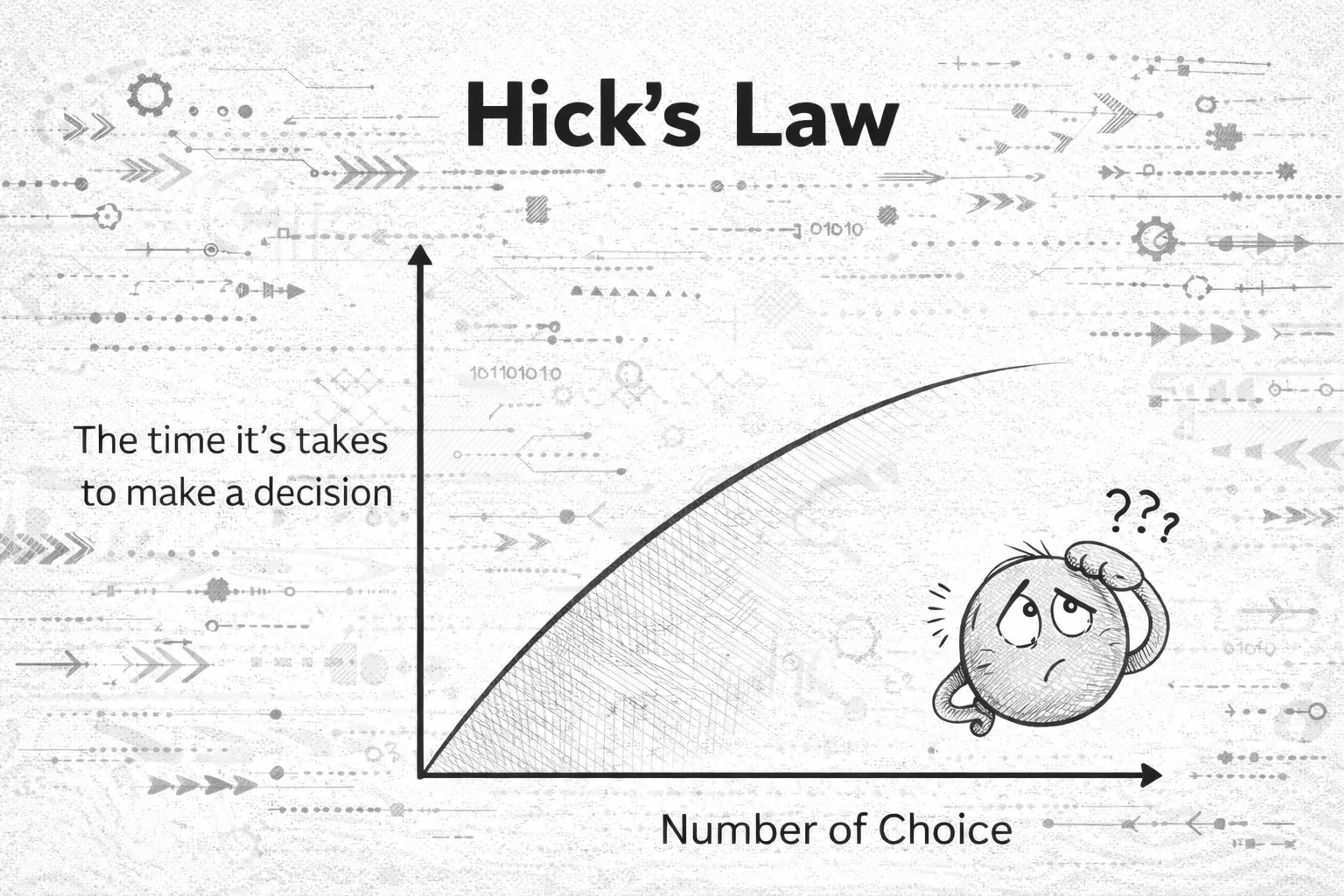
    Hick’s Law is simple: the more choices you present, the longer it takes to decide. Too many options create hesitation, fatigue, and abandonment. Modern products often address this by adding personalization and recommendation layers.

    That can help, but it can also backfire if users feel pushed or confused by “why am I seeing this?” logic. Your job is to reduce choice without reducing agency.

    Hick`s law

    Hick`s law

    Apply it in 2026: Don’t show everything at once. Start with a small set of clear paths, then let users refine with search, filters, or progressive steps. When using AI suggestions, label them clearly and keep the “manual” path visible.

    Goal-Gradient Effect

    People speed up as they feel closer to finishing. When progress is visible, motivation rises.

    This is why good onboarding feels like a series of small wins, not a single long form. It is also why checkouts that feel “almost done” convert better than ones that feel endless.

    Source: Codioful on Unsplash

    purple and pink light illustration

    Apply it in 2026: Use honest progress indicators, short milestones, and clear next steps. Do not fake progress. Modern users spot manipulation fast, and trust is expensive to win back.

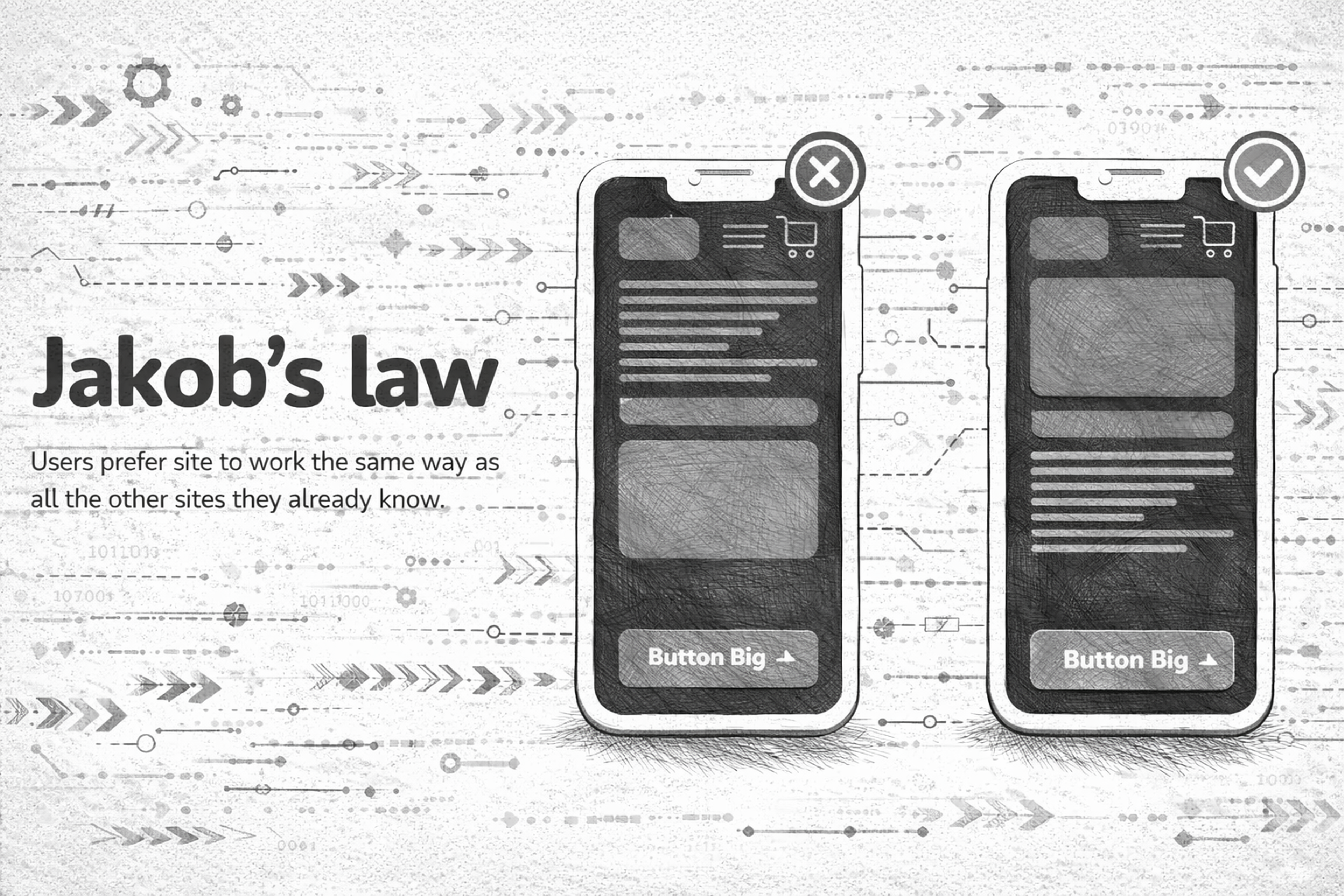
    Jakob’s Law

    Users prefer interfaces that work like the ones they already know. They bring habits from other products, platforms, and patterns.

    In 2026, Jakob’s Law is basically an argument for design systems and predictable interaction models across devices. Novelty can be great, but only when it is earned and when it improves outcomes.

    Apply it in 2026: Keep core patterns familiar (navigation, forms, search, account settings). If you introduce a new interaction (gesture, AI assistant, command palette), teach it quickly with lightweight cues, and keep a familiar fallback. For a UX designer, understanding and applying Jakob’s Law is crucial in creating familiar and user-friendly designs.

    Jacob`s Law

    ux laws, jacobs law

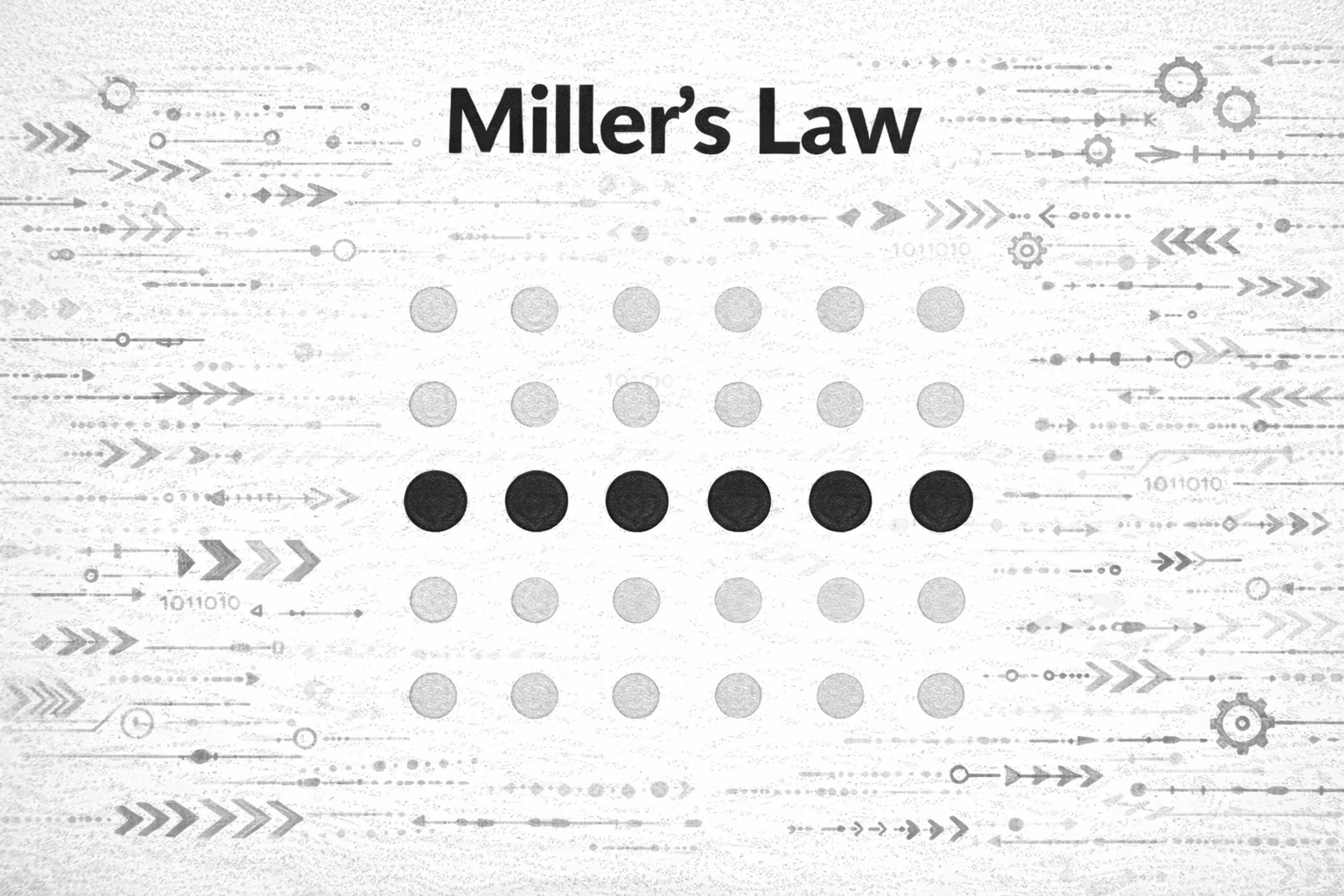
    Miller’s Law

    In 1956, psychologist George A. Miller proposed a theory best known as Miller’s Law. People can only hold a limited amount of information in working memory at once. The exact number is not the point. The point is that overload is real, and it happens faster than we think.

    Dashboards, pricing pages, and settings screens are the usual offenders. When everything is “important,” users remember nothing and act on less.

    Miller`s law

    Miller`s law

    Apply it in 2026: Chunk content into meaningful groups, reduce simultaneous demands, and design “recognition over recall.” If users have to remember rules, steps, or codes while navigating, your UI is doing too much work for them.

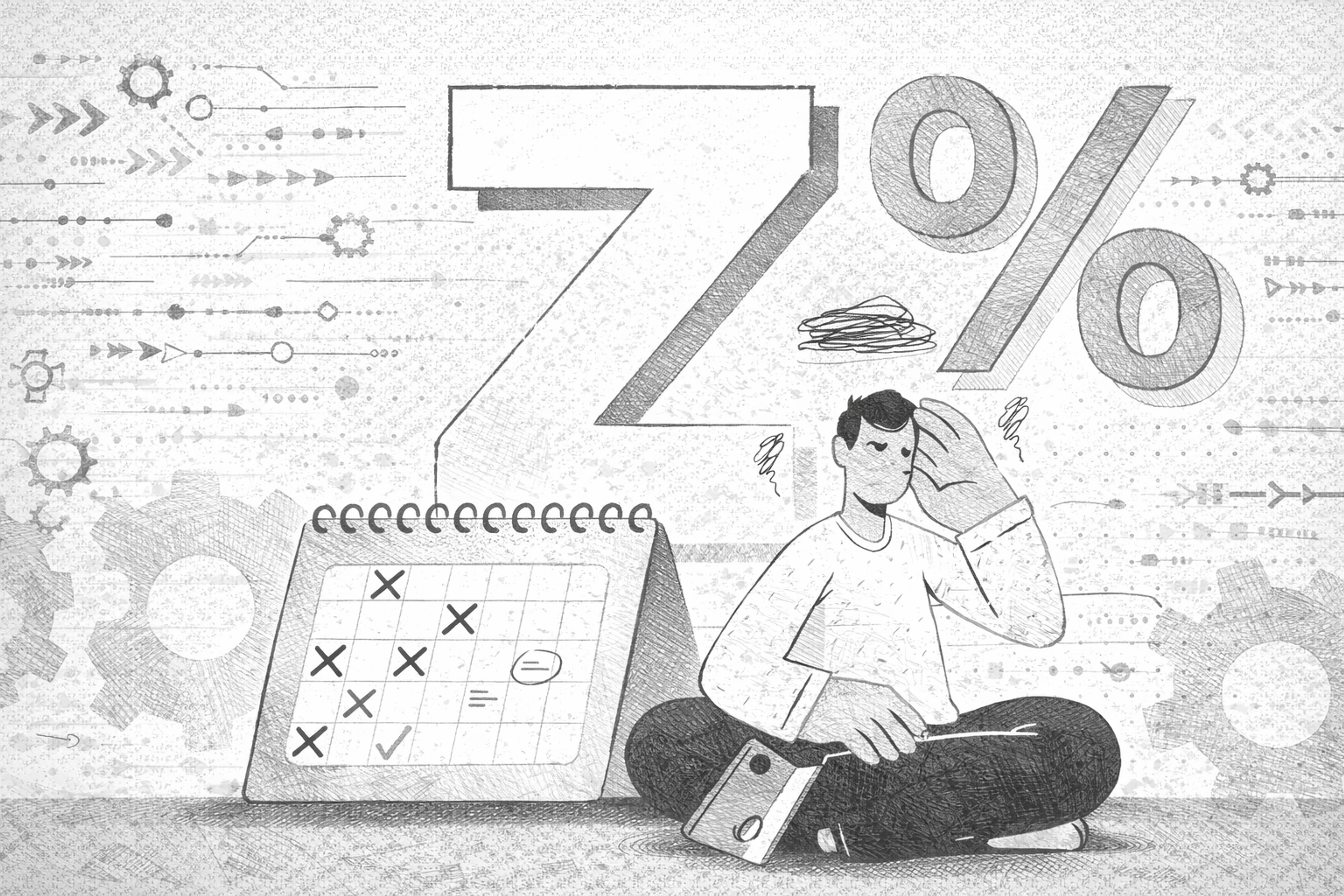
    Zeigarnik Effect

    In psychology’s realm, the tendency to remember interrupted or incomplete tasks better than those that are done is dubbed the Zeigarnik Effect.

    We remember unfinished tasks better than finished ones. Unclosed loops create mental tension, which can pull attention back.

    This can be used positively: drafts, “continue where you left off,” saved carts, and gentle reminders all reduce effort. It can also be used badly: anxiety-driven notifications and endless “incomplete” nags.

    Zeigarnik Effect

    Zeigarnik Effect

    Apply it in 2026: Use open loops to help users complete meaningful goals, not to pressure them. If you create reminders, make them controllable, snoozable, and respectful.

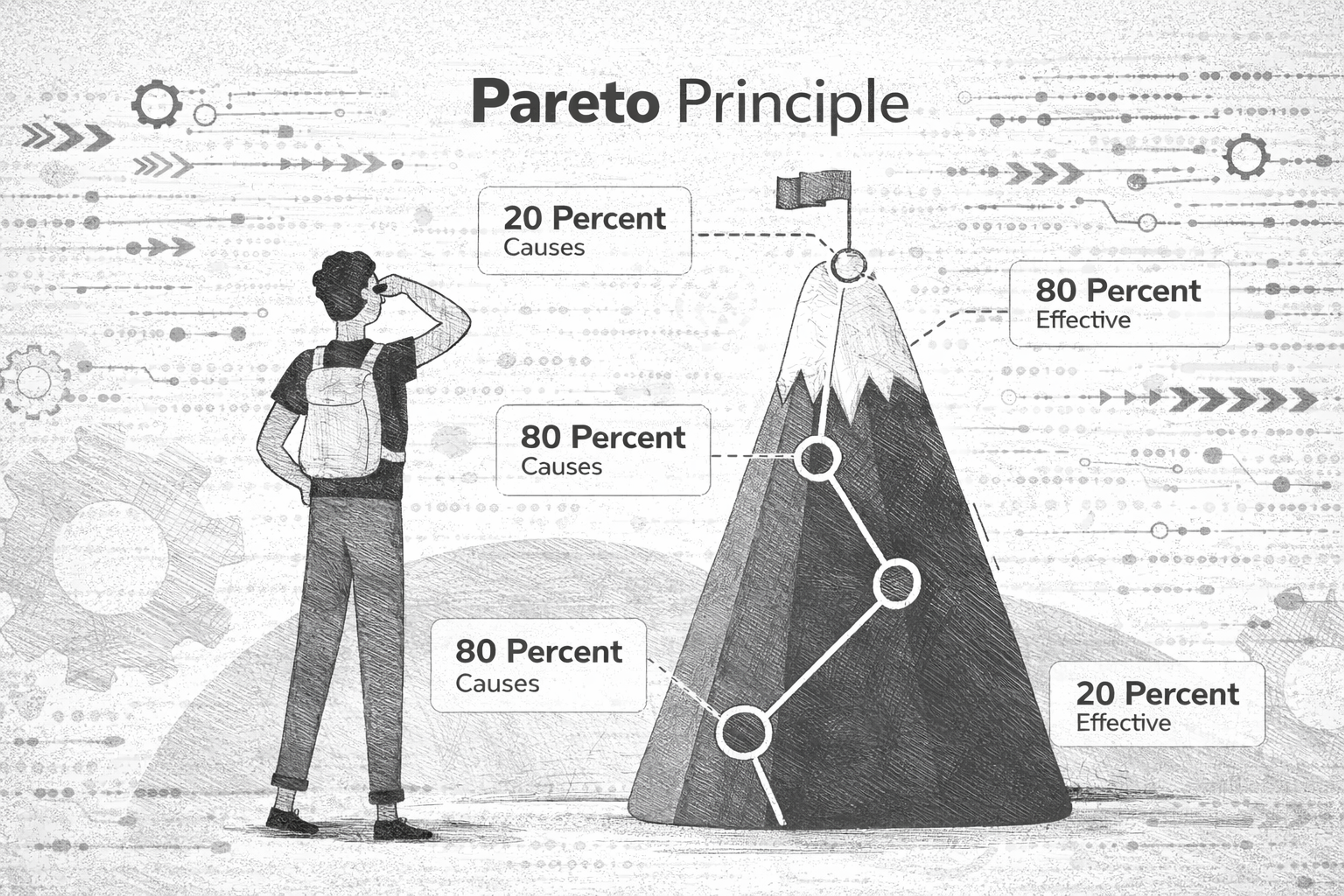
    Pareto Principle

    The Pareto Principle, commonly called the 80/20 Rule, is how 80% of results come from 20% of the set work inputs.

    A small part of your product usually drives most value. Most users rely on a few core flows, and most friction tends to cluster in a few key steps.

    In 2026, analytics makes this easier to see, but it also tempts teams to over-optimize metrics while ignoring long-term trust and usability.

    Pareto Principle

    Definition of Pareto Principle given by Vilfredo Pareto

    Apply it in 2026: Identify the handful of journeys that matter (activation, search, checkout, core task completion) and make those excellent first. Then simplify everything else around them.

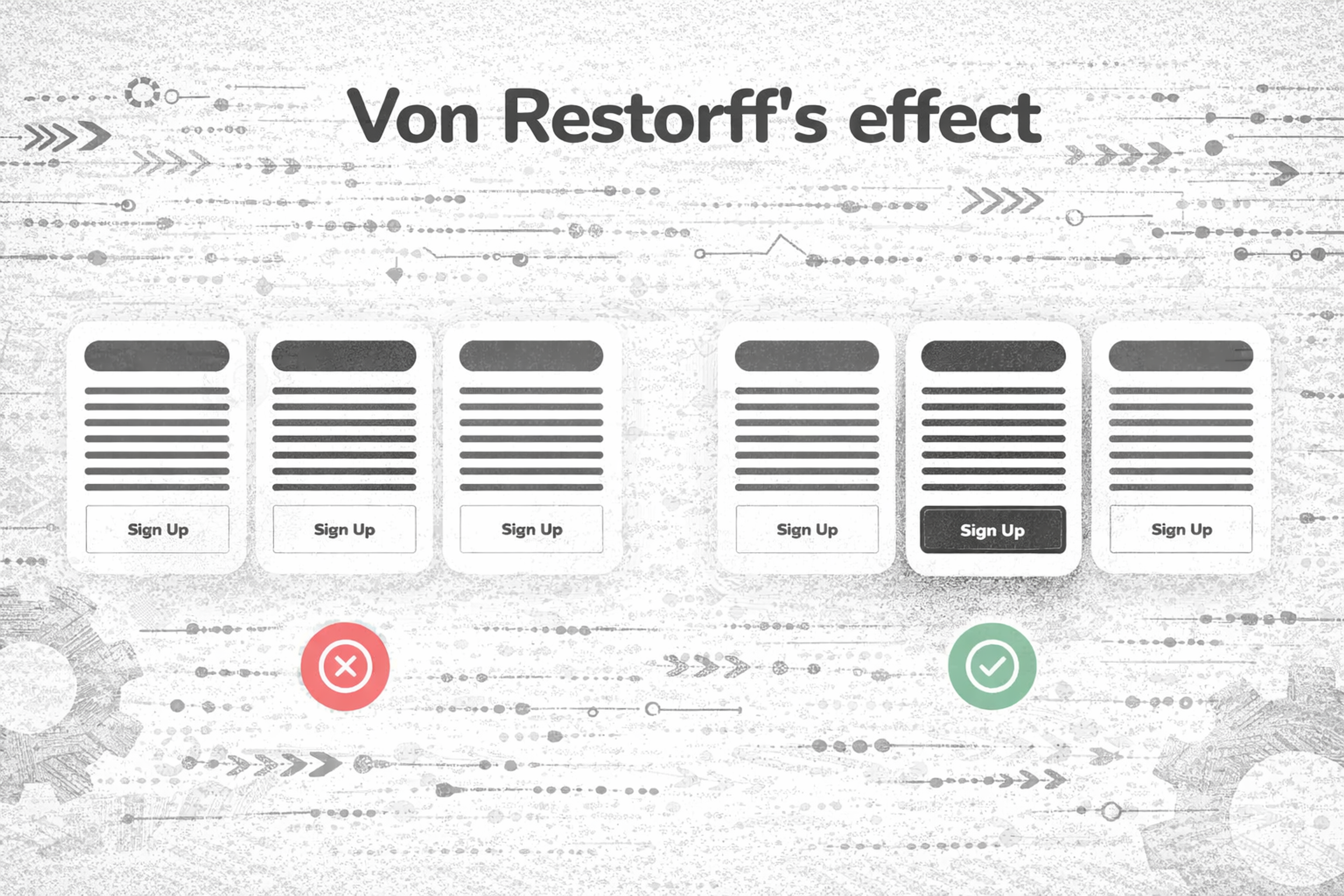
    Von Restorff Effect

    The Von Restorff Effect, commonly called the “isolation effect,” is a psychological concept that describes how an unusual item is more likely to stay in mind than one that blends in with its surroundings.

    People remember what stands out from the surrounding context.

    In interface design, this is why a single primary button works. If everything screams, nothing is heard. A standout element should be rare, meaningful, and consistent.

    Van Restorfs Effect

    ux laws, van restorfs effect

    Apply it in 2026: Use contrast and emphasis as a budget. Spend it on the one action that truly matters. Avoid competing highlights like multiple “primary” CTAs, overloaded badges, and constant animated elements.

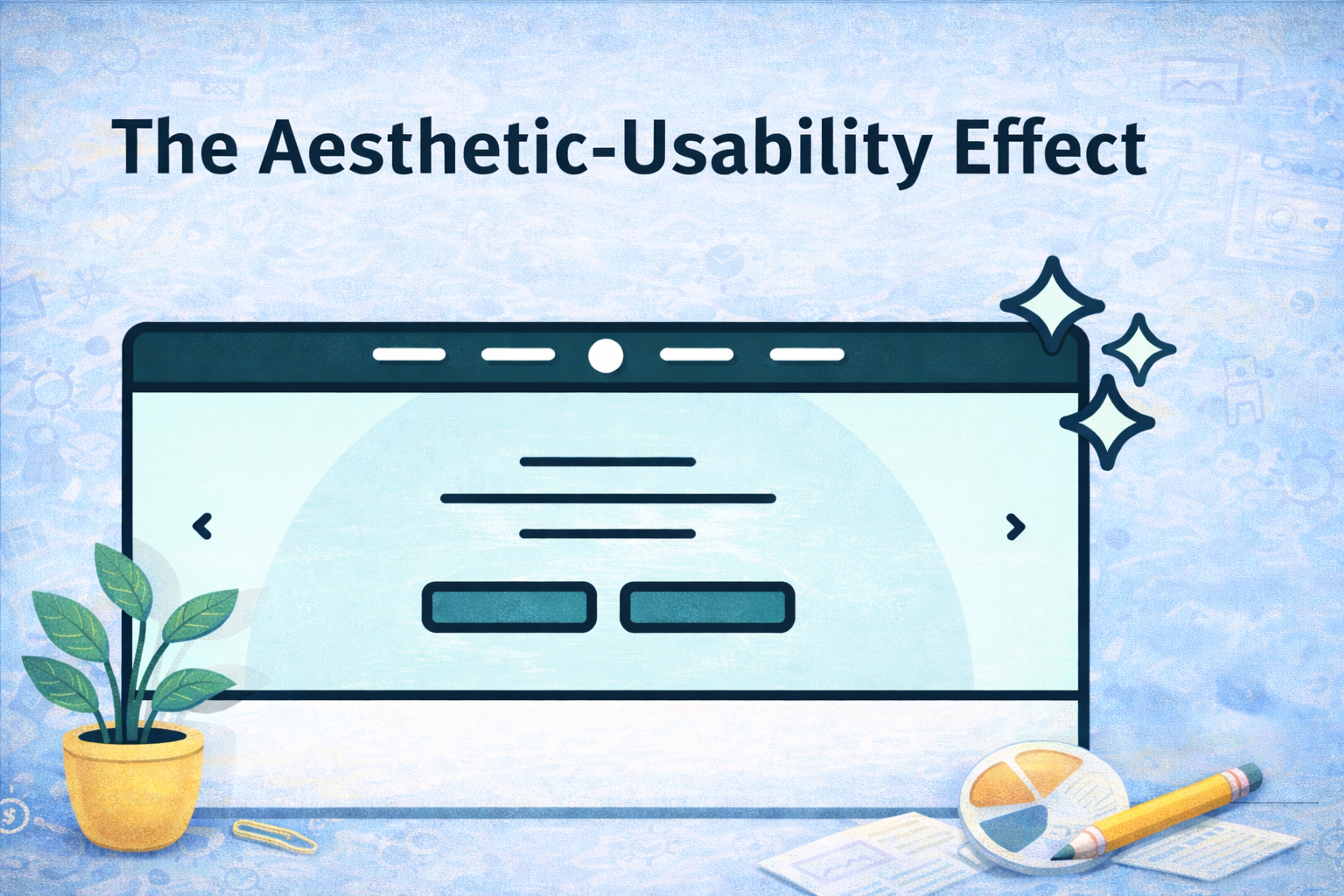
    Aesthetic-Usability Effect

    The aesthetic-usability effect refers to how a person perceives a system as more usable when it appeals to them visually, regardless of its usability. Aesthetically pleasing designs can enhance perceived usability, making users overlook usability issues when a design is visually appealing. Positively emotionally charged designs evoke better user experiences, no matter the severity of any usability problems.

    A user comes in contact with an interface and form, or the interface is visually appealing. Any issues they may face within the interface feel much easier to solve.
    Users generally tend to be more accepting and forgiving of errors in a design they emotionally feel more attached to. On the other hand, cluttered, antiquated, or dull-looking interfaces tend to face much more user resistance, irrespective of how functional they are.

    The Aesthetic-usability Effect

    the aesthetic-usability effect

    Apply it in 2026: Treat craft as usability. Make your UI calm, consistent, and readable first, then add brand personality without sacrificing clarity.

    Serial Position Effect

    People remember the first and last items best. Middle items get lost.

    This matters for onboarding steps, feature lists, pricing tables, navigation menus, and any “top options” layout. It matters even more in infinite scroll environments where “first” and “last” are shaped by how you structure screens.

    Two Designers Sitting at a Table

    Two designers sitting at a table in a park, looking at a project on a laptop

    Apply it in 2026: Put the most important information where memory and attention are strongest: the beginning and the end. Use summaries, sticky tools, and clear sectioning so users do not drown in the middle.

    Familiarity Principle

    The more we see something, the more we tend to like it and trust it. Familiarity reduces mental effort.

    This is why consistent microcopy, consistent UI patterns, and consistent interaction states matter. Users don’t want to relearn your product every time you ship an update.

    Source: Ryoji Iwata on Unsplash

    aerial view of people walking on raod

    Apply it in 2026: Build repeatable patterns. Keep labels stable. When you do change something, keep the old mental model intact, or guide users through the new one with empathy.

    Progressive Disclosure

    The term “disclosure” means revealing or uncovering something, and when it comes to “progressive,” it indicates something gradual. Progressive Disclosure is a blend of two concepts, which means revealing something in parts.

    In simpler terms, Progressive Disclosure is defined as a UI method that focuses on providing relevant information to users according to their needs without overwhelming them initially.

    Progressive Disclosure balances UI information with the design – complex features of the service or website are hidden with drop-down options within the Advanced Section. By using a clearly defined boundary, visual clarity is enhanced, helping users quickly understand relationships between different elements.

    Apply it in 2026: Design a “default path” for most users, then offer advanced depth through expandable panels, secondary screens, and clear “learn more” affordances. Keep advanced features discoverable, but not in the way.

    Read more:

    Conclusion

    The laws of UX are not rules to memorize. They are lenses that keep you honest about how people actually behave.

    In 2026, the best experiences feel fast, familiar, and trustworthy. They reduce choice, guide attention, respect cognitive limits, and reveal complexity only when it helps. If you apply these principles consistently, your product will not just look modern. It will feel effortless, which is the real benchmark users care about most.

  • How Glassmorphism in UX Is Reshaping Modern Interfaces

    Blurred edges, soft layers, and digital depth – glassmorphism redefines what modern UX looks and feels like.
    User interface design isn’t static. It cycles through fads like seasons. First, screens mimicked real-world textures – people could almost touch scratched metal and crumpled paper. Then, a minimalist flat look swept in, flattening shadows and glossy buttons to the point of coolness.
    These days, a trend built on layers and subtle depth is creeping into almost every app. Glassmorphism has emerged as a major UI design trend and design style, shaping modern visual design with its focus on translucency, depth, and minimalism.

    This look combines frosted panes, blurry backgrounds, and edges that seem to glow like neon on a foggy night, creating a strong sense of depth. Imagine staring through smudged glass. You can see what’s behind it, yet everything feels softly swept together.

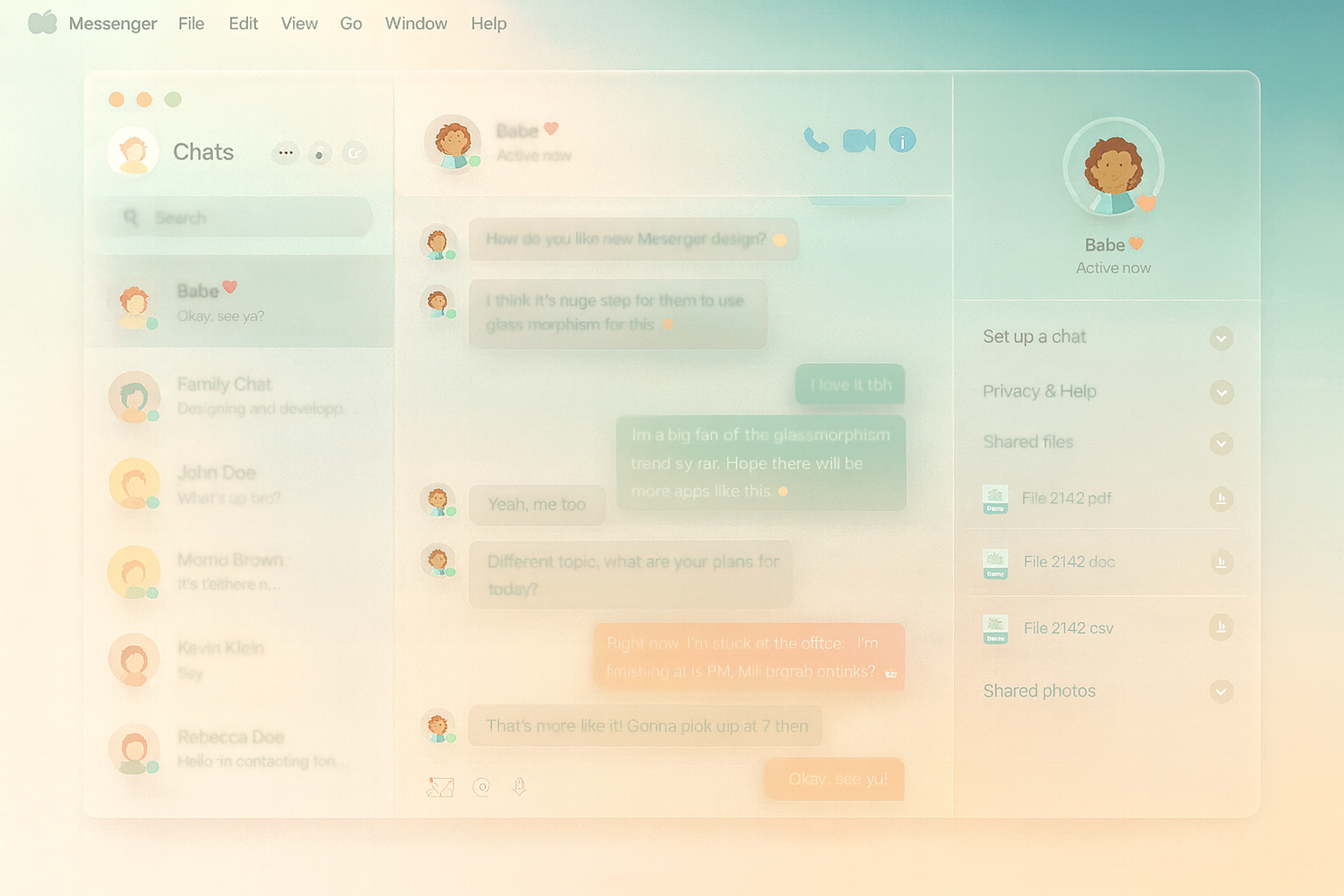
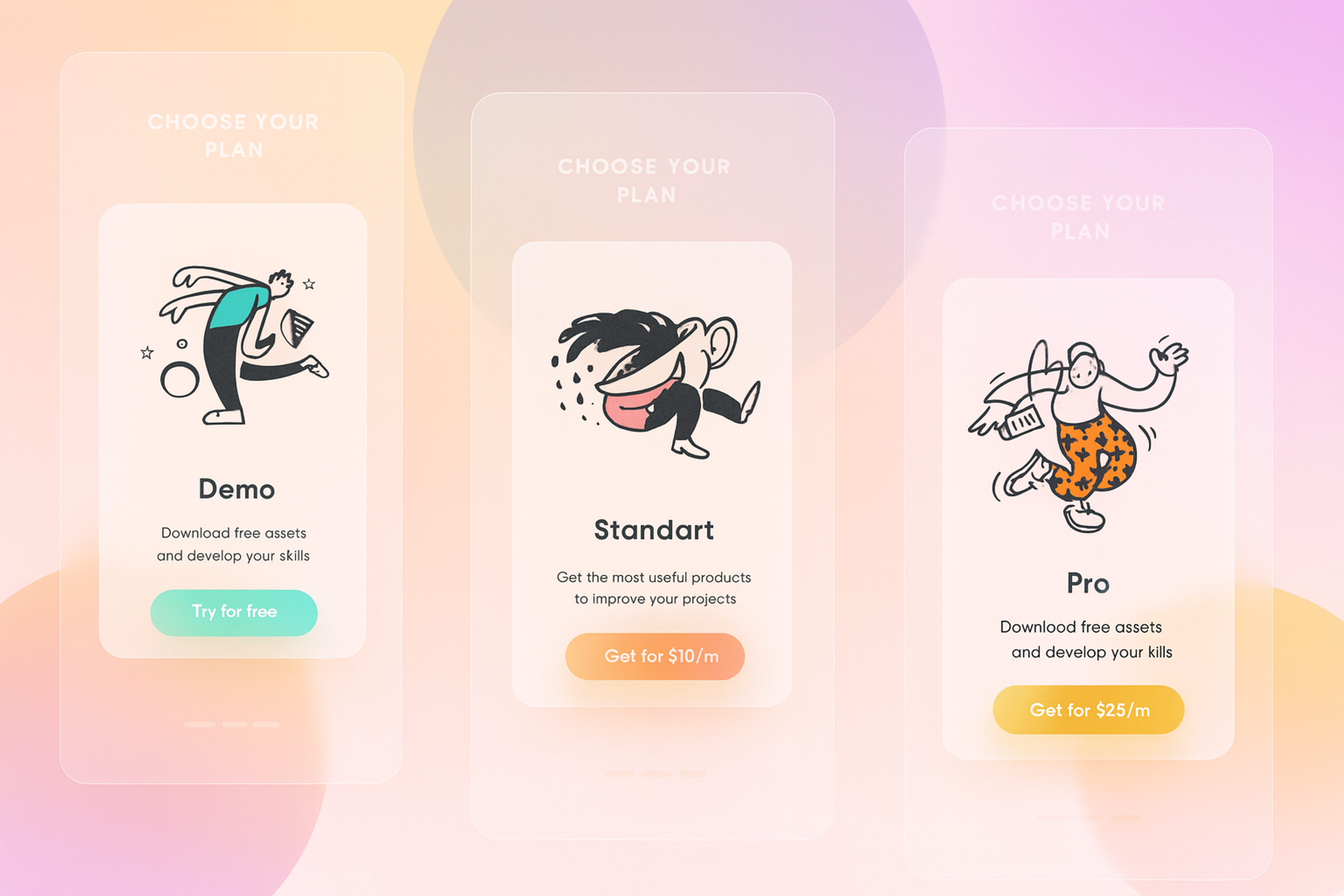
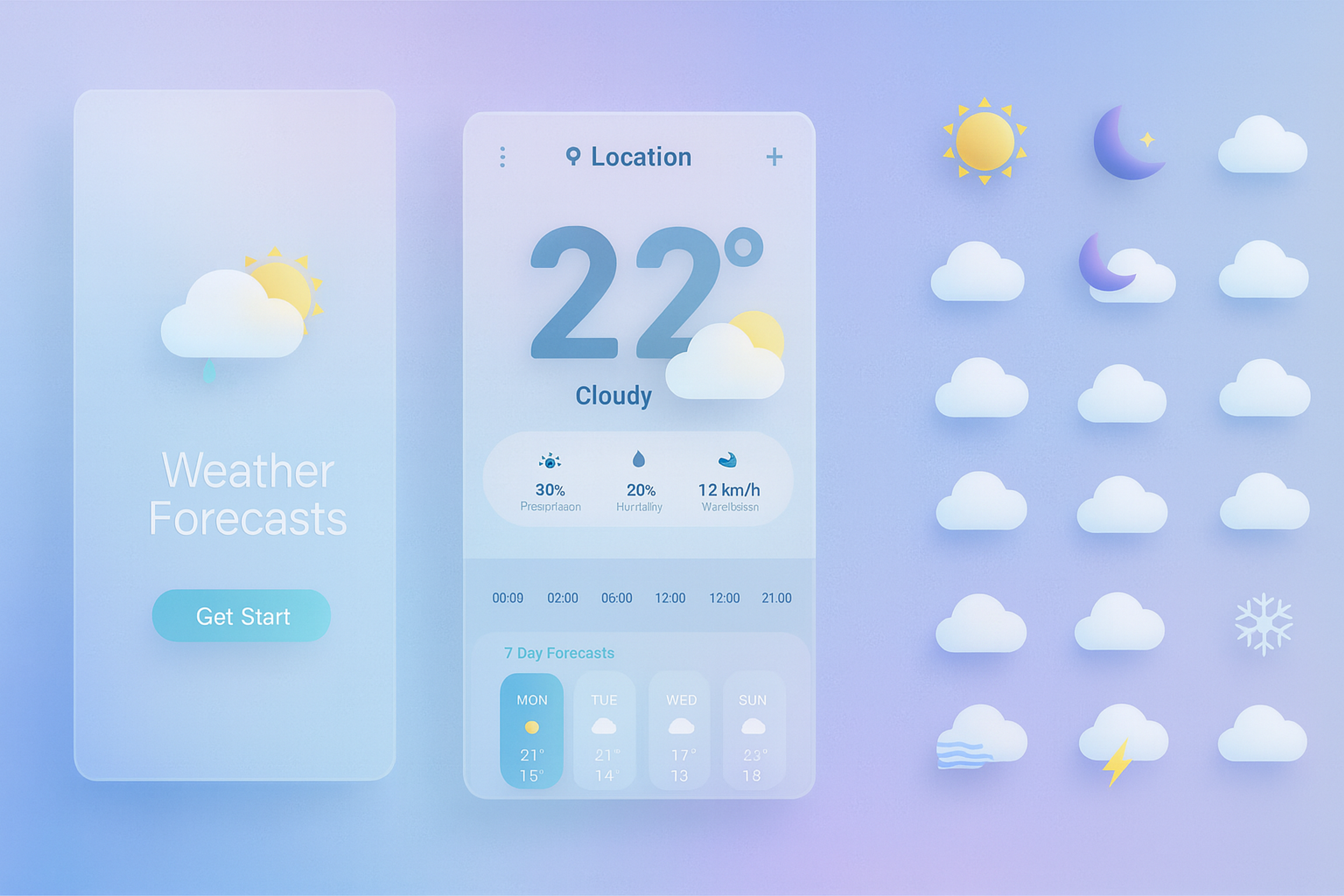
    Glassmorphism Example

    Glassmorphism example

    Glassmorphism isn’t decoration, for decoration’s sake. The blur and transparency pull your eye toward the active controls and push everything else into a gentle haze, which makes sense for guiding user attention. Navigating a crowded dashboard suddenly feels straightforward and calm in that quiet context.

    Designers who once chased flat colors now agree that the look doesn’t just please the eye. It quietly improves how we interact with software. Even the most straightforward task feels more graceful when your screen acts like tinted glass, letting the essential bits shine through.

    What Is Glassmorphism?

    Glassmorphism is a visual style that emulates the look and feel of frosted glass. As a popular glassmorphic design and glassmorphism design trend, it is characterized by its modern, elegant aesthetic. It uses translucent surfaces, background blur, subtle shadows, and vibrant colors to create interfaces that feel light, layered, and modern.

    Pastel Glassmorphic Example

    Pastel glassmorphic example

    Key characteristics of glassmorphism include a glass-like appearance, semi-transparent elements, and layered, frosted effects that add depth and visual hierarchy to UI components.

    Virtual glass and glassmorphic elements, such as cards or overlays, are central to this style, creating the illusion of floating, translucent layers within the interface.

    When implementing glassmorphism, understanding visual design principles is essential to ensure effective, accessible, and visually appealing results.

    Key Glassmorphism Visual Characteristics

    • Backdrop blur: Mimics foggy glass surfaces to obscure the background without fully hiding it.
    • Transparency: Layers appear see-through but with a softened look.
    • Depth and layering: Components visually “float” over a colorful background, often enhanced with a linear gradient or by replacing a solid fill with bright colors and vivid colors to increase visual appeal and contrast.
    • Soft borders and border highlights: Rounded corners, faint outlines, and border highlights define the shape of glassmorphic elements and add visual emphasis.
    • Minimalist approach: Embraces a minimalist aesthetic, often paired with clean typography and simplified icons.

    How Glassmorphism Enhances UX

    Glassmorphism can look like a style trick. Used well, it improves usability and appeal. It adds depth and guides attention without clutter. Design is not only pixels and rules. It shapes how people feel while they use a screen.

    Glassmorphism Affects User Emotions

    The soft, frosted glass look can calm the mind. Rounded edges and gentle blur reduce tension. They signal safety and help people focus. Other trends can overwhelm when effects pile up. They can turn clean screens into visual noise.

    Picture a meditation app with blurred panels over soft colors. The mood settles before the first gong. A task manager can use light haze with higher contrast. The blur dims distractions, so people finish tasks faster.

    Pair this calm mood with clear navigation. Users will trust it and return often. It becomes a place they choose every day.

    Glassmorphic Bank Card Example

    Glassmorphic bank card example

    It Builds Visual Hierarchy

    Glassmorphism helps organize information on the screen. Designers use see-through panels placed over colorful or blurred backgrounds. This technique separates important content from less important content. It helps users focus on key areas like pop-ups or alerts. The layered look adds depth, making it easier to understand where to look first.

    Applying glassmorphism to interface elements, other UI elements such as icons and buttons, and interactive elements like clickable panels, enhances clarity and visual hierarchy.

    Specific design elements, including semi-transparent panels and frosted glass effects, benefit from this approach by making the user interface more modern and visually appealing.

    It Directs User Attention

    Blurring the background makes foreground content stand out. The contrast helps people find what they need fast. Semi-transparent layers add depth and clear hierarchy. Frosted effects guide the eye without busy visuals. Paired with a clean layout, they cut distractions. The screen feels clearer and easier to read.

    Challenges and Accessibility Concerns

    Glassmorphism looks fresh, but it can hurt access. Low contrast is the biggest risk. White text on a wavy, clear pane can vanish. People with low vision or color blindness feel this first. Reading faint letters is tiring and slow.

    Too many glass effects create clutter. Heavy blur, shadows, and outlines confuse the eye. Buttons and banners start to blend together.

    Performance can also drop. Strong blur taxes the GPU, especially on older phones. Apps may lag or even crash under load. Some systems handle these effects better than others. macOS Big Sur is tuned for them; others may struggle.

    Dark mode makes issues worse. Transparent layers can disappear or ripple oddly. What pops in light themes can feel murky at night.

    A few habits prevent most problems. Boost contrast so text stays readable. Keep text off strong blurs and loud colors. Use white space to separate elements. Test on many devices, from budget to flagship. Check both light and dark modes. Do this, and the style stays sleek without losing users.

    Glassmorphism Example

    iOS Glassmorphism Example

    When Not to Use Glassmorphism

    Glassmorphism can look great and improve user experience, but it doesn’t fit every project. Sometimes, it’s better not to use it at all. Knowing when to avoid it is just as important as learning how to use it well.

    If you’re designing for older or low-end devices, glassmorphism might slow things down. Blur and transparency effects need more power to run smoothly.

    Some apps require very clear visuals. Maps, medical tools, and emergency apps require high contrast and sharp details. In those cases, glassmorphism can make things harder to see.

    Apps with a lot of content might also struggle. When the screen feels full, transparency and blur can make it even harder to read.

    Finally, think about your brand style. If your design feels industrial, technical, or retro, the soft, glossy look of glassmorphism may not fit.

    In these situations, a simpler design or flat interface often works better.

    Best Practices for Designers

    Glassmorphism instantly adds a stylish pop, yet it can backfire if you overdo it. Implementing glassmorphism thoughtfully is crucial to ensure your interface remains engaging and visually appealing without overwhelming the user.

    Modern charm fades fast when screens look like funhouse mirrors. Brilliant designers limit the effect. It’s a flourish. Tomorrow is a headache.

    Glassmorphic App Example

    Glassmorphic app example

    A modal box or a floating card is the right place for that frosted glass look. Once the background bleeds through, those elements feel sharper and more grounded. When considering layout and readability, pay attention to how design elements and background elements interact — these influence depth, blur, and the overall visual hierarchy. Lesser items, like buttons or plain divs, usually don’t need the extra flair.

    Minimal typefaces and quiet icons keep the attention where it belongs. Neon gradients and busy images turn calm glass into visual static. Clean layouts always play nice with semi-transparent layers.

    The text needs love first. Low contrast steals readability faster than any artistic effect. Measure responsiveness between the blur and your copy, then dial the shadow or tint until it’s clear.

    Blur filters chew up processing cycles, especially on budget phones. A smooth animation on a flagship can stutter on a three-year-old model, so benchmark everywhere. Keeping the effect light can save users’ frustration.

    The dark mode adds another twist. Translucent panels sometimes glow instead of receding, and the color scheme can flip without warning. Inspect every screen in both worlds. What dazzles in daylight may vanish at dusk.

    Glassmorphism Examples

    Big tech helped popularize glassmorphism. Indie products and experiments pushed it in fresh, UX-led ways.

    It now appears in mobile apps, dashboards, and many interfaces. It adds depth and a modern feel.

    These examples show it can be functional and expressive beyond OS-level designs. Many use glass cards as key parts.

    Weather App

    A weather app can use frosted, blurred layers to make content stand out.

    The main screen shows temperature, conditions, and details like rain chance, humidity, and wind speed.

    These sit on smooth, floating cards that feel light and clear.

    A timeline shows changes through the day, with a seven-day forecast below.

    Colorful icons mark sun, clouds, rain, or snow, so the forecast reads fast.
    The simple layout and soft visuals make the app useful and pleasant to use.

    Glassmorphism Weather App

    Glassmorphism Weather App

    Endel (Personalized Soundscapes App)

    Endel is a sound and productivity app that creates personalized audio experiences. It uses soft glassmorphic panels in its design.

    These panels float over smooth, moving backgrounds that show sound patterns. The blur adds depth but doesn’t distract from the visuals.

    This design helps build a calm and focused mood. It matches the relaxing, immersive feel of the sounds the app creates.

    Floating UI Elements

    Glassmorphism in this image creates a sleek, futuristic look by combining transparency, soft blurs, and glowing edges. Each object — like the browser window, charts, and megaphone — appears to be made of frosted glass, letting light pass through while gently blurring what’s behind.

    This effect gives the objects a sense of depth and weightlessness, making them feel like they float on the screen. The glowing outlines and vibrant gradients add contrast and help each shape stand out clearly.

    Overall, glassmorphism in this image enhances the modern, tech-savvy mood while keeping the design clean, eye-catching, and easy to understand.

    SGlassmorphism Example

    Glassmorphism Example

    Why These Matter

    These lesser-known examples demonstrate how glassmorphism can:

    • Enhance niche experiences (like sound, cognition, and creativity).
    • Maintain usability when handled with restraint.
    • Inspire experimentation in independent or personal projects.

    By looking beyond the mainstream, we see that glassmorphism is not just a design fad but a flexible visual language emerging in thoughtful, often surprising places.

    The Future of Glassmorphism in UX

    Glassmorphism is part of a bigger move toward immersive and layered interfaces. As AR, VR, and mixed-reality platforms grow, transparency and depth will matter more. They won’t just look nice — they’ll help users understand space and direction in 3D environments.

    In the future, we’ll likely see glassmorphism used in smarter and more efficient ways. Designers will improve how blur and layering work, especially to support accessibility. Clear visuals will help everyone, including users with visual or cognitive challenges.

    As the glassmorphism design trend evolves, UX/UI design and design systems will continue to adapt, integrating these visual effects to enhance depth, hierarchy, and user experience across digital platforms.

    Glassmorphism may also become the standard look for apps built for platforms like Apple VisionOS and Meta’s AR devices. It will help organize content and guide attention in more realistic digital spaces.

    Read more:

    FAQ

    Is Glassmorphism Still Popular?

    Glassmorphism is still used but more selectively. It peaked around 2020–2022 and now appears mainly in modern UI kits, AI interfaces, and concept designs. It remains relevant in contexts requiring layered, translucent UI elements, especially in visually rich or futuristic products.

    What Is the Difference between Neomorphism and Glassmorphism?

    Neomorphism uses soft shadows to create a plastic, embossed look. It’s tactile but lacks accessibility.

    Glassmorphism relies on background blur and transparency to mimic frosted glass. It’s more suited to layered, modern interfaces.

    Neomorphism emphasizes depth; Glassmorphism emphasizes light and layering.

    How to Do Glassmorphism in CSS?

    Use the following CSS:

    .glass {
    background: rgba(255, 255, 255, 0.1);
    backdrop-filter: blur(10px);
    -webkit-backdrop-filter: blur(10px);
    border: 1px solid rgba(255, 255, 255, 0.2);
    border-radius: 16px;
    box-shadow: 0 4px 30px rgba(0, 0, 0, 0.1);
    }
    This creates a translucent, blurred background with soft edges and subtle borders.

    When to Use Glassmorphism?

    Use it when:

    • You need layered visual separation
    • Backgrounds are dynamic or colorful
    • You want a clean, futuristic interface

    Avoid it in accessibility-critical or performance-sensitive environments unless optimized.

    Who Invented Glassmorphism?

    A single person did not invent glassmorphism. It evolved from interface design trends popularized by Apple (macOS Big Sur), Microsoft (Fluent Design), and the broader design community around 2020.

    Conclusion

    Glassmorphism represents the modern designer’s attempt to reintroduce depth and emotion into the digital space, without sacrificing the minimalism users have come to expect. When executed with care, it can enhance usability, focus, and delight.

    But like any design trend, glassmorphism is not a one-size-fits-all solution. Balancing form with function is key. Use glassmorphism as a tool, not a crutch, and always design with your users in mind.